 CopyTrans Studio

Why are some iPhone photos missing in CopyTrans Studio?
If some photos are missing from CopyTrans Studio, or cannot be copied to your PC, the originals may be stored in iCloud Photos rather than locally on your iPhone.
When Optimize iPhone Storage is enabled, your iPhone can keep smaller, space-saving versions of photos and videos while storing the full-resolution originals in iCloud.
The Photos app on your iPhone can download these originals when needed. However, CopyTrans Studio cannot download iCloud-only originals directly from Apple’s servers. It can only copy photo and video data made available by your iPhone.
How to recover your missing photos
There are two ways to access the original photos, depending on how much free storage you have on your iPhone.
Option 1: Download originals to your iPhone
Free, no additional software required.
If your iPhone has enough available storage, download your full-resolution photos from iCloud to the device. CopyTrans Studio can then access the locally available files.
Option 2: Download directly from iCloud to your PC
With CopyTrans Cloudly, a separate product.
If your iPhone doesn’t have enough storage, CopyTrans Cloudly can download your iCloud photo library directly to your Windows PC, without first storing all the originals on your iPhone.
Option 1: Download original photos to your iPhone
You can keep iCloud Photos enabled while downloading the original files. You do not need to turn off iCloud Photos to use this method.
- Open Settings on your iPhone.
- Tap your name at the top, then select iCloud > Photos.
- Make sure Sync this iPhone is enabled.
- Select Download and Keep Originals.
- Connect your iPhone to Wi-Fi and power, and allow enough time for the original photos and videos to download.
- Once the originals are available locally, reconnect your iPhone to CopyTrans Studio and try copying your photos again.
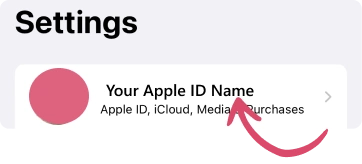

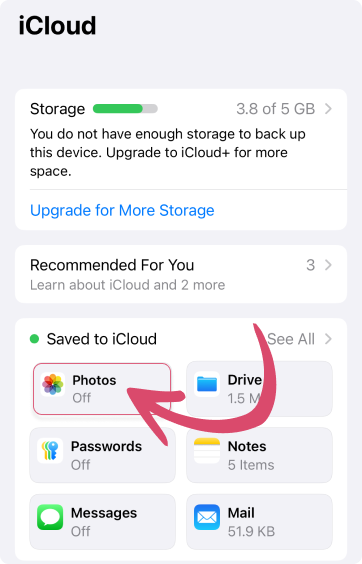
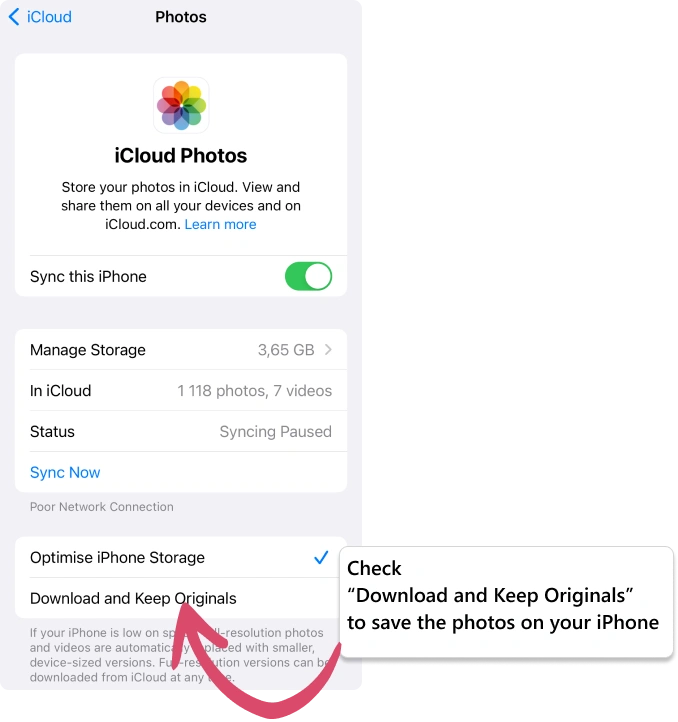
If your photo library is larger than your iPhone’s available storage, use the direct iCloud download option below instead.
Option 2: Download iCloud Photos directly to your PC
If you don’t have enough storage on your iPhone, you can use CopyTrans Cloudly to download photos and videos directly from your iCloud library to your Windows computer.
CopyTrans Cloudly is a separate application from CopyTrans Studio. It is designed specifically for working with iCloud Photos and requires its own license for paid features.
Download your iCloud photo library
Save your iCloud photos and videos directly to your PC or another storage location, without first downloading everything to your iPhone.
Keep your originals
Download original photo and video files available in your iCloud library.
Manage iCloud storage
After verifying your local backup, manage or remove unwanted photos from iCloud when appropriate.
Upload photos from Windows
Upload supported photos and videos from your computer to your iCloud library.
Separate application and license.
Optional: How to turn off iCloud Photos
If you prefer to stop syncing your iPhone photos with iCloud, you can disable iCloud Photos after ensuring that the originals you want to keep are safely downloaded.
Turning off iCloud Photos is optional. It is not required to download originals for CopyTrans Studio.
- Go to Settings > your name > iCloud > Photos.
- Choose Download and Keep Originals, if available, and wait until the downloads have completed.
- Verify that your important photos and videos are available and safely backed up.
- Turn off Sync this iPhone and follow the instructions displayed by iOS.