 CopyTrans Studio

You just took a photo of an important document and now you’re wondering how to convert picture to PDF your iPhone? It should be a simple task, but it’s not. You scroll through the menu, wondering where Apple has hidden this option.
It’s not your fault. There’s no big “Convert to PDF“ button in any prominent place in iOS. The feature exists, but it’s hidden in the Share menu and scattered across different apps depending on what you’re trying to do.
However, converting photos to PDF on iPhone is actually very easy if you know where to look. Whether you’re working with a single image, combining multiple photos into a single document, or need to preserve exact quality for professional use, there’s a built-in method that works. No third-party apps, subscriptions, or compromises on quality required.
This guide covers all practical scenarios, so you can stop searching for settings and just get your PDF. We’ll also show you how to convert photos to PDF on your computer with CopyTrans Studio.
- How to turn a picture into PDF on iPhone: The Print Feature
- How to save photo as PDF on iPhone: with File app
- Convert picture to PDF on PC: CopyTrans Studio
- How to make a photo to PDF: FAQ
How to turn a picture into PDF on iPhone
The Print Feature
This is the method most people are looking for. This feature is not very obvious in the system. It is located in the “Print” menu, which most users associate only with physical printers. At first, this seems illogical. Why click “Print” if you don’t want to print anything?
But here’s what happens behind the scenes: every time you open a print preview, iOS automatically generates a PDF version of the file. Knowing this little trick, the whole process takes less than 10 seconds. No additional apps required. Here’s how to do it:
Open the Photos app on your iPhone. Select the photo you want to convert and then tap the Share icon.
Scroll down and tap Print. You’ll see a print preview screen. Now, use two fingers to zoom in on the preview. The preview will expand to the entire PDF document.
Tap the “Share” icon in the upper right corner again. Select “Save to Files” (or send via email, messages, etc.).
That’s how to convert picture to pdf on iPhone without app.
This method works for both single images and multiple photos. If you select multiple images before opening the Print menu, iOS will automatically combine them into a single PDF file, in the same order you selected them.
This may seem hidden, but it’s actually one of the fastest built-in ways to convert photo to PDF on iPhone.
How to save photo as PDF on iPhone
With Files app
If you prefer a simpler method than the “print trick,” there is another built-in method. The Files app includes a direct “Create PD”” option. This method is especially handy when you already organize your documents into folders or are working with multiple images at once.
Open the Photos app. Select an image (or multiple images) and tap the Share icon.
Select “Save to Files” and choose a folder.
Now go to the Files app:
Open the folder where you saved the images. Tap the three dots in the upper right corner.
Tap “Select,” then select the photos you want to convert.
Tap the three dots again (in the lower right corner) and select “Create PDF.”
iOS will instantly generate a PDF file in the same folder.
Does converting photo to PDF reduce quality?
Generally, no. When using the built-in print function or the Files app, iOS preserves the original image resolution. The photo is simply placed in the PDF file without automatic compression. However, there are a few things to keep in mind:
File size may increase: high-resolution images can create large PDF files. This is normal, it means that all the details are preserved.
File sharing apps may compress PDF files: the conversion itself does not reduce quality, but some messaging apps compress attachments. For best results, send PDF files via email or upload them directly.
Converting HEIC to PDF: if your photo is in HEIC format, your iPhone will convert it to PDF with no visible loss of quality. Compatibility issues usually arise in Windows, not when creating PDFs.
For professional use or printing: always check the quality of the source image, cropping, and lighting. A PDF can only be as clear as the original photo.
In short, iOS does not reduce quality during conversion, but the method of file sharing may matter.
Convert picture to PDF on PC
With CopyTrans Studio
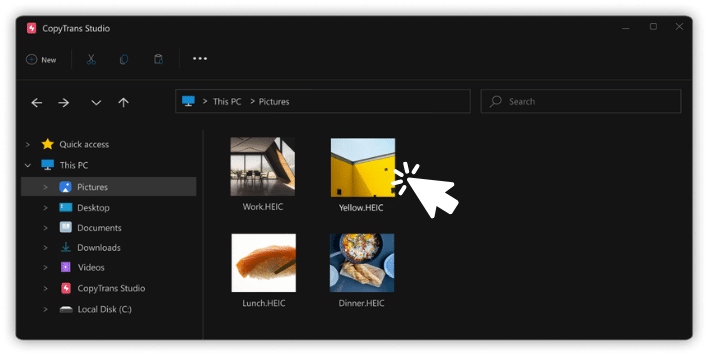
If you often need to convert photos to PDF, especially in batches, or if you want to avoid the quality loss that occurs when using some methods on the iPhone, converting on a computer may be faster and more reliable. CopyTrans Studio offers a simple alternative that works directly with iPhone photos, including HEIC files, which don’t always render well in Windows. The process is simple:
Download and install CopyTrans Studio, where you will find a built-in function to view and convert HEIC photos to PDF.
Download CopyTrans Studio
Select photos you need to convert to PDF.
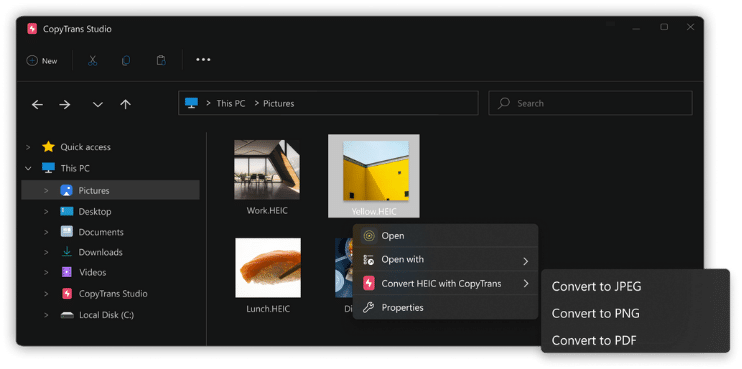
Do a right click on your file or folder, select “Convert HEIC with CopyTrans”, then select the PDF format.
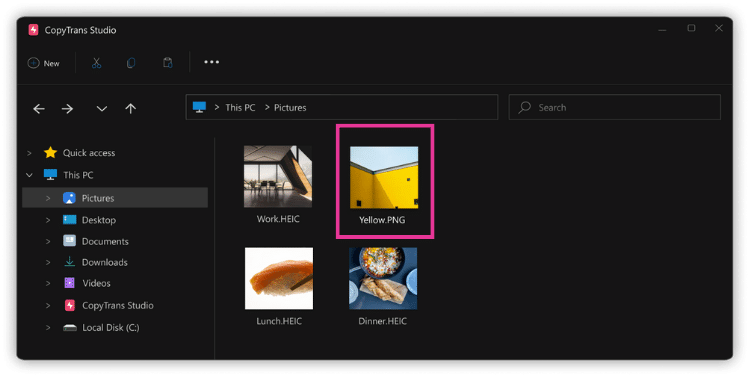
Now you will see PDF files on your PC.
How to make a photo to PDF
FAQ
1. Can I change the page order before creating a PDF file on my iPhone?
Not directly in the Print menu. Pages are displayed in the order in which you select photos. If the order matters, carefully select images before converting. For more control, first save them to the Files app and rename them in order (e.g., 01, 02, 03) before creating the PDF file.
2. Why does my PDF file look different from the original photo?
Most differences are related to cropping or orientation. If your image was rotated or slightly cropped in the Photos app, the PDF file will reflect those changes. Always double check the preview before saving.
3. Can I password protect a PDF file created on my iPhone?
The built-in conversion tools do not offer password protection during creation. However, after saving the PDF file in the Files app, you can use third-party document apps or transfer it to your computer to add encryption.
4. Is metadata removed from photos when converting to PDF?
PDF files do not retain the same metadata structure as photos (e.g., camera settings or location data). If metadata is important to your workflow, save the original image separately.
5. Why can’t I find the “Create PDF” option in “Files”?
This option only appears after you click “Select” and select at least one image. If nothing is selected, the “Create PDF” button will not appear.
6. Is PDF always the best format for scanned documents?
Not necessarily. If you just need to share an image quickly, JPG may be sufficient. PDF is better suited when you need to preserve layout, print accuracy, or formal presentation (forms, contracts, invoices).
How to save photo as PDF on iPhone
Final Thoughts
There is no universal “best” way to convert photo to PDF on iPhone. It all depends on what you are working with and what is most important to you. Use the Files app or the Print to PDF feature.
If you regularly move photos between your iPhone and computer, or if you need to batch process images without uploading them to iCloud, a desktop tool like CopyTrans Studio can streamline your workflow and eliminate quality issues altogether. It’s worth considering if you do this frequently, rather than just occasionally.
After all, iOS provides you with the tools. They’re just not always where you expect them to be. Now that you know where to find them, converting photos to PDF files becomes one less task to tackle every time you need to do it.