 CopyTrans Studio

You open Google Photos to make room, delete some old pictures… and then you notice that they’ve disappeared from the Photos app on your iPhone, too.
That’s happens because Google Photos syncs with your iPhone photo library – when syncing is enabled, you delete from one place, then you delete everywhere. This is handy when you want to have everything in one place, but terrible when you just want to clean up the cloud.
However, you can delete Google Photos without deleting from iPhone. All it takes is a quick tweak of the settings and a little preparation. And before you make any major changes, it’s worth backing up your iPhone photos to your computer. CopyTrans Studio, for example, allows you to do this in full quality without relying on cloud storage. That way, your memories will remain safe, no matter what you delete.
In this guide, I’ll walk you step by step on how to delete photos from Google Photos without deleting from your iPhone.
- Why photos disappear from iPhone when deleted from Google Photos
- How to delete photos Google Photos without deleting from iPhone
- Optimize iPhone Storage
- Delete Google Photos: FAQ
Why photos disappear from iPhone when deleted from Google Photos
If you’ve ever deleted a picture from Google Photos and watched it disappear from your iPhone too, you’ve run into the sync trap. Here’s what’s going on behind the scenes:
How Google Photos sync works: when you have “Backup and Sync” enabled in the Google Photos app, the service is constantly checking your iPhone photo library. Every new photo is uploaded to your Google account, and any changes, including deletions, are mirrored on all devices subscribed to that account. This means that when you delete a photo from Google Photos, it’s also deleted from your iPhone local library.
Connecting with iCloud: things can get even more confusing if you use iCloud Photos. Apple cloud synchronization keeps your photo library identical across all Apple devices connected to your Apple ID. So if Google Photos deletes an image from your iPhone, iCloud sees that as a change and deletes it on all other devices, including your iPad or Mac.
Google Photos has the “Free up space” feature enabled: Google Photos has a “Free up space” feature that automatically removes local copies from your iPhone after you upload them to the cloud. If you’ve used this feature before, some photos may only exist in Google Photos and not locally. When you delete them from Google Photos, they are deleted completely.
How to delete photos Google Photos without deleting from iPhone
The secret to deleting photos from Google Photos without losing them on your iPhone is to first break the synchronization between them. This ensures that changes made to Google Photos won’t affect your iPhone’s local photo library. Follow the following steps carefully:
Step 1: Disable synchronization between Google Photos and iPhone
- Open the Google Photos app on your iPhone
- Tap on your profile icon in the top right corner
- Go to Google Photos settings → Backup and Sync
- Turn off the backup and synchronization feature
By disabling synchronization, you take away Google Photos’ ability to mirror deletions and edits on your iPhone. This is the most important step to protect your local photos.
Step 2: Upload the photos you want to keep locally
Before you delete anything, check if some photos exist only in Google Photos (not saved on iPhone). They usually have a cloud icon with a down arrow on them: open Google Photos → select these photos → tap Download to device.
Uploading these pictures ensures that you have a local copy on your iPhone before deleting them from the cloud.
Step 3: Delete photos from Google Photos
Now that synchronization is disabled and your local copies are safe, you can delete unwanted photos from Google Photos:
- Open Google Photos on your iPhone
- Select the photos you want to delete
- Tap on the trash can icon and confirm the deletion
Since synchronization is disabled, deleting photos here will only remove them from Google’s cloud storage – the Photos app on iPhone will keep its copies intact.
Step 4: Free up your Google Photos storage
Deleting photos sends them to the Google Photos recycle garbage can, where they remain for 30 days before being permanently deleted. To free the storage immediately, follow the steps below:
Go to Library → Trash. Tap Empty Trash to permanently delete photos from Google’s servers.
Transfer iPhone photos to PC
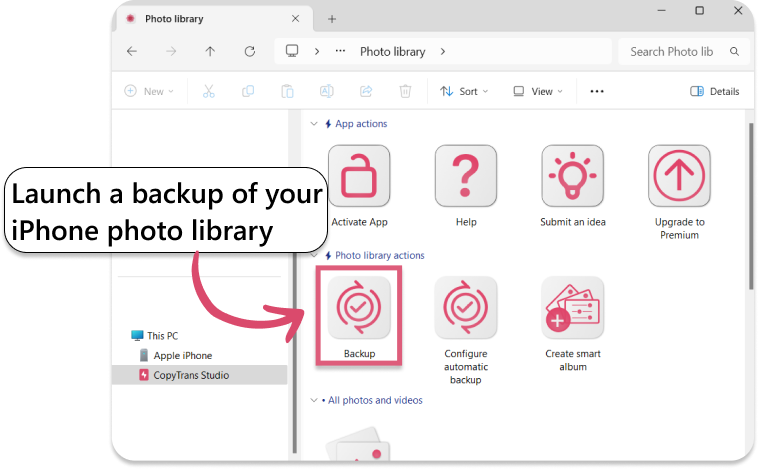
Before making any big changes to your photo libraries, it’s always a good idea to have a reliable backup. I recommend CopyTrans Studio. This powerful tool lets you transfer and back up your iPhone photos to your computer quickly and securely, no cloud required.
- Download and install CopyTrans Studio. Download CopyTrans Studio
- Click on the CopyTrans Studio icon. Open the program.
- Here you see the icon of your iPhone. Choose it and then click on Photo Library.
- Open choose the option “Back up” and all photos will be saved on you PC.


Delete Google Photos without deleting from iPhone
FAQ
1. Will turning off Google Photos sync delete my existing photos?
No, turning off “Back up and sync” only stops future changes from syncing. Your existing photos will stay where they are unless you delete them manually.
2. Can I delete photos from Google Photos while my iPhone is offline?
Yes. If you’re offline, deletions will be queued until your device reconnects to the internet. Just make sure sync is disabled before going online, or changes could still affect your iPhone library.
3. If I use both iCloud and Google Photos, which one deletes first?
Neither deletes “first”, both react instantly when a change happens. If sync is on in both, deleting a photo in Google Photos can trigger iCloud to remove it too.
4. Why do some of my deleted Google Photos still show up on my iPhone?
That happens if the photo was stored locally on your iPhone in addition to the Google Photos cloud. Disabling sync means those local copies remain untouched.
5. Is there a way to tell if a photo is only in Google Photos and not on my iPhone?
Yes, if a photo in Google Photos shows a small cloud icon with a downward arrow, it’s stored in the cloud only. You’ll need to download it to keep a local copy.
Final Thoughts
By simply disabling Google Photos sync, you can delete photos from your Google account without touching your iPhone photo library. It’s a quick solution that will allow you to control where your photos are stored and save you from the unpleasant surprise of discovering that your favorite pictures have disappeared from your phone.
Before you start cleaning, make sure your memories are stored in a safe place. CopyTrans Studio allows you to transfer and store your iPhone photos to your computer in full quality, so you’ll never be dependent on cloud services.
Try CopyTrans Studio today and keep your photos safe and secure without relying on cloud storage.