 CopyTrans Studio

You’re running out of space on your iPhone, so you start deleting photos one by one. At first, it seems like a relief, but then you suddenly realize: “Wait… will they disappear from iCloud too?”
Many iPhone users don’t realize they need to ask this question. When iCloud Photos is enabled, deleting a photo from your iPhone not only clears your local storage, but also typically deletes it from iCloud and all synced devices. Suddenly, what seemed like a simple cleanup can turn into a moment of panic.
In this article, we’ll go over what happens when you delete photos from your iPhone, how it can affect iCloud, and practical ways to keep your memories safe while freeing up space.
- How iCloud photo syncing works
- What happens when you delete photos?
- Avoid losing photos with CopyTrans Studio
How iCloud photo syncing works
To understand what happens when you delete photos, it helps to know how iCloud Photos works. When iCloud Photos is turned on, your iPhone and iCloud are constantly synced. Every photo or video you take is uploaded to iCloud and duplicated on all your Apple devices registered with the same Apple ID.
This also means that changes are duplicated:
Delete a photo on your iPhone → it is deleted from iCloud
Delete a photo in iCloud → it is deleted from your iPhone and all other devices using the same iCloud Photos library
But nothing disappears immediately. Instead, Apple provides you with a “Recently Deleted” folder where deleted photos are stored for 30 days. During this time, you can restore them if you change your mind. However, after 30 days, the photos are permanently deleted from iCloud and all synced devices.
What happens when you delete photos?
What happens to your photos depends entirely on whether iCloud Photos is enabled. Let’s break it down into easy-to-understand scenarios so you know exactly what to expect.
Scenario 1: iCloud Photos ON
When iCloud Photos is turned on, your iPhone and iCloud are constantly syncing. This means:
If you delete a photo on your iPhone, it is instantly deleted from iCloud and any other Apple device connected to the same account.
The deleted photo doesn’t disappear forever right away — it moves to the Recently Deleted folder, where it is stored for 30 days. During this time, you can restore it to your library with a single tap.
After the 30-day period, the photo is automatically and permanently deleted from all devices and from iCloud.
Think of iCloud Photos as a mirror: everything you do on your iPhone — delete, edit, or add — will be reflected in iCloud.
Scenario 2: iCloud Photos OFF
If you have turned off iCloud Photos, your iPhone and iCloud are no longer linked for photo storage. In this case:
Deleting a photo on your iPhone only affects your device. The copy in iCloud remains unchanged.
This setting is useful if you want to keep a copy in iCloud but free up space on your iPhone.
However, it also means that new photos will not automatically upload to iCloud until you turn on syncing.
This option is best if you want to free up space on your iPhone while keeping a backup in the cloud, but be sure to check your settings carefully before deleting everything.
Avoid losing photos
with CopyTrans Studio
As we’ve seen, deleting photos from your iPhone can sometimes mean losing them from iCloud too, and that’s the last thing you want. The safest thing to do is to make a local copy of your photos before deleting anything.
Instead of relying solely on iCloud synchronization, you can transfer your entire iPhone photo library to your PC with just a few clicks with CopyTrans Studio. Your photos are kept in their original quality, perfectly organized, and safely stored on your computer. After backing up, you can delete them from your iPhone without worrying about losing them from iCloud or your own collection.

Why CopyTrans Studio?
- No iCloud required: no internet, no Apple ID hassle, no syncing
- Organize your photos with Smart Albums
- Say goodbye to HEIC photos and convert them to JPEG
- Connect iPhone to PC via Wi-Fi
- Download and install CopyTrans Studio. Download CopyTrans Studio
- Click on the CopyTrans Studio icon. Open the program.
- Choose your iPhone, then Photo Library
- Back up photos by clickung on a backup icon.


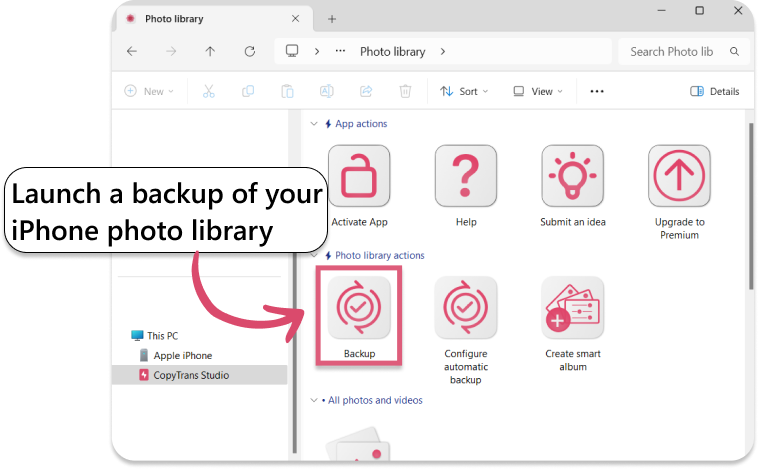
You can also set an automatic backup in CopyTrans Studio.
Conclusion
So, does deleting photos from your iPhone delete them from iCloud? The answer is yes, if iCloud Photos is enabled. In this case, every deletion is synchronized between your iPhone, iCloud, and all connected devices. If iCloud Photos is turned off, the deletion only affects your iPhone, and the copies in iCloud remain unchanged. And don’t forget — the Recently Deleted folder gives you a 30-day safety net before your photos are permanently deleted.
The safest approach is to back up your photos before deleting them. This way, you’ll free up space on your iPhone without risking your iCloud library. With tools like CopyTrans Studio, you can easily move your photos to your computer, preserve their original quality, and ensure they’re safe no matter what happens in iCloud.
Don’t risk losing your memories — explore your iCloud settings and back up before deleting.