 CopyTrans Studio

Your iPhone camera stops working just when you need it most: you see a black screen, the app freezes, crashes, or refuses to focus. Sometimes the flash won’t turn on. Sometimes the camera works in the Camera app, but not in Instagram, WhatsApp, or FaceTime.
So, you’re thinking, “Why is my camera not working on my iPhone”? These problems often come out of nowhere and instantly become a source of stress. Fortunately, in most cases, your iPhone camera isn’t broken. Problems like a non-working iPhone camera, an iPhone camera that won’t focus, or a frozen camera app are usually caused by minor software glitches, overloaded storage, or settings that are quietly interfering with its performance. And yes, they can be fixed.
This guide will walk you through the most common iPhone camera issues and show you how to solve them step by step, without complicated terms or rushing to a repair shop.
- Fix a black screen of iPhone Camera
- The Camera application freezes or crashes
- iPhone Camera not focusing
- Flash or night mode not working
- Camera not working in apps
- Front camera not working on iPhone
- Back up iPhone photos
- Why is my camera not working on my iPhone
iPhone camera not working. Black screen
It happens more often than you think. You open the Camera app… and it just stays black. Not a single button responds. No preview. Nothing.
How to fix:
- Switch between the front and rear cameras: sometimes one of them glitches, and switching back and forth updates the view.
- Force close the app and open it again: swipe from bottom to top (or double-tap the home button) and then swipe the Camera app.
- Restart your iPhone: simple but effective. This clears temporary errors and memory issues.
- Check to see if another app is engaging the camera: maybe you recently opened Instagram or WhatsApp and left them running? If another app is using the camera in the background, the main Camera app may not work.
The Camera application freezes or crashes
If the Camera app opens but then freezes, lags, or closes suddenly, it is likely due to software glitches or low memory.
Try the following steps:
- Update your iPhone to the latest version of iOS: go to Settings > General > Software Update. In these updates, Apple often fixes bugs, including those related to the camera.
- Free up storage space: your iPhone needs room to breathe. If it’s nearly full, the camera may not have enough space to save photos or work properly.
- Reset all settings (but not data): this method helped me once when nothing else worked. Go to Settings > General > Transfer or reset iPhone > Reset > Reset all settings. Don’t worry — this won’t delete your photos or apps, just your settings like Wi-Fi passwords and wallpaper.
iPhone Camera not focusing
Blurry or foggy photos? Before you panic, first do the following:
- Gently clean the camera lens: I once thought my camera was broken, but it turned out to be just a sunscreen stain. Use a soft, lint-free cloth (in a pinch, even a t-shirt is better than nothing).
- Remove the cover: some bulky or misaligned phone cases can interfere with the lens or autofocus system.
- Focus manually: tap the screen where you want to focus. Want to lock it? Hold your finger down for a second or two until AE/AF Lock appears.

Flash or night mode not working
Sometimes you try to take a picture in low light, and the flash refuses to work. Or the night mode just doesn’t show up.
Here’s what might be happening:
- Check your flash settings: make sure it’s not set to “Off.” This can be found in the top left corner (or top right corner on newer iPhone models) when the Camera app is open.
- Don’t use the flash when your phone is hot: iPhone temporarily turns off the flash when it overheats to protect the hardware. If your phone gets hot, let it rest.
- Night mode varies by device: it’s only available on iPhone 11 and later. If you’re using an older model, it simply won’t be available.
Camera not working in apps
This happened to me when I tried to use the camera in the Zoom app, and all I got was a black screen. How do you fix this? Very simple.
- Check the app permissions: go to Settings > Privacy and Security > Camera and make sure the app (e.g. WhatsApp, Instagram, Zoom, etc.) has access.
- Update or reinstall the app: apps sometimes have bugs or compatibility issues, especially after an iOS update. Updating or reinstalling will help restore functionality.
Front camera not working on iPhone
If the front camera is not working on your iPhone, displays a black screen, or does not turn on, the cause is usually a minor software issue.
Try the following steps:
- Restart your iPhone: this often resolves temporary glitches that prevent the front camera from loading.
- Check camera permissions: go to Settings > Privacy and Security > Camera and make sure your apps are allowed to use the camera.
- Close other apps using the camera: FaceTime or social apps may be using the camera in the background. Close all apps and reopen the Camera app.
- Free up storage space and update iOS: insufficient storage space and outdated versions of iOS can cause camera issues. Deleting unused files and installing updates often helps.
If the front camera still doesn’t work in any apps, the issue may be hardware-related, but in most cases, these steps are sufficient.
How to save photos on PC?
Whether your camera problem is just a minor glitch or something more serious, there’s one habit that can save you stress — backing up your photos regularly.
Sometimes when you’re trying to fix something — resetting settings, updating iOS, or even restoring your entire phone — it’s easy to forget that your photos and memories are at risk. And if the camera problem turns out to be a hardware issue, your iPhone may need a full reset or repair. In both cases, it’s best to be reassured.
That’s why I always keep backups of my photos on my computer. I use CopyTrans Studio, a simple tool that lets you transfer photos from your iPhone to your computer in just a few clicks. No messing around with iCloud, no cables getting in the way. Everything is fast, clear, and, most importantly, your photos stay safe no matter what your iPhone is doing.
Even if your camera isn’t working today, at least your photo library will be protected. Repairs can wait, but your memories can’t.
- Download and install CopyTrans Studio. Download CopyTrans Studio
- Click on the CopyTrans Studio icon. Open the program.
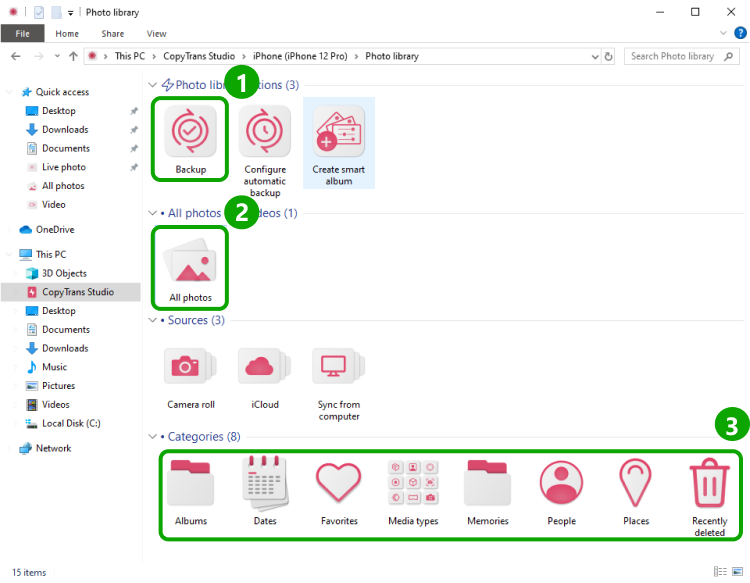
- Here you see the icon of your iPhone. Choose it and then click on Photo Library.
- Open the All Photos folder (option 2 in the screenshot) and choose the photos of the eclipse you made.
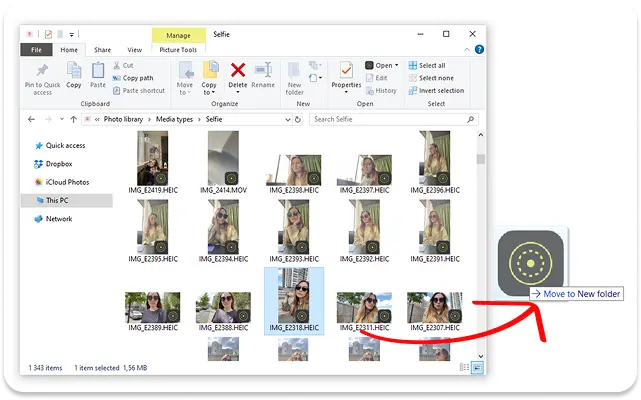
- Now, drag-and-drop photos to your PC.


Why is my camera not working on my iPhone
FAQ
1. My iPhone camera works fine… until I open Instagram. What’s going on?
It’s most likely a permission or app compatibility issue. Go to Settings > Privacy and Security > Camera and see if Instagram has access. If there is, try to update or re-install app — sometimes third-party apps stop synchronizing after updating iOS.
2. Why doesn’t the Camera app open for a long time on iPhone?
If the Camera app takes too long to launch, your phone may be running low on memory or have too many background processes running. Reboot your phone, close unused apps, and check available storage. An iOS update will also help improve performance.
3. Can a case ruin the iPhone camera?
Surprisingly, yes! Some thick or ill-fitting cases (especially magnetic ones) can block the lens or interfere with the autofocus system. Try removing the case and testing the camera again. This may be the easiest solution.
4. Why does my iPhone camera stop working when it’s hot outside?
The iPhone automatically turns off some features, including the flash and sometimes the camera itself, if the device overheats. If you’re out in the sun or using resource-intensive apps, give your phone a break and let it cool down.
Why is my iPhone camera not working
Final Thoughts
When the camera on your iPhone stops working, it’s easy to assume the worst. But in reality, most camera problems boil down to a few common and fixable causes. A black screen, camera app freeze or crash, and iPhone camera not focusing usually indicate a temporary glitch, settings conflict, or limited storage space rather than a broken device.
To sum up, the most effective troubleshooting methods are:
- Restart your iPhone to fix minor software issues
- Check camera permissions and app settings
- Close other apps and free up memory
- Update iOS to fix known bugs
- Check the camera in different apps to identify the problem
- Turn off and on features such as flash or night mode
Before resorting to more drastic measures, it is important to back up your photos from your iPhone. This will allow you to troubleshoot freely without worrying about losing important memories.
If you’re wondering, “Why isn’t my iPhone camera working?” or are experiencing a problem with your iPhone camera not working, start with these steps. In most cases, they are enough to get your camera working again.