 CopyTrans Studio

You open the Photos app, scroll to the video you know you recorded, tap to play… and instead of the video, you get this boring, useless message: “Unable to load video“.
That’s exactly what happened to me last week. I stood there staring at my iPhone, waiting for something to change — a retry button, a sign of life, anything. But no. Just that message. The weirdest part? The thumbnail was there. The date was there. Everything looked normal — except the video wouldn’t open.
After a few tries (and more frustration than I’d care to admit), I figured out why this happens and how to fix it. It turns out that it’s a pretty common problem. Sometimes, it’s about the way the video was synced or saved. Other times, it’s a problem with iCloud, insufficient storage space, or even the format of the video itself.
In this article I will explain:
- What “Unable to load video” means on iPhone
- Common reasons why your iPhone is unable to load videos
- How to fix unable to load video on iPhone
- How to prevent this error
What does “Unable to load video” mean on iPhone?
Let’s break down this message. When your iPhone displays the message “Unable to load video“, it basically means, “Hey, I can see that there should be a video here… but I can’t play it right now”.
This usually happens in the Photos app — you tap on a video, the thumbnail looks normal, maybe even the duration is displayed, but instead of playing, you see a gray screen with an error message. This can also happen in shared albums or when trying to view videos that are stored in iCloud but haven’t been downloaded to your device yet.
It’s important to know that this doesn’t always mean that the video is lost or damaged. Sometimes your iPhone simply doesn’t have access to it at the moment.
Common reasons why your iPhone is unable to load videos
So why does this message appear? It turns out that there are several different reasons why videos simply disappear from your iPhone. Here are the most common ones:
Problems with iCloud storage: this reason is quite common. If you use iCloud Photos, your videos may not be stored on your iPhone. They are stored in the cloud and are streamed or downloaded only when needed. Everything is fine… until your connection becomes unstable or disappears completely.
So if you’re using a slow network, Wi-Fi on a plane, or you’ve run out of data, the video may not load, and your iPhone will simply display this error message. In addition, sometimes iCloud doesn’t sync files properly. The video may be displayed with a thumbnail, but the file itself hasn’t been downloaded yet.
Corrupted video files: videos don’t transfer properly from the PC sometimes. Perhaps the connection was interrupted due to a damaged wire, a glitch, or you disconnected the device too early.
The video was deleted on another device but is still showing up on your iPhone because iCloud hasn’t updated yet. Either way, the file is corrupted or missing, and your iPhone simply can’t open it.
Unsupported video format: some video files simply won’t play on an iPhone. If you received a video from a camera, Android phone, or PC, the format may be incompatible with your iPhone. Files such as .AVI, .MKV, or even some .MP4 files can cause problems. Your iPhone sees the file but doesn’t know how to play it.
Not enough space on your iPhone: if your iPhone is almost full, it may not have enough space to open the video (even if it’s stored in iCloud). Playing a video requires some temporary space, and if there isn’t any, the video simply won’t load. This is one of those hidden problems that often go unnoticed.
System errors or crashes: sometimes the problem isn’t with the video, but with the app or the system. An iOS update can cause a small bug, or the Photos app can freeze. When this happens, even regular videos stop working.
How to fix unable to load video on iPhone
So, now let’s move on to what will really help you play videos again. Try the following steps one by one (no technical knowledge is required):
Step 1: Check your Internet connection
If your videos are stored in iCloud, a stable connection is a must. Try switching from mobile data to Wi-Fi (or vice versa) or simply reconnect. If the network is too slow, your iPhone may give up trying to download the video.Step 2: Make sure that iCloud Photos is turned on
Go to Settings → Photos → iCloud Photos and make sure it is turned on. If it is turned off, your iPhone will not be able to download missing content from the cloud, even if the thumbnails are still displayed. You can try turning this feature off and on again to force a sync update.Step 3: Force download the video
Sometimes there is a small download icon on the video, or if you press and hold, a “Download” option may appear. Try this, especially if the video has not yet been downloaded from iCloud.Step 4: Free up iPhone storage
Go to Settings → General → iPhone Storage to see how much space you have left. If your storage is nearly full, your iPhone may not download or play large video files. Try deleting unused apps, old podcasts, or duplicate photos. A little free space can go a long way.Step 5: Restart your iPhone or force close the Photos app
Yes, the good old restart. Sometimes, you simply need to close and reopen the Photos app or perform a full restart. It is enough to get everything working again. Swipe up from the bottom of the screen (or double-click the Home button), find the Photos app, and swipe it away. Then try again.Step 6: Check file format compatibility
The iPhone supports .MOV, .MP4, and HEVC/H.264 formats by default. If your video was shot on an Android phone, dashcam, or editing software, it may be in a format that iOS does not recognize. You can try converting it to a supported format using apps such as VLC or HandBrake, or upload it to iCloud via your Mac or PC, which sometimes triggers automatic conversion.
Save videos on PC
After repeatedly encountering the “Unable to load video” message, I looked for a more reliable way to back up my videos before a new problem occurs. That’s when I started using CopyTrans Studio.
It lets you back up all your iPhone videos (including Live Photos and slow-motion replays) directly to your PC – no iCloud required and no risk of file loss during syncing. You can even see the exact date and size of each video before transferring.
- Download and install CopyTrans Studio. Download CopyTrans Studio
- Click on the CopyTrans Studio icon. Open the program.
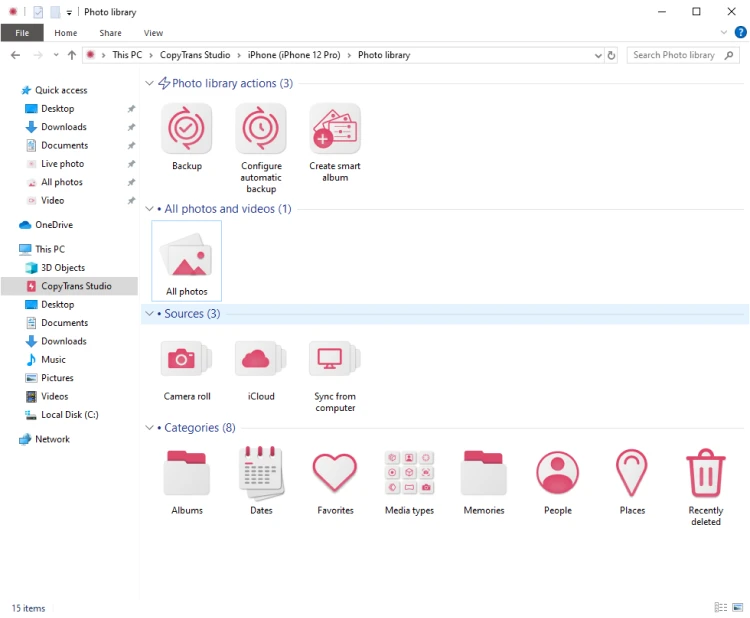
- Connect your device to your PC. Double-click on it to open. You now see the main window and all the options it offers.
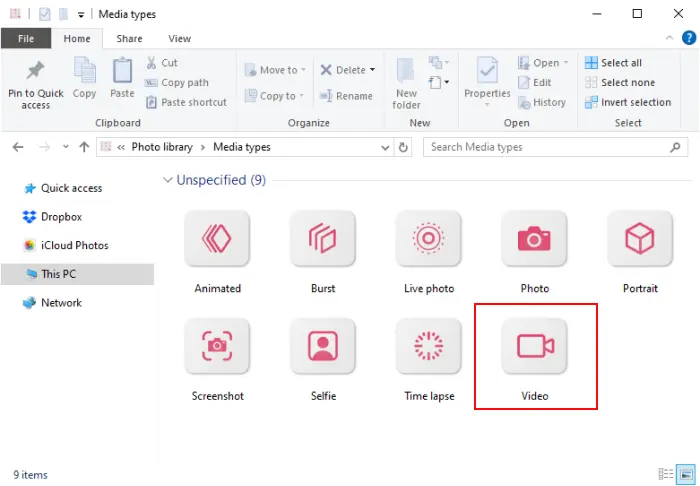
- Select the Media Types option and then choose the Video folder.
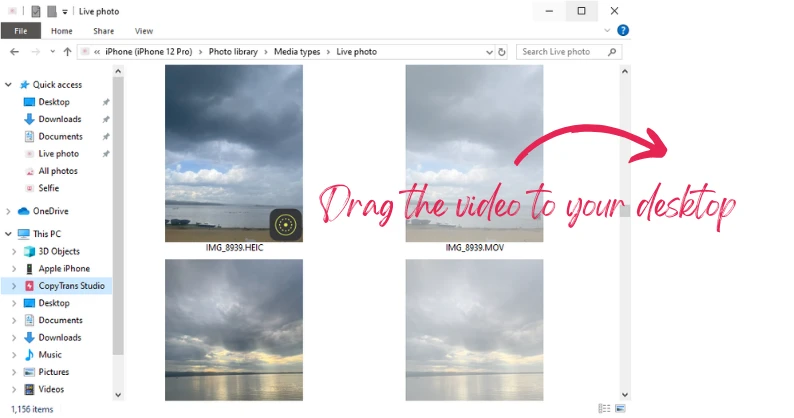
- You can drag and drop the videos you need from the folder to your PC.

How to prevent “Load video on iPhone” error
Once the problem has been resolved, the next question arises: “How can we prevent this situation from happening again?” The good news is that most of these errors can be avoided if you follow a few simple rules.
Sync iCloud via Wi-Fi: if you use iCloud Photos, make sure your iPhone regularly connects to a stable Wi-Fi network. This will ensure that your videos are fully synced and available when you need them, rather than being half-downloaded or stuck in limbo.
Don’t interrupt file transfers: whether you’re moving videos between devices or syncing with iCloud, wait for the transfer to complete before disconnecting or closing apps. Interrupting the transfer often results in file damage or corruption — and that’s when the “Unable to download video” message appears. Wait for the process to complete, even if it seems slow.
Back up your videos to a PC or external drive: if your videos are important to you, don’t rely solely on your phone. Use tools such as CopyTrans Studio or another preferred method to regularly save your videos to your computer or an external hard drive. That way, even if something goes wrong with iCloud or your iPhone storage, your memories will be safe elsewhere.
Use iPhone-compatible formats: if you’re importing videos from other devices (such as cameras or Android phones), try to use formats that the iPhone can easily handle, such as .MP4 or .MOV. Avoid .AVI or .MKV formats, or use a converter before transferring them. It’s a small step that can save you a lot of playback problems in the future.
Unable to load video iPhone
FAQ
1. Why won’t videos load on my iPhone, but play fine on other devices?
This usually indicates an iPhone-specific setting rather than a defective video. iOS may be restricting playback due to low data usage mode, background restrictions, or iCloud synchronization rules. Another common reason is that the video codec is supported elsewhere but cannot be fully processed by the current iOS version or app.
2. Could iCloud be the reason why my video won’t load even though it’s on my iPhone?
Yes, and this confuses many people. If iCloud Photos is enabled with “Optimize iPhone Storage,” the video may only exist as a preview on your device. If your internet connection is slow or unstable, iOS may not be able to download the full file, so the video simply won’t load.
3. Why does the video load over Wi-Fi but not over cellular data?
This often means that iOS is actively protecting your data plan. Features such as Low Data Usage mode or restrictions on individual apps can block video streaming or downloading without displaying a clear warning. Your phone isn’t broken, it’s just being overly cautious.
4. Could it be that the video itself is fine, but the app is the problem?
Absolutely. Some apps cache video files poorly or stop working after an update. If videos load in Safari or another app but not in the original app, the problem is likely with the local cache or the app’s permissions—not with the video and not with your iPhone.
5. Why do older videos load, but newer ones don’t?
Newer videos are often recorded in HEVC/H.265 or higher resolutions. If your iPhone has limited storage space, struggles with background processes, or is running an older version of iOS, it may not be able to process newer formats smoothly even if older clips work without any problems.
6. If I delete the video that won’t load, will it disappear everywhere?
Possibly. If iCloud Photos is enabled, deleting a video on your iPhone will also delete the video from iCloud and all synced devices. That’s why it’s important to check where the video is actually stored before deleting it—otherwise, a “simple solution” can lead to permanent loss.
Unable to load videos
Final Thoughts
If your iPhone displays the error message “Unable to load videos“, this does not always mean that the video is damaged or lost. In most cases, the problem is related to how iOS manages storage, iCloud synchronization, or network restrictions in the background. If a video has not been completely downloaded to your device, the iPhone simply cannot play it even if it appears to be there.
Before you delete anything or assume the worst, check where your videos are actually stored, whether iCloud Photos is enabled, and whether your internet connection or data settings are restricting downloads. These small details are often the real reason why an iPhone video won’t load.
Once you understand what’s blocking playback, you can fix the problem much more confidently and avoid accidentally losing videos. Taking a few minutes to check your storage, sync, and access settings can save you hours of frustration and ensure your videos remain available when you need them.