 CopyTrans Studio

You open a video on your iPad, press play, but instead of enjoying the viewing experience, you’re staring at a frozen screen or an endless loading circle. Sometimes the app crashes, sometimes nothing happens. It’s a small thing, but it can really ruin the moment, whether you’re trying to relax or watch something important.
There are several reasons why videos won’t play on your iPad. You may have Wi-Fi issues, the app may need an update, or iOS itself may be lagging. Some videos are simply not supported by the iPad. And then there’s the storage issue — when you run out of space, playback problems are inevitable.
Fortunately, these problems are usually easy to fix. In this guide, I’ll walk you through the most common causes and fixes that actually work: from quick checks you can do in seconds to more in-depth troubleshooting steps if the problem persists. Everything is explained clearly, so by the end of the guide, you’ll know exactly how to get your videos playing again.
Video not playing on your iPad?
Common reasons why videos won’t play on your iPad:
Before attempting to fix the problem, it’s helpful to understand its possible causes:
Outdated version of iOS or apps
If your iPad or video app is out of date, videos may not load or the app might crash. Updating iOS and your apps usually fixes this.Poor internet connection
Streaming videos needs a stable connection. Weak Wi-Fi or mobile data can make videos buffer or fail to load. Switching to a different network usually fixes this quickly.Browser cache issues (Safari/Chrome)
Old cookies and cached files can interfere with video playback. Clearing your browser cache removes these temporary files, allowing videos to load properly.Corrupted or unsupported video file format
Some formats, such as MKV, AVI, or WMV, are not supported on the iPad. When you try to play these files, they may not open at all. This problem can usually be solved by converting the video to MP4 or MOV format.Insufficient storage space or RAM limitations
Insufficient storage space or memory can slow down your iPad and prevent video playback. Freeing up space improves overall performance.Settings restrictions
Parental controls or screen time restrictions may block certain apps or websites, which can cause videos to stop playing unexpectedly.
Quick fixes to try first
These simple steps often resolve most playback issues in minutes:
Restart your iPad: hold down the power button, slide the slider to turn off the device, wait 10–15 seconds, and turn it back on. Restarting clears temporary glitches and refreshes the memory.
Check your Wi-Fi or cellular data: go to Settings > Wi-Fi and make sure you’re connected. If your network is slow or unstable, try switching to a different Wi-Fi network or cellular data to test.
Close and reopen the video viewing app or browser: swipe up from the bottom of the screen to close the app completely, then reopen it. Resetting the app session often fixes glitches and playback errors.
Free up space on your iPad: go to Settings > General > iPad Storage. Delete unused apps, move large files, or delete old downloads. Keeping at least 10-15% of your disk space free helps ensure smooth video playback.
Reset network settings: go to Settings > General > Transfer or Reset iPad > Reset > Reset Network Settings. This deletes saved Wi-Fi passwords and network configurations, which may resolve hidden connection issues.
Reset all settings (without deleting data): in Settings > General > Transfer or Reset iPad > Reset > Reset All Settings, your preferences and settings will revert to default values, but your files and apps will remain safe. This often helps if a system glitch is blocking video playback.
Factory reset (last resort): if nothing else works, you can erase your iPad and set it up as new. Go to Settings > General > Transfer or Reset iPad > Erase All Content and Settings. Be sure to back up your data first, as this will erase everything.
Keep videos save with CopyTrans Studio
It never hurts to keep a backup copy of your videos, as you never know when an update, glitch, or simple formatting issue might prevent videos from playing on your iPad.
With CopyTrans Studio, you can easily save and organize your iPad videos on your PC. The application works directly in Windows Explorer, so there’s no need to use iTunes, just drag and drop.
Backing up your videos to your computer not only keeps them safe, but also frees up space on your iPad, which can help prevent playback issues in the future. So even if a video won’t play on your iPad, you’ll still have a safe copy on your PC, ready to access at any time.
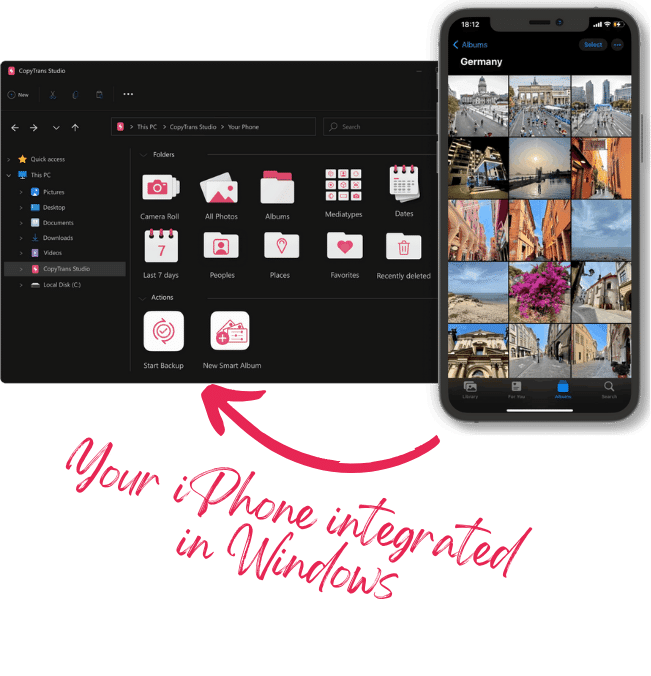
With CopyTrans Studio, you can:
- Transfer photos and videos in one click
- Access your iPad Photos as if they were stored on a flash drive
- View videos directly from iPhone with CopyTrans Viewer
- Connect iPhone to PC via Wi-Fi
- Download and install CopyTrans Studio. Download CopyTrans Studio
- Click on the CopyTrans Studio icon. Open the program.
- Choose your iPhone, then Photo Library
- In the main menu, find the video folder and drag-and-drop it to your PC.


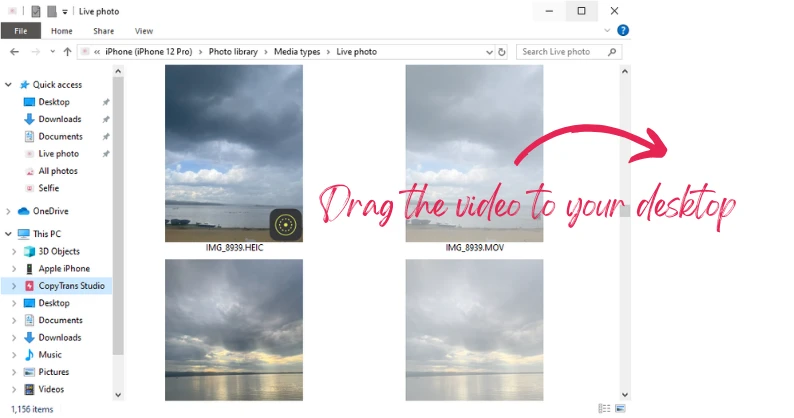
With CopyTrans Studio, you can also make a full backup of your whole Photo Library in a few clicks.
iPad videos won’t play
Final Thoughts
When videos won’t play on your iPad, it can be a big problem, but fixing it is usually easier than you think. Start by checking your internet connection, updating iOS and apps, freeing up disk space, or resetting some settings if necessary. Each step is simple, and by following them one by one, you’ll make it much easier to solve the problem.
It’s also a good idea to back up your videos to your computer using CopyTrans Studio. This will keep your files safe and free up space on your iPad, making playback smoother in the future.
Don’t let a frozen screen prevent you from enjoying your videos. Try these troubleshooting methods, protect your media files, and get back to watching your favorite clips without interruption.