 CopyTrans Studio

Your iPhone is running out of storage space. You open the Photos app, start selecting a few photos you no longer need on your phone and then you stop. After all, deleting photos on an iPhone is rarely a simple task. One tap, and the photo disappears not only from your device. It disappears from iCloud too.
So you hesitate. Is this really how it has to be? And more importantly, is there a way to delete photos only from your iPhone without affecting what’s stored in iCloud?
Yes, but only if you proceed with caution. iCloud Photos treats all your devices as one shared library, which means one wrong move could delete photos everywhere. In this article, we’ll show you how to free up space on your iPhone while keeping your photos in iCloud, and what to watch out for so nothing gets deleted accidentally.
- Why deleting photos from your iPhone deletes them from iCloud?
- Can you delete photos from your iPhone but keep them in iCloud?
- Delete photos from iPhone but not iCloud
- Save iPhone photos on PC
Why deleting photos from your iPhone deletes them from iCloud?
To understand why deleting a photo from your iPhone causes it to disappear everywhere, you first need to understand how iCloud Photos works. Unlike a simple backup, iCloud Photos syncs all your devices. This means that every change you make on one device, adding, editing, or deleting a photo, is reflected on all devices connected to the same iCloud account.
How iCloud Photos works?
iCloud Photos is designed to give you access to your entire photo library from any Apple device. When you take a photo on your iPhone, it automatically uploads to iCloud. Similarly, if you edit or delete a photo, that change is synced to your iPad, Mac, and iCloud.com. The system works seamlessly, but that also means that a single deletion action is not local, it’s global.
Synchronization and backup: a critical difference
One common misconception is that iCloud Photos works like traditional backup. With backup, deleting a file on your device does not affect the backup. iCloud Photos doesn’t have a separate copy — it’s a single library stored in the cloud and mirrored everywhere. Delete a photo, and it disappears immediately from all synced devices.
Why Apple treats all devices as “one library”?
Apple’s approach simplifies access: your photos look the same on all devices, and you never have to manually move or restore files. The downside is that deletion is permanent on all devices unless you take precautions. Understanding this behavior is the first step toward safely managing your photos and freeing up iPhone storage without losing data in iCloud.
Can you delete photos from your iPhone but keep them in iCloud?
The short answer is yes, but only in certain cases. For most people, deleting a photo from their iPhone also deletes it from iCloud. This is not a bug. It’s how Apple designed the system to work. Here’s what works, what doesn’t, and why it causes so much confusion.
What works?
You can delete photos from your iPhone and keep them in iCloud only if you first turn off iCloud Photos on that iPhone.
With this setting:
- iCloud keeps your entire photo library
- Your iPhone becomes a separate local library
- Deleting photos from your iPhone only affects the device, not iCloud
This approach is often used when you want to free up space on your iPhone but still keep everything safe online or accessible from another device.
What doesn’t work?
If iCloud Photos is turned on, you can’t selectively delete photos from just your iPhone.
In this case:
- Your iPhone and iCloud are fully synced
- Deleting a photo on your iPhone deletes it everywhere
- There is no “Delete from iPhone Only” button
Many users expect iCloud to work like a traditional backup, where deleting files locally does not affect the cloud. That’s exactly where the problem lies.
Why Apple doesn’t make this obvious?
Apple views iCloud Photos as a single shared photo library, rather than as storage separate from your iPhone. Each connected device simply views and edits the same collection.
From Apple’s perspective:
- One action = one result across all devices
- Synchronization prevents duplicates and inconsistencies in libraries
- Simplicity takes precedence over detailed control
The downside is that this logic is not clearly explained in the Photos app. Therefore, when users try to free up space, they often discover — too late — that their photos have disappeared from iCloud as well.
Understanding this difference is crucial. Once you know whether your iPhone syncs with iCloud or acts as a separate library, you can take the right steps before deleting anything.
Delete photos from iPhone but not iCloud
Method 1: Disable iCloud Photos on iPhone
The safest built-in method
This is the easiest option if your goal is to delete photos from your iPhone while keeping everything in iCloud. The main thing is to prevent your iPhone from syncing changes to your photos before deleting anything. Here is how to do it:
Open Settings on your iPhone. Tap your Apple ID at the top.
Go to iCloud → Photos. Turn off iCloud Photos.
When prompted, select “Delete from iPhone.”
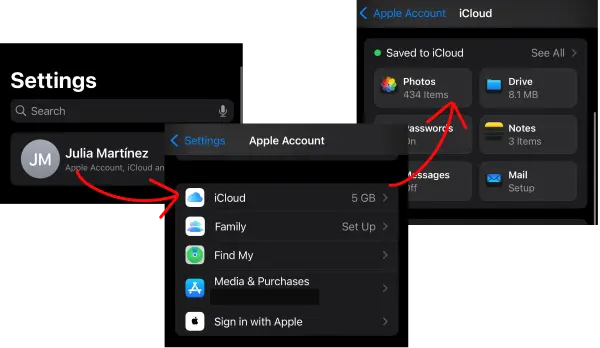
At this point, your iPhone is no longer connected to your iCloud photo library. What happens to your photos after that?
After turning off iCloud Photos and selecting “Delete from iPhone”:
Your photos remain safe in iCloud
They are deleted from your iPhone’s local storage
You can still access them on iCloud.com and on any other device where iCloud Photos is enabled
Nothing is deleted from iCloud. You are simply removing the local copies from your phone.
Common Mistakes to Avoid
This method is safe, but only if you pay attention to the prompts.
Choosing “Download and Keep Originals”: this does the opposite of what you want. It keeps photos on your iPhone and continues using storage.
Turning iCloud Photos back on too early: if you re-enable iCloud Photos before you’re done cleaning up, your iPhone may re-download photos or sync deletions back to iCloud.
NOTE: if you are unsure, it is best to leave iCloud Photos turned off until you are sure that everything is stored where you want it to be.
Method 2: Keep iCloud Photos On, but Export Photos First
Recommended
For many people, turning iCloud Photos on and off is like walking on thin ice. One wrong move, and photos may start reappearing, syncing, or behaving unpredictably, especially if the library is large. That’s why exporting photos is often a more stable option.
Why this approach works better?
Instead of changing your iCloud settings and hoping everything syncs as you expect, this method gives you control before deleting anything:
- iCloud Photos remains turned on
- You create a complete, independent copy of your photos outside of iCloud
- You only delete photos from your iPhone after confirming that they are safely stored elsewhere
Once your photos are outside the iCloud ecosystem, deleting them from your iPhone becomes a conscious decision rather than a gamble.
How this process works in practice?
Transfer photos from your iPhone to your computer
Open the files and make sure everything is in place
Delete the photos from your iPhone to free up space
Since the photos are already stored on your computer, iCloud syncing no longer holds any surprises. You don’t have to rely on background processes or settings — you know exactly where your photos are.
Save photos on PC with CopyTrans Studio
If your goal is to delete photos from your iPhone while keeping them in iCloud, it’s important to secure a local copy first. Use CopyTrans Studio that makes it possible to transfer photos from an iPhone directly to a PC and store them locally, without relying on iCloud syncing or waiting for it to complete.
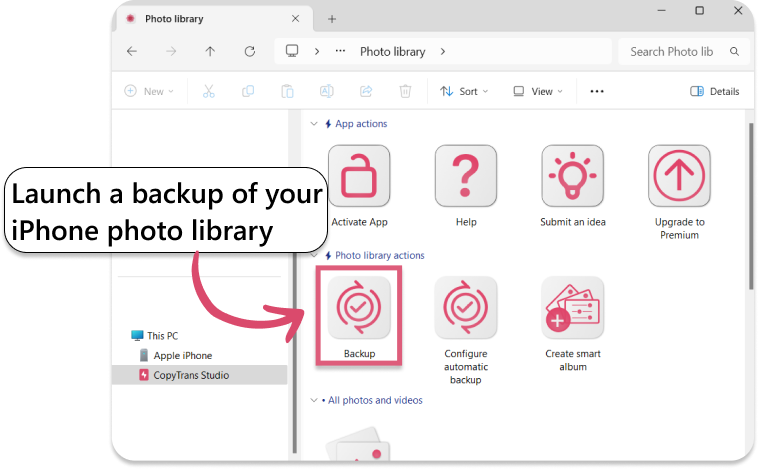
- Download and install CopyTrans Studio. Download CopyTrans Studio
- Click on the CopyTrans Studio icon. Open the program.
- Here you see the icon of your iPhone. Choose it and then click on Photo Library.
- Open choose the option “Back up” and all photos will be saved on you PC.


Delete photos from iPhone, save in iCloud
Final Thoughts
Deleting photos on your iPhone can seem risky. When iCloud Photos is enabled, one wrong tap can affect more than just your phone. So it’s normal to feel hesitant which is why it’s important to understand how syncing works.
The key to freeing up space without losing memories is to first decide where your photos should be stored. Whether it’s turning off iCloud Photos on your iPhone or save your images to PC, taking the right steps puts you in control.
Once you start consciously managing your storage, deleting photos will no longer feel like a gamble. You’ll be able to free up space, store photos exactly where you want them, and finally know what will stay and what will go.