 CopyTrans Studio

Photos from your iPhone continue to upload to Google Photos even after you’ve turned off syncing. This usually happens when Google Photos still has access to your camera roll, causing images to be automatically backed up and taking up space in your Google account.
To fix this, you need to disable Google Photos on your iPhone and prevent the app from accessing or syncing your photos. This will ensure that your images remain private and are stored only on your device or in your chosen backup location, rather than being automatically uploaded to the cloud.
In this article, you’ll find a clear step-by-step guide on how to disable Google Photos syncing with your iPhone, how to disable Google Photos access in your iPhone settings, and how to completely disable Google Photos syncing with your iPhone account.
- How to unlink Google Photos from iPhone?
- Save iPhone photos to PC
- How to disconnect Google Photos from iPhone: FAQ
Why unsync Google Photos from iPhone
At first glance, Google Photos seems like a convenient way to automatically back up your photo. But over time, many iPhone users realize that it’s not always the best option. Disabling Google Photos syncing can help you avoid several common problems:
Limited storage space: every photo you upload takes up space in your Google account. Once you reach the 15 GB limit shared between Drive, Gmail, and Photos, backups will stop or you’ll have to start paying for additional storage space.
Privacy concerns: some users prefer not to store personal photos in the cloud, especially if they contain sensitive moments or family events.
Duplicate and mixed libraries: if you use both iCloud and Google Photos, your photos may appear in multiple places, making it difficult to know which copy is the most current.
Unplanned automatic uploads: even after disabling certain settings, Google Photos may still display your local images, creating confusion about what is actually stored online.
Whether you want to protect your privacy, free up space in the cloud, or better organize your photo library, disabling Google Photos synchronization with your iPhone will give you back control over your files.
How to unlink Google Photos from iPhone
Turn off backup and sync in Google Photos
The first and most important step to turn off Google Photos sync with your iPhone is to turn off backup and sync. This setting controls whether the app automatically uploads new photos from your device to the cloud. Follow these steps:
Open the Google Photos app on your iPhone. Tap your profile photo in the upper right corner.
Select “Photo Settings” → “Backup and Sync”.
Turn off the “Backup and Sync” feature.
Once disabled, Google Photos will stop uploading new images from your iPhone. Existing photos in your Google account will remain safe and will not be deleted.
NOTE: disabling the “Backup and Sync” feature stops future uploads, but the app may still have permission to access your iPhone’s photos. To completely prevent syncing, the next step is to revoke that access.
Revoke Google Photos access to your iPhone photos
Even if synchronization is disabled, Google Photos can still access your camera roll unless you remove the permissions. By revoking access, you ensure that the app cannot upload or display new images from your device.
Open the Settings app on your iPhone. Go to Privacy and Security → Photos.
Find “Google Photos” and tap on it.
Select “None” (or “Selected Photos” if you want to allow limited access).
NOTE: after this step, Google Photos will be completely disconnected from your iPhone library. But what about the photos that have already been uploaded? If you want to start fresh, you can remove them next.
Delete photos that have already been backed up
If you want to remove photos that are already stored in your Google Photos account, you can do so manually. This step is optional and useful if you want to free up storage space in the cloud or protect your privacy.
Go to photos.google.com on a computer. Select the images or albums you want to remove.
Click the trash can icon → Move to trash.
Empty the trash to permanently delete them.
NOTE: deleting photos from Google Photos does not affect the copies still on your iPhone, unless you choose to remove those as well.
Save iPhone photos to PC
WIth CopyTrans Studio
After disconnecting Google Photos from your iPhone, you will probably still need a secure place to store your photos. Cloud storage can be convenient, but it often comes with privacy risks, limited free space, and the constant need for an internet connection. That’s why many users prefer local backup, which doesn’t rely on Google’s servers.
With CopyTrans Studio, you can easily transfer, manage, and back up photos from your iPhone directly to your computer. The program allows you to organize your photo library and ensure complete privacy, giving you full control over what stays on your device and what is stored on your computer.
Download and install CopyTrans Studio.
Download CopyTrans Studio- Click on the CopyTrans Studio icon. Open the program.
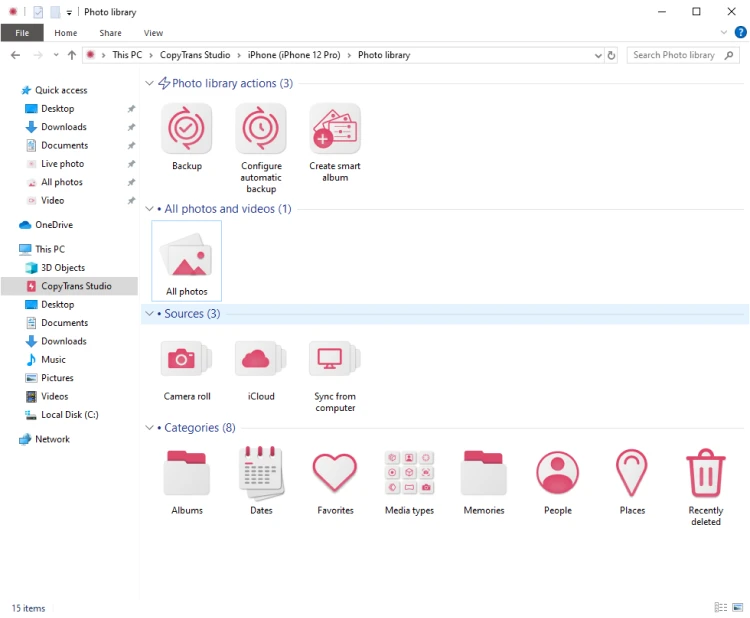
Now choose your iPhone and click on Photo Library.
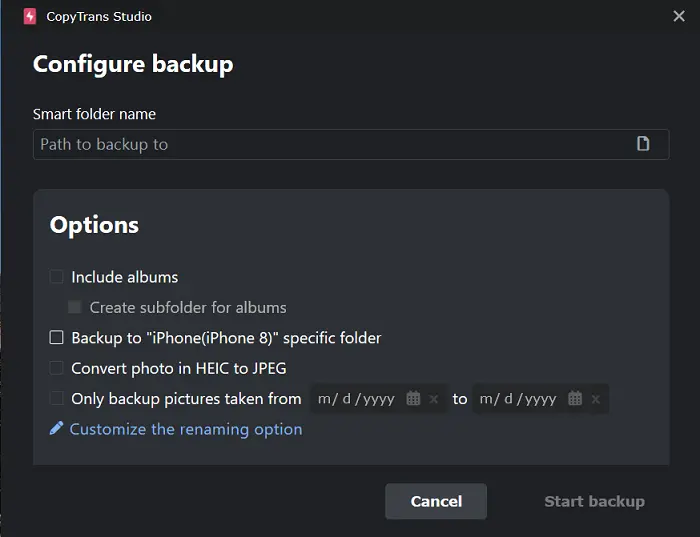
Now choose the option “Backup”.
Set up the options for your backup and enjoy all your photos saved on PC.
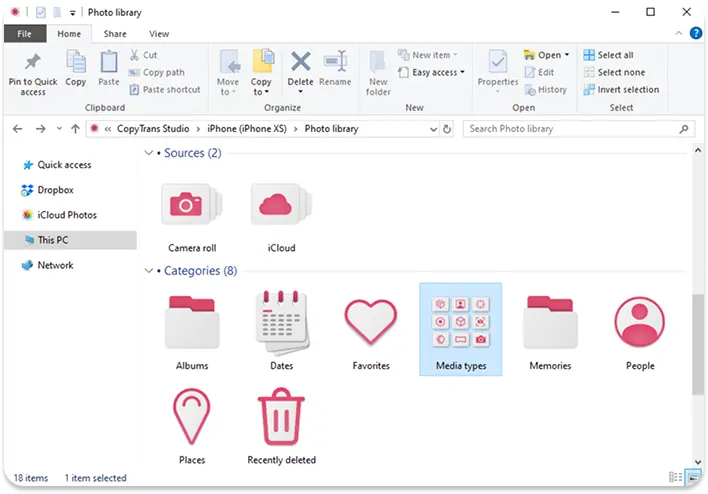
- You can also drag-and-drop only photos of you choice. For example, different types of photos of your iPhone.


How to disconnect Google Photos from iPhone
FAQ
1. Why are my iPhone photos still showing up in Google Photos after I turned off syncing?
Sometimes Google Photos continues to display your images because it still has permission to access your camera roll. Even if syncing is turned off, the app can display photos stored on your device until you remove its access in your iPhone settings.
2. If I delete Google Photos from my iPhone, will my photos disappear from Google cloud storage?
No. Deleting the app only removes it from your phone. Your photo backups remain in your Google account and are accessible at any time at photos.google.com.
3. Can I prevent Google Photos from uploading new photos but keep backups of old ones?
Yes. You can turn off “Backup and Sync” to prevent new photos from uploading while keeping existing photos in Google Photos.
4. What is the difference between turning off syncing and completely turning off Google Photos?
Turning off syncing only stops automatic uploads. Turning off removes Google Photos access to your iPhone library and logs out of your Google account, completely severing the connection.
5. Does turning off Google Photos syncing affect iCloud Photos?
No. Google Photos and iCloud Photos operate independently of each other. Turning off Google Photos syncing will not change your iCloud settings or your iPhone backups.
6. How can I safely back up photos from my iPhone after turning off Google Photos syncing?
You can transfer photos directly to your computer or an external drive to have complete control over your library. Tools such as CopyTrans Studio allow you to move and organize photos from your iPhone offline, without relying on cloud storage.
Unsync Google Photos from iPhone
Final Thoughts
Disabling Google Photos synchronization with your iPhonez is an easy way to stop automatic uploads and regain control over your photo storage. By turning off Backup and Sync, adjusting app permissions, or removing your Google account from the app, you can completely disable Google Photos on your iPhone and keep your images private.
If you still want to have a reliable backup without relying on the cloud, consider saving your photos directly to your computer or an external drive. This way, your photos will remain organized, accessible, and completely under your control.
After following these steps, Google Photos will no longer sync with your iPhone, and your photo library will stay exactly where you want it.