 CopyTrans Studio

At some point, most of us have faced this problem with our iPhones: you’re taking photos, everything’s fine, and then suddenly you get a “iPhone Storage full” message. There’s no room for new memories until you start deleting old ones.
I’ve been there myself: scrolling through thousands of photos, trying to decide which ones I can live without. And honestly? It’s exhausting. Photos aren’t just files; they’re little time capsules. Choosing which ones to delete is like throwing away pieces of your life.
The good news is, you don’t have to choose. In this guide, I’ll show you how to find out what’s taking up your iPhone storage, how to clear it without losing your favorite photos, and how CopyTrans Studio can help you keep all your photos safe, organized, and ready to view without overloading your phone.
- How to check iPhone photo storage
- How to clear photo storage on iPhone
- Optimize iPhone Storage
- iPhone storage: FAQ
How to check iPhone photo storage
Before you start cleaning up your iPhone, it’s a good idea to know what exactly is taking up space, and how much of it is photos and videos. Apple doesn’t make it too obvious, but it only takes a minute to check.
The easiest way to do this is through your iPhone settings:
- Go to Settings → General → iPhone Storage
- Now wait a few seconds, your iPhone will calculate the storage allocation
- Find the Photos section in the list
Here, you’ll see how much space your photos, videos, and even recently deleted files are taking up. Sometimes iOS will also prompt you to review large attachments or turn on iCloud optimization.
How to clear photo storage on iPhone
Now that you’ve seen what’s taking up space, it’s time to clear it out without losing your favorite photos. The idea isn’t to delete everything, but to choose wisely what won’t hurt.
Here’s how to do it step by step:
1. Remove Unnecessary Photos
Let’s start with the easiest ones, the ones you probably won’t miss: blurry or random shots, random screenshots, five nearly identical selfies or group photos. These photos can quickly pile up. A quick way to deal with them is:
to open the Photos app, go to Albums, and look at categories like Screenshots, Selfies, or Bursts. From there, you can review and clear out the folder in just a few minutes.Don’t forget: after deleting, go to Albums → Recently Deleted and empty that folder, too. Until you do, these photos will take up space for 30 days!
2. Offload Large Videos
Videos often take up the most space, especially slow-motion, time-lapse, or 4K clips. iOS can help you find them:
Go to Settings → General → iPhone Storage. Tap Photos and look for hints under View Large Attachments or Large Files. You’ll see which videos are taking up the most space, so you can decide which ones to delete or move.Tip: if you want to keep a video in full quality but don’t need it on your phone, you can use CopyTrans Studio to safely transfer it to your PC before deleting it from your iPhone.
3. Turn on iCloud Photo Optimization
If you’re not ready to delete anything just yet, there’s a quick way to save space without deleting photos:
Go to Settings → Photos and make sure iCloud Photos is turned on. Then turn on Optimize iPhone Storage. This will replace the full-resolution images and videos on your phone with smaller versions, while the originals remain in iCloud. It’s an easy way to free up space, especially if you have a large photo library.Note: this is not the same as a backup. If you disable iCloud Photos or have problems with your account, you may lose access. So I always recommend keeping an extra local copy in a safe place.
Optimize iPhone Storage
with CopyTrans Studio
Cleaning up your iPhone space is one thing, but keeping your photo archive organized and safe is another. This is where CopyTrans Studio really helps. It’s a simple program that will help you transfer photos from iPhone to PC without iCloud or difficult apps. Whether you want to free up space, preserve the original quality, or finally tidy up your photos, this tool will help you do it easily.
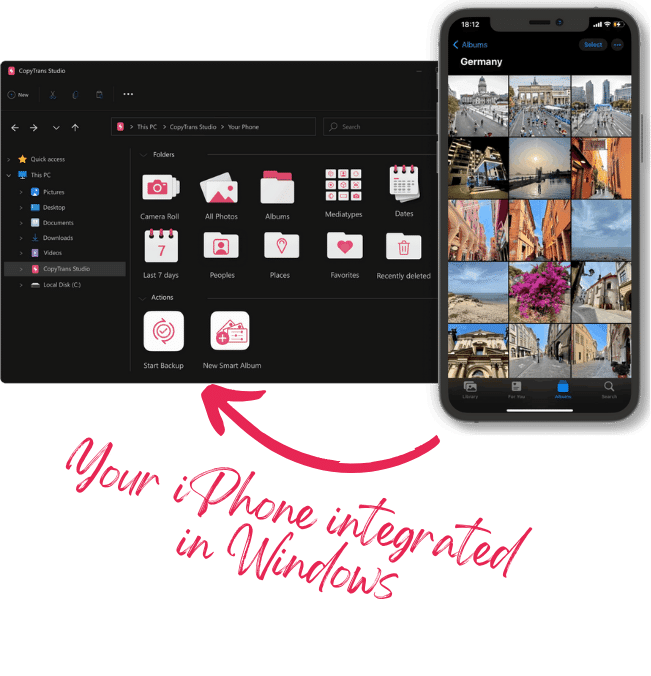
Why CopyTrans Studio?
- No iCloud required: no internet, no Apple ID hassle, no syncing
- Organize your photos with Smart Albums
- Say goodbye to HEIC photos and convert them to JPEG
- Connect iPhone to PC via Wi-Fi
This is a breath of fresh air if you’ve ever felt limited by iCloud or clunky data transfer tools. And once your photos are safely stored, you can easily clear up space on your iPhone without worrying about losing important data. CopyTrans Studio is incredibly easy to use:
- Download and install CopyTrans Studio. Download CopyTrans Studio
- Click on the CopyTrans Studio icon. Open the program.
- Choose your iPhone, then Photo Library
- Now choose a Backup option and the whole library will be saved on you PC in a few clicks
- You can also save just some medias, fot example large video files. Go to Media Types and drag-and-drop the file into the folder on your computer.


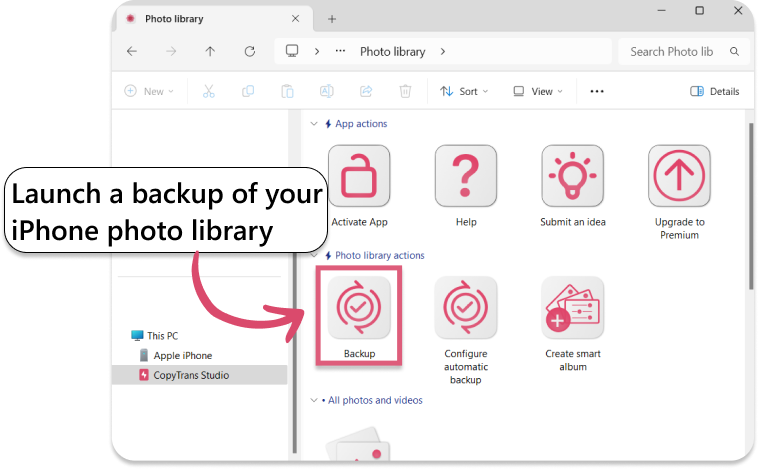
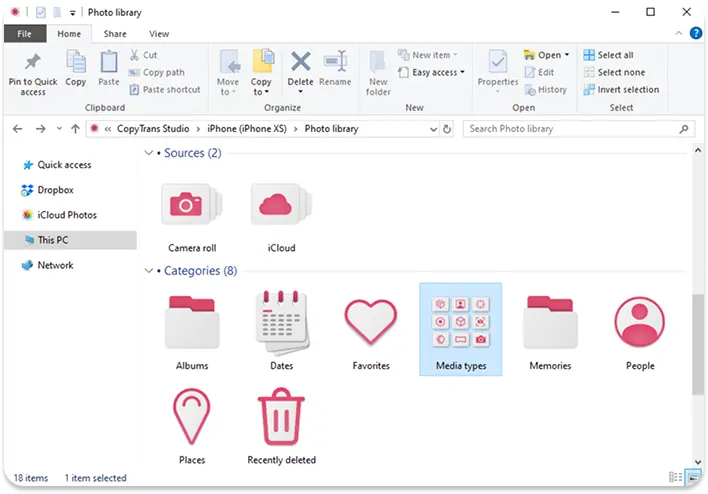
You can also set an automatic backup in CopyTrans Studio.
Photo storage
FAQ
1. Can having too many photos on your iPhone slow down your phone?
Yes, indirectly. While photos themselves don’t slow down your phone processor, overloaded storage can cause performance issues like freezing apps, unresponsive keyboards, or failed updates. Freeing up space can often make your iPhone run faster.
2. Why does iCloud say my photos are backed up, but I’m still getting messages about my storage being full?
Because iCloud syncing and iPhone storage are two different things. Even if your photos are in iCloud, they can still take up space on your device unless you turn on Optimize iPhone Storage. iCloud is not a storage upgrade, it’s just a syncing tool.
3. Is there a risk of quality loss when transferring photos from iPhone to PC?
With the right tool, no. For example, CopyTrans Studio transfers photos in their original quality, including metadata, resolution, and even HEIC or Live Photo formats. Unlike some apps, CopyTrans Studio doesn’t compress anything during the transfer.
4. What if I want to keep my iPhone clean, but still feel nostalgic sometimes?
You can have both! Use CopyTrans Studio to create a cozy photo archive on your computer or external drive. That way, your iPhone stays light and fast, but you still have a go-to place to scroll down memory lane when you’re in the mood.
5. I don’t trust cloud backups. How can I still protect my photo library?
Cloud backups can be risky if you lose access to your Apple ID or run into storage limits. That’s why many people prefer a local backup with CopyTrans Studio. It lets you keep your photos safe on your own computer or external drive, fully offline.
Final Thoughts
If you’ve read this far, thank you. I know, messing with your iPhone storage isn’t the most exciting thing to do, but it happens to all of us. And honestly, it’s nice to have some control over it.
Your photos aren’t just files, they’re pieces of your life. Your trips, the people you love, the random everyday moments that make you smile. So it makes sense that you want to keep those memories safe, easy to find, and not buried under a mountain of duplicates and screenshots.
With a few simple habits (and a little help from tools like CopyTrans Studio), you can finally stop worrying about iPhone photo storage and focus on what’s really important: creating new memories.