 CopyTrans Studio

This is a common problem: you take a great photo on your iPhone, but when you open the Photos app on your iPad, it’s just not there. If this has happened to you, then the synchronization issue is one of the most common questions asked by people who use multiple Apple devices.
Why does this happen? Usually, it’s not because of any malfunction. The fact is, there are several different ways to sync photos from iPhone to iPad, and they all work differently. Perhaps you’ve enabled one method but not another, or maybe the method you’re using isn’t designed for automatic syncing.
We’ll look at every way to sync photos, from “set it and forget it” iCloud to the quick and easy AirDrop. By the end, you’ll understand how each tool works so you can choose the one that’s right for you and finally get your photos where you want them.
What you’ll need
Before you start syncing, make sure you are fully prepared:
- Your iPhone and iPad are signed in with the same Apple ID
- The latest iOS/iPadOS updates are installed
- You need a Wi-Fi or cellular network connection to upload/download data
- You have enough storage space in iCloud if you plan to use iCloud Photos
Method 1: iCloud Photos
Automatic Sync
If you need a solution that doesn’t require any additional setup, iCloud Photos is the most convenient option. This method automatically uploads photos and videos from your iPhone to iCloud and then downloads them to your iPad, ensuring perfect synchronization between both devices.
How it works:
iCloud Photos stores the full-resolution originals in the cloud, while optimizing storage on your devices if you choose. All changes, albums, and Live Photos are synced, meaning any changes on one device are reflected on the other.
On your iPhone:
Open Settings and tap the Apple ID banner at the top.
Go to iCloud → Photos.
Turn on “Sync this iPhone”.
On your iPad:
Repeat Settings → your name → iCloud → Photos.
Go to iCloud → Photos.
Turn on “Sync this iPad”.
If your iCloud storage is full, go to Settings → your name → iCloud → Manage Account Storage to increase your storage. Apple offers plans ranging from 50 GB to 2 TB, ensuring seamless syncing.
iCloud Photos is ideal for syncing your entire library, but it depends on your internet connection and available storage.
Method 2: AirDrop
Quick one-time transfer
If you don’t need to sync your entire library and only need a few photos on your iPad, AirDrop is the fastest solution.
How to use AirDrop:
Open the Photos app on your iPhone.
Select the photo(s) you want to share.
Tap the Share button.
Choose AirDrop and select your iPad.
Accept the transfer on your iPad.
Troubleshooting tips:
Ensure Bluetooth and Wi-Fi are enabled on both devices.
On iPad, swipe down for Control Center → AirDrop, and set visibility to Everyone or Contacts Only.
Keep devices close (within a few feet).
AirDrop is great for small batches, but for syncing thousands of photos, iCloud Photos is more practical.
Method 3: Shared Albums
If you only want to sync selected albums, shared albums are the ideal solution. You can share an album between your devices (or with other users) without syncing your entire library.
Setting up shared albums:
Go to Settings → Photos → Shared Albums and turn on this feature
Open Photos → Albums → + → New Shared Album
Name it and invite your Apple ID (linked to your iPad)
Open the album on your iPad to view the synced photos
What you need to know:
Shared albums don’t count toward your iCloud storage limit
Photos are reduced to 2048 pixels in width
Videos are limited to 15 minutes in length
Photos not syncing?
Troubleshooting
Even with everything set up correctly, sometimes photos just don’t show up on your iPad. Before you panic, walk through this quick checklist. Most syncing issues are solved by one of these fixes:
Check Apple ID:
– On both devices: Settings → your name
– Make sure the same Apple ID is signed in. If they’re different, syncing won’t work.Verify iCloud Photos is enabled:
– Go to Settings → your name → iCloud → Photos
– Confirm that Sync this iPhone/iPad is turned onLook at your iCloud storage:
– If it’s full, photos won’t upload. Tap Manage Account Storage to upgrade or free space
– Confirm that Sync this iPhone/iPad is turned onCheck your internet connection:
– Photos need Wi-Fi (or cellular, if allowed)
– Make sure both devices are online and not in Airplane ModeUpdate your software:
– Settings → General → Software Update
– Outdated iOS/iPadOS versions can cause sync problemsBattery saver modes:
– If Low Power Mode is on, syncing might pause. Disable it: Settings → Battery
Paused uploads?
– In the Photos app, open Library → scroll down
– If you see “Paused,” connect to Wi-Fi and plug into power to resumeSign out/sign in again
– Settings → your name → Sign Out → restart device → sign back in
– Usually, the culprit is either low iCloud storage or iCloud Photos being off on one device
Storage Tips
Save photos with CopyTrans Studio
iCloud Photos encrypts your photos and videos so that only devices registered with your Apple ID can access them. If your device has limited storage space, you can enable the “Optimize Storage” feature, which saves reduced versions of your files on your iPhone or iPad and stores the originals in iCloud.
For added security, we recommend creating local backups using CopyTrans Studio. Regular backups ensure that your memories remain safe even outside of iCloud.
- Download and install CopyTrans Studio. Download CopyTrans Studio
- Click on the CopyTrans Studio icon. Open the program.
- Choose your iPhone, then Photo Library
- Now choose a Backup option. This will save all your photos and videos on you PC in a few clicks


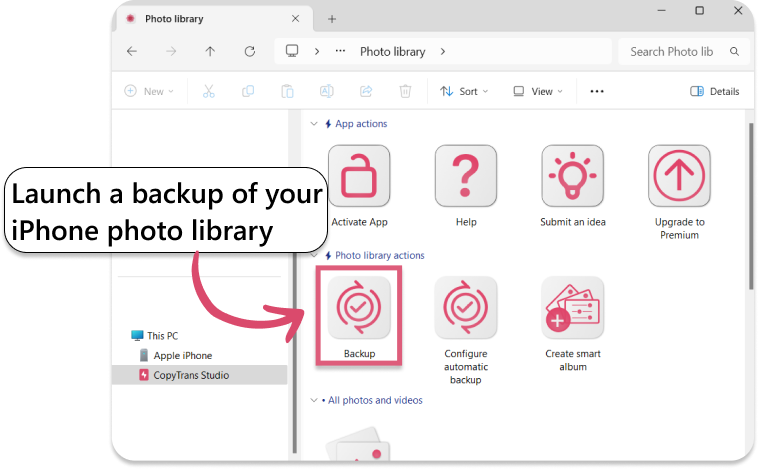
You can also set an automatic backup
FAQ
1. Can I sync photos between devices without using iCloud?
Yes. You can use AirDrop for quick transfers, shared albums for selective syncing, or manual transfers via a Mac or Windows PC.
2. Will deleting a photo on my iPhone delete it from my iPad?
If iCloud Photos is enabled on both devices, deleting a photo on one device will delete it from all synced devices.
3. How do I know if iCloud Photos is working?
Open Settings → your name → iCloud → Photos. If “Sync this device” is turned on, your photos should sync automatically.
4. Why are some photos not showing up after syncing?
Check for Apple ID mismatches, iCloud storage full, downloads paused, outdated software, and low power mode enabled. Often, fixing one of these issues will resolve the problem.
5. Can I sync videos as well as photos?
Yes. iCloud Photos, AirDrop, shared albums, and manual transfers support videos, although shared albums limit videos to 15 minutes in length.
6. Does syncing use my mobile data?
iCloud Photos can use mobile data if this feature is enabled; otherwise, syncing is limited to Wi-Fi. AirDrop does not use mobile data.
7. How can I optimize storage while keeping photos in full resolution?
Turn on “Optimize iPhone/iPad Storage” in Settings → your name → iCloud → Photos. Full-resolution originals remain in iCloud, while reduced versions are stored locally to save space.
Final Thoughts
Syncing photos from your iPhone to your iPad doesn’t have to be complicated. Whether you use iCloud, AirDrop, or a tool like CopyTrans, following the right steps will ensure that your memories are transferred safely and quickly between devices.
Take a moment to choose the method that best suits your needs: wireless for convenience or USB for faster transfer. Once set up, all your favorite photos will be available on both devices, ready for you to enjoy anytime.
With a little preparation and the right tools, syncing your iPhone and iPad photo libraries will be effortless and stress-free.