 CopyTrans Studio

You open a photo on your iPhone, expecting it to load instantly but instead you see the message “Unable to load photo“. The image remains blurry, nothing changes even after waiting, and you are left wondering what the problem is: is it iCloud, the network, or the phone itself?
In most cases, photos on your iPhone don’t load because the full versions are stored in iCloud, and your device can’t download them at the moment. Sometimes the connection is unstable, sometimes the memory is almost full, and sometimes the Photos app just won’t load the file you want. HEIC images may also fail to load if your phone only has a low-quality preview.
The important thing is that there are specific, understandable reasons for this problem, and there is a practical solution for each of them. In this guide, I’ll explain why your iPhone can’t load photos and show you what you can do to get them to open again, including how to view and save full-resolution versions on your PC when your phone refuses to show them.
Let’s take a step-by-step look at this.
- Why your iPhone says “Unable to load photo”? And how to fix it.
- Save iPhone photos on PC
- iPhone unable to load photos: FAQ
Why your iPhone says “Unable to load photo”?
And how to fix?
When the Photos app refuses to open an image, it’s usually because it’s reacting to something specific and not because it’s malfunctioning randomly. Here’s what’s really behind the message.
Poor or unstable internet connection: if the full version of your photo is stored in iCloud, your iPhone has to download it before displaying it. When the connection is interrupted even for a moment (due to slow Wi-Fi, weak mobile data, or a network change), the download stops and the message “Unable to load photo” appears. The preview may be displayed, but the high-resolution file never arrives.
FIX: check your internet connection. If the original photo is in iCloud, your iPhone needs a stable connection: switch to Wi-Fi, turn on Airplane Mode, reconnect to the network. If the image starts loading, the problem was the connection.
The “Optimise iPhone Storage” option is enabled: with this setting enabled, your device saves space by storing only small, lightweight previews on your phone. The actual, full-quality images remain in iCloud. Therefore, when you tap on a photo, your iPhone has to search for the original. If it cannot do so immediately, the image simply does not load.
FIX: turn off “Optimise iPhone Storage”. Your phone may only have a small preview stored locally. Go to: Settings → Photos → Download and Keep Originals. This makes the iPhone store actual photos, not just previews.
Low storage space on the device: even if the photo is available in iCloud, your iPhone needs some free space to download it. If the storage is almost full (a few hundred megabytes left), the device may block the download altogether, causing photos to appear blurry or not open at all.
FIX: free up storage space. If your storage is almost full, your iPhone cannot download the originals. Check: Settings → General → iPhone Storage. Free up 2-3 GB and reopen the photo.
Synchronisation issues with iCloud: sometimes, iCloud itself is the bottleneck. Slow synchronisation, temporary server issues, or interrupted uploads can cause files to be only partially synchronised. The photo may exist in your library, but iCloud may never have finished uploading or downloading it. In that case, your iPhone will display the image thumbnail but will not be able to load the actual file.
FIX: sign out of iCloud and sign back in. This helps when iCloud syncing is stuck. Settings → Apple ID → Sign Out → Restart → Sign In
Problem with HEIC to JPG preview: most iPhones save photos in HEIC format. Normally, the phone displays them instantly, but if only the preview is stored locally and the full HEIC file is in iCloud, the system needs a second to convert or load it. If the file has not been fully downloaded, the preview cannot be updated with the actual image and the upload fails.
FIX: temporarily change the format so that the phone does not rely on HEIC conversion. Go to: Settings → Camera → Formats → More compatible. Then reopen the photo. This forces future photos to be saved as JPG and often helps stabilise the system when loading existing HEIC files.
Photos that are partially uploaded or damaged: if an image has not been uploaded correctly (for example, because the phone was disconnected while the photos were being taken or because the upload was interrupted midway through the process), a thumbnail may appear, but without the usable original behind it. When you tap on the photo, the iPhone tries to retrieve the missing parts and gives up.
FIX: try resyncing your library manually: Settings → Photos → turn off iCloud Photos → select “Download photos and videos” → turn it back on. This refreshes the library and often restores photos that were only partially synced.
A temporary iOS glitch: even when there are no serious problems, iOS can freeze. The Photos app may get stuck in a “download pending” state, and images simply won’t load until the system refreshes. This is common after an update, in low battery mode, or after long sessions with heavy apps running.
FIX: restart the system: close all applications, restart the iPhone, keep it plugged in and connected to the Wi-Fi network, reopen Photos. This combination forces iOS to restart interrupted downloads.
Save photos on PC
Before applying any major fixes or changing your iCloud settings, it’s worth having a secure copy of your photos stored on PC. An easy way to do this is with CopyTrans Studio, which allows you to transfer and back up your iPhone photos directly to your computer, even when some images fail to load on the phone itself. No cloud, no synchronisation delays, just your high-resolution photos saved locally.
- Download and install CopyTrans Studio. Download CopyTrans Studio
- Click on the CopyTrans Studio icon. Open the program.
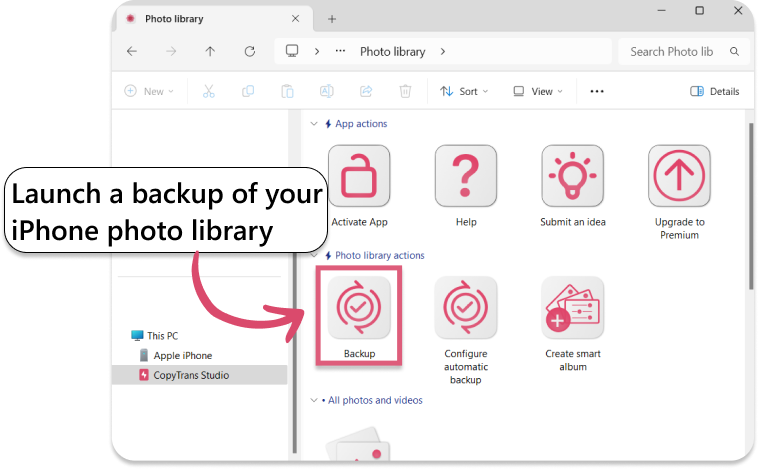
- Here you see the icon of your iPhone. Choose it and then click on Photo Library.
- Open choose the option “Back up” and all photos will be saved on you PC.


iPhone unable to load photos
FAQ
Why does my iPhone instantly download some photos but refuse to download others taken on the same day?
This usually happens when photos were uploaded to iCloud at different times. Some images were fully synchronised, while others were still downloading when the network went down or the phone locked. As a result, several photos exist only as thumbnails on your device, while the originals are still waiting in iCloud. Reconnecting to stable Wi-Fi or resyncing iCloud Photos often resolves this inconsistency.
Can “Low Power Mode” affect photo downloads?
Indirectly, yes. Low Power Mode slows down background tasks, and uploading photos from iCloud falls into this category. If your phone is trying to upload a photo in full resolution while Low Power Mode is enabled, the process may be delayed or paused. Temporarily disabling Low Power Mode may speed up the image upload.
Do photos stop loading when your iPhone get hot?
Yes, overheating causes iOS to temporarily pause certain tasks, including loading from iCloud. If you’re in the sun, using navigation, or charging your device while playing media, your phone may quietly slow down photo-related processes. Allow your device to cool down for a few minutes and try opening the image again.
Can a VPN or ad blocker prevent photos from loading?
Surprisingly, yes. Some VPNs route traffic through slower servers or block domains associated with Apple, preventing iPhones from downloading full-resolution images from iCloud. The quickest test is to disable your VPN or content blocker and then reopen the photo.
What should I do if my photos only download after connecting my iPhone to a power source?
When the battery is low, iOS defers resource-intensive tasks, which includes downloading original photos. Connecting your device to a power source signals iOS to resume pending background activities. If your photos download reliably after charging, your device may be limiting tasks to conserve power.
How to fix “unable to load photos on iPhone”?
Final Thoughts
Seeing the message “Unable to load photo” rarely means your photos have disappeared. In most cases, the device simply cannot access the high-resolution version in iCloud, does not have enough space to download it, or is stuck in a minor iOS glitch. Once you know what is behind the message, the solutions are simple: from switching to a stable Wi-Fi network to adjusting storage settings or updating iCloud synchronisation.
And even if your iPhone refuses to display certain images, your photos still exist. You can always upload and save them to a computer without relying on the phone’s preview with CopyTrans Studio. The important thing is that your photos can be recovered, and now you know how to make them reappear.