 CopyTrans Studio

Short answer: iOS 27 makes the Photos app much better at sorting big libraries. You can now give photos star ratings and keywords, find everything you shot yourself in Captured by Me, and edit with new AI tools like Extend and Reframe. Shared Albums, slideshows and iCloud syncing got upgrades too. Below, we go through each change, show you how to set the app up the way you like, and explain what it all means when you copy your photos to a PC.
After the iOS 18 redesign, a lot of people (us included) needed a while to make peace with the Photos app. iOS 27 doesn’t turn everything upside down again. Instead, it adds the organizing tools many of us had been asking for.
- What’s new at a glance
- Star ratings and keywords
- Captured by Me
- Extend, Reframe and the new Clean Up
- Save a frame from a video as a photo
- Slideshows you can save as a video
- Shared Albums and Sync Immediately
- Don’t like the new Photos app? How to make it yours
- Before you reorganize: back up first
- iOS 27 Photos app: FAQ
What’s new at a glance
| Feature | What it does | Where to find it |
|---|---|---|
| Star ratings | Rate photos and videos from 1 to 5 stars, then filter by rating | On the photo itself, but should be activated in settings |
| Keywords | Add your own tags, like “passport” or “recipes”, and search for them | Info panel of a photo |
| Captured by Me | Shows only photos taken with your iPhone’s camera, without saved images, screenshots or WhatsApp downloads | Collections > Utilities |
| Identity Documents | Gathers photos of IDs and passports in one place | Collections > Utilities |
| Extend | Uses AI to add new edges to a photo, so you can zoom out or change its shape | Edit |
| Reframe | Changes the angle of a shot after you took it, using spatial data | Edit |
| Clean Up modes | Remove objects in Fast, High Quality or Auto mode | Edit > Clean Up |
| Save a video frame | Save any frame of a video as a full-resolution photo | While playing a video |
| Slideshows as video | Choose transitions, timing and music, then save the slideshow as a video | Slideshow options |
| Shared Album upgrades | Filter by photos or videos, let albums expire after 30 days, and invite Android and Windows users to contribute | Shared Albums |
| Sync Immediately | Makes iCloud Photos upload new photos right away, until midnight | Photos > your profile > iCloud |
Star ratings and keywords
This is the change we’re happiest about. If you take a lot of photos, you probably know the feeling of scrolling past 40 shots of the same sunset. Now you can give the best ones five stars and filter for them later.
In Photos App tap Collections at the bottom of the screen. Tap Apple Profile Account at the top.
Open a photo and swipe up, or tap the info button.
Here you see all the info about the photo, and here you can add keywords if you like.
To rate the photo, tap on the star icon on the top.
In your library, use the filter to show only photos with a certain rating or keyword.
Captured by Me
Your library mixes photos you took with memes, screenshots, saved Instagram images and everything people sent you on WhatsApp. Captured by Me filters all that out and shows only what came from your iPhone’s camera, including photos from your previous iPhones.
You’ll find it under Collections > Utilities. If you use it a lot, you can move it to the top of the Utilities list.
This is also handy for backups. If you only want to keep your own photos on your PC, start here.
Extend, Reframe and the new Clean Up
The editing tools got a big AI boost:
- Extend adds new picture around the edges, so a tight portrait can become a wider shot or fit a Lock Screen wallpaper.
- Reframe lets you change the camera angle slightly after taking the picture.
- Clean Up now has three modes: Fast for quick fixes, High Quality for tricky backgrounds, and Auto to let the iPhone decide.
Like all edits in Photos, these are non-destructive. Your iPhone keeps the original, and you can always tap Revert.
What happens on your PC? When you copy edited photos to Windows, you choose what you get. In CopyTrans Studio, you can save only the edited version or the edited version plus the original. Pick “both” if you might want to undo an AI edit later.
For more on editing, see our guide on how to edit photos on iPhone.
Save a frame from a video as a photo
Ever recorded a video of your kid blowing out candles and wished you had a photo of that one second? In iOS 27, you can save any frame of a video as a full-resolution still.
Slideshows you can save as a video
Slideshows are no longer something you only watch on the phone. You can pick transitions, timing and music, then save the result as a video. That video lands in your library like any other, so you can copy it to your PC and play it on a TV or share it with family.
Shared Albums and Sync Immediately
Shared Albums can now be filtered to show only photos or only videos, can be set to expire after 30 days, and can take contributions from people on Android and Windows. Great for group trips where not everyone has an iPhone. More in our guide to shared albums on iPhone.
Sync Immediately is for iCloud Photos users. Choose For Today and your iPhone uploads new photos to iCloud right away, until midnight. It uses more battery and mobile data, and it pauses in Low Power Mode or Low Data Mode.
Don’t like the new Photos app? How to make it yours
If you still miss the old layout, you can’t bring it back, but you can make the app feel a lot more like yours:
- Reorder and hide collections. Hide what you never use and move your favorite albums to the top.
- Pin what you open most. Pin Favorites, Captured by Me or a specific album.
- Turn off Featured Photos and Memories suggestions if you’d rather not see them.
- Use star ratings and keywords instead of endless albums. Our guide on organizing photos on iPhone has more ideas.
- Browse on a bigger screen. With CopyTrans Studio, your iPhone photos appear in Windows Explorer, sorted into folders, so you can look through them on your PC the way you’re used to.
Before you reorganize: back up first
New features make it tempting to clean up: delete duplicates, rate, re-sort and edit. That’s a great idea, but it’s also how photos accidentally disappear. Before a big tidy-up, make a copy of your library on your PC. With CopyTrans Studio, that’s one click on Back up in Photo Library, and later backups only add what’s new. Here’s how to back up your iPhone photo library.
Download CopyTrans Studio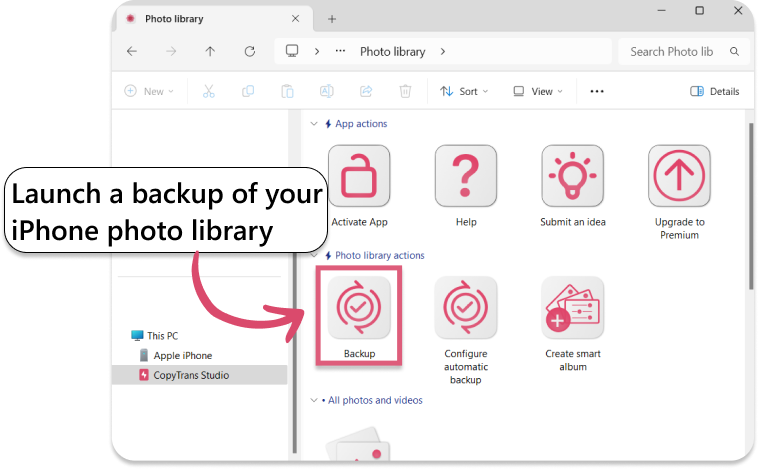
iOS 27 Photos app
FAQ
What’s new in the iOS 27 Photos app?
The iOS 27 Photos app may introduce updates to photo browsing, library organization, editing tools, and the overall user interface. The available features depend on the final iOS release and the iPhone model you use.
How do I organize photos in the iOS 27 Photos app?
You can organize your pictures by creating albums, adding photos to collections, and using the app’s search and filtering tools. These features make it easier to find specific images without scrolling through your entire library.
Can I filter photos by rating in iOS 27?
If the Photos app on your device supports photo ratings and rating filters, you can use them to narrow down your library to images with a particular star rating or photos that haven’t been rated. The exact options depend on the version and features available on your device.
How do I find a specific photo in iOS 27?
Open the Photos app and use the search feature to look for pictures by people, places, dates, objects, or other recognizable details. You can also browse albums and collections to locate images more quickly.
Will the iOS 27 Photos app work on every iPhone?
Not necessarily. Compatibility depends on which iPhone models Apple supports for iOS 27. In addition, some features may require newer hardware or may not be available on every supported device.
To sum up
The iOS 27 Photos app is less about a new look and more about getting your library under control. Star ratings, keywords and Captured by Me make it much easier to find your best shots, and Extend, Reframe and the new Clean Up give you more editing power. Before you dive into a big cleanup, take a minute to back up your library to your PC, so every photo stays safe however you reorganize.
Download CopyTrans Studio