 CopyTrans Studio

Your “favorite” photos (the ones marked with a little heart in your iPhone gallery) usually mean more than just pictures. They are your best memories: a weekend trip, your child’s first steps, the evening light on your favorite street. We usually assume that our photos are safe on our phones until one day the memory fills up, the iPhone stops working, or iCloud doesn’t back up as we thought it would.
At that moment, it’s easy to panic “Can I get my favorite photos back?” This is one of the most common questions iPhone users ask. So, yes, you can, and it’s easier than it seems.
In this article, I’ll show you how to back up your “Favorites” photos to your PC so they stay safe and easily accessible at any time, even without the internet or iCloud. We’ll look at several methods and show you the easiest and most reliable one: CopyTrans Studio — a tool that lets you transfer and back up your photos, including favorites, in just a few clicks.
No technical skills required, no cloud storage limits – just your memories, safely stored where they belong.
- What are “Favorites” photos on iPhone?
- How to save Favorite photos on PC?
- Additional tips to back up Favorite photos
What are “Favorites” photos on iPhone?
When you tap the little heart under a photo in your iPhone gallery, it gets added to a special “Favorites” album in the Photos app. It’s a built-in Apple feature that helps you separate your most meaningful shots from thousands of everyday photos.
Technically, your favorite photos aren’t stored anywhere else, they remain part of your main Photo Library. The Favorites album is simply a filtered view of all the photos you’ve marked with a heart. If you use iCloud Photos, these favorite photos are synced across all your Apple devices, so the same album appears on your iPhone, iPad, and Mac.
However, there is one caveat: most backup methods do not preserve the “Favorites” status when transferring photos to a PC. For example, if you manually copy images via Explorer or some third-party tools, your photos will be transferred, but the “Favorites” album will not. This means you will lose the organization you spent time creating.
This is where specialized tools such as CopyTrans Studio is a great solution. Not only does it transfer photos from your iPhone in full resolution, but it also keeps your favorite photos in order, just as they appear on your device.
How to save Favorite photos on PC?
With CopyTrans Studio, you can easily back up your “favorite” photos from your iPhone to your computer automatically or on demand. This program connects directly to your iCloud photo library and allows you to manage, organize, and back up your images in just a few clicks.
There are two easy ways to ensure your favorite photos are safely stored on your PC:
Option 1: Use the “Favorites” folder
The easiest way is to back up your existing “Favorites” album. CopyTrans Studio automatically detects all your albums, including “Favorites”, so you can just save it.
- Download and install CopyTrans Studio. Download CopyTrans Studio
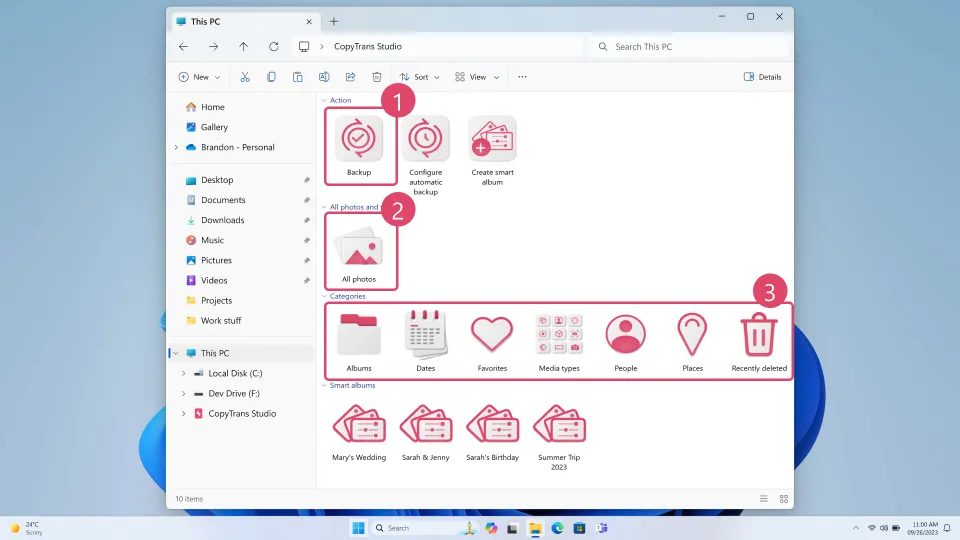
- Click on the CopyTrans Studio icon. Open the program.
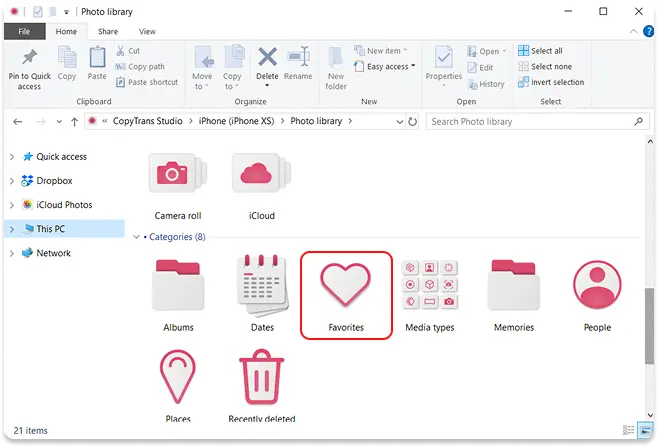
- Here you see the icon of your iPhone. Choose it and then click on Photo Library.
- Open the Media tipes folder.
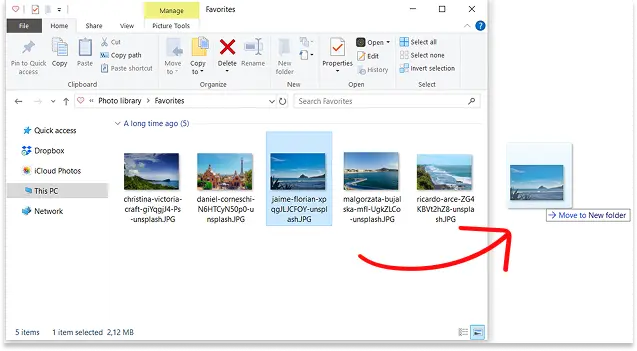
- Open the Favorite photos folder.
- Now, drag-and-drop the photos to your PC (or even the whole folder).


Option 2: Create a Smart Album for favorite photos
If you want to fine-tune what gets backed up, you can create a Smart Album that filters only your favorite photos, for example, excluding videos or screenshots.
- Install CopyTrans Studio. Click on the button below to start download: Download CopyTrans Studio
- Click on the CopyTrans Studio icon. Open the program.
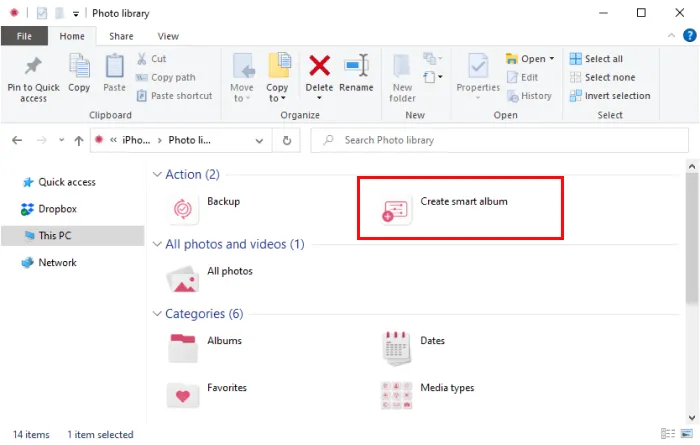
- Select your iPhone and then click on “Photo Library”.
- Now select “Create Smart Album”.
- Name your Smart album and set up the filters.
- Select one of the options: Filter Photos or Group Photos and click on “add new rule” to choose parameters to sort your photos. You can add more than one rule.
- After selecting rules, click on Create Smart Album.
- You can drag-and-drop the album to your PC.
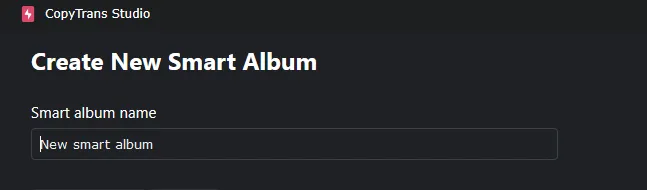
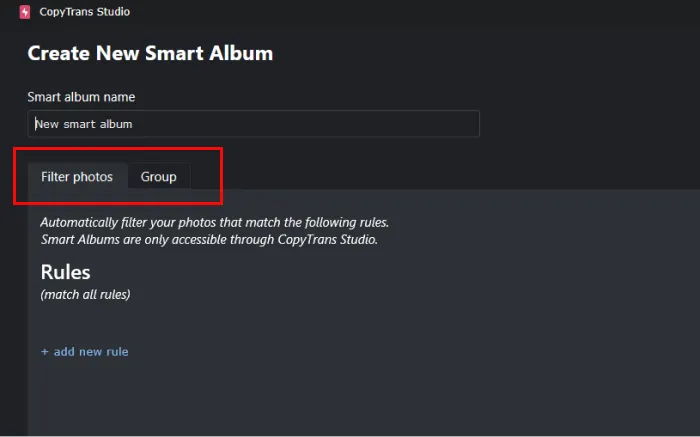
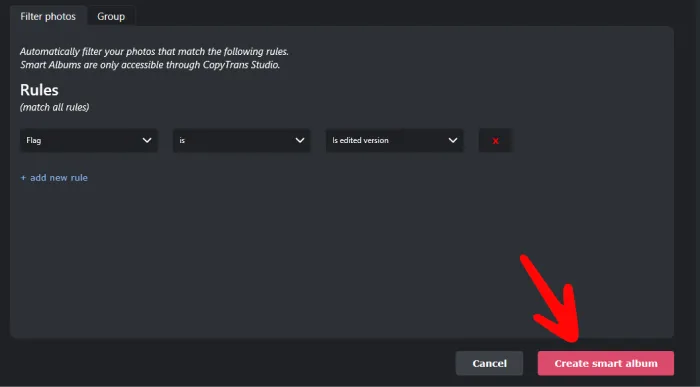
Please note that these albums will be displayed only in CopyTrans Studio and not on your iPhone. After you create a Smart Album you can save it on your PC.
Both options allow you to keep your most precious photos safe and organized. Whether you prefer the simplicity of the built-in “Favorites” album or want to customize your backup with a smart album, CopyTrans Studio ensures that your best memories are safely stored on your PC always accessible.
Backing up your “favorite” photos once is a great start, but long-term storage requires some routine and care. Here are some practical tips to help you ensure reliable and organized photo backup for years to come:
Keep an extra copy on an external drive:
Even if your photos are stored on your PC, an external hard drive or SSD adds another layer of protection. It protects your memories in case of damage, loss, or reformatting of your computer.
Back up regularly:
Set up a recurring reminder to update your backups. CopyTrans Studio lets you automate this process so you don’t have to remember it every time.
Combine local and cloud storage:
For added security, store one backup locally (on your PC or hard drive) and another in the cloud: OneDrive, Google Drive, or Dropbox. If one source fails, you’ll still have the other.
Keep your folder structure in order:
Organize your photos by year or event. This will make it much easier to view and restore them in the future and CopyTrans Studio can automatically maintain this structure for you.
Final Thoughts
We don’t think about backups until something bad happens. Maybe one morning your iPhone won’t turn on. Maybe an update will delete your entire gallery. At times like these, your first thought isn’t about storage or technology — it’s about your photos. The ones that matter: your favorite family trip, the evening light you captured at the perfect moment, that smile you’ve never been able to recreate.
In fact, these moments deserve more than just storage on your phone. With CopyTrans Studio, you can safely store your “favorite” photos on your PC, without relying on iCloud and without worrying about storage limitations. You can back up your photos however you like: via the built-in “Favorites” folder for quick transfer, or via the “Smart Album” feature, which automatically collects only your best shots.
It’s not about being overly cautious, it’s about keeping what’s important close at hand. A few minutes spent setting up your backup means your memories will stay with you, no matter what happens to your iPhone.