 CopyTrans Studio

Your iPhone won’t turn on. You press the power button, plug it into the charger, wait and nothing happens. Just a black screen. It’s hard not to worry, especially when all your photos, messages, and data are on that device.
Fortunately, in most cases, your iPhone isn’t actually broken. What looks like a serious problem can often be fixed: a battery that needs more time to charge, a temporary software glitch, or a system freeze.
Whether the screen remains completely black, the Apple logo appears and freezes, or the phone doesn’t respond at all, this guide will help you understand what’s going on. We’ll cover the most common causes, start with the safest troubleshooting steps, and explain what to do if your data may be at risk.
- Common reasons why your iPhone won’t turn on
- iPhone won’t turn on: First things to check
- Protect your data with CopyTrans Studio
Common reasons why your iPhone won’t turn on
Before attempting to troubleshoot, it’s helpful to understand why your iPhone might suddenly stop responding. In many cases, the reason is simpler than it seems.
Completely dead battery or faulty cable: sometimes the battery is completely dead, especially if the phone has not been used or has been left to discharge overnight. In other cases, the problem is not with the iPhone at all, but with a damaged cable, adapter or power source that is not providing power.
iOS crash or failed update: an interrupted iOS update or system error can cause the iPhone to shut down and restart incorrectly. The screen may remain black, or the Apple logo may appear and disappear.
App or system freeze: a malfunctioning app or temporary system crash can cause your iPhone to freeze so badly that it appears to be turned off. The phone may still have power, but the system will not respond to button presses.
Water damage or physical damage: even brief exposure to water can affect internal components. Drops or impacts can also loosen parts inside the device, leading to power issues that don’t show up right away.
Memory overload causing system failure: when your iPhone runs out of memory, the system may have difficulty functioning. In some cases, this can lead to crashes, failed restarts, or the phone not turning on at all.
iPhone won’t turn on
First Things to check
Before you start worrying that something is seriously wrong, try these simple steps first. They solve the problem more often than you think, especially when your iPhone looks dead but isn’t.
Charge it for at least 30 minutes:
If the battery is completely drained, the screen may remain black for a while even after connecting to the charger. Connect your iPhone to a power source and leave it alone for at least 30 minutes. Do not try to turn it on, let the battery charge first.
Charge it for at least 30 minutes:
If the battery is completely drained, the screen may remain black for a while even after connecting to the charger. Connect your iPhone to a power source and leave it alone for at least 30 minutes. Do not try to turn it on, let the battery charge first. This is especially true if your phone has been turned off for a while or you haven’t charged it for several days.
Try a different cable, adapter, and power outlet:
To be honest, charging cables break much more often than iPhones. A frayed cable or a poor-quality adapter can make it seem like your phone is broken, when in fact it’s just not getting any power. If you can, try:
– An Apple-certified cable (or at least one that you know works)
– A different power outlet
– Plugging directly into a power outlet rather than through a computerClean the charging port:
Look inside the charging port with a torch. Do you see any dust or lint? This is very common and can completely block the connection. If there is debris, gently remove it with a wooden toothpick or soft brush. Just don’t use anything metal, you could damage the pins inside.
Look for signs of life:
Even if the screen is black, your iPhone may still be responsive. Check for:
– A quick vibration when you press buttons
– A sound or buzz when you plug in the charger
– A faint glow on the screen, even for a secondIf you notice any of the above, that’s actually good news — it means your phone has power and it’s probably a software issue.
Try a forced restart:
A forced restart can unlock an iPhone that is frozen or stuck in a loop. Nothing will be deleted, so it is completely safe to try.
Stop and protect your data if your phone responds
If any of these steps cause your iPhone to respond — even for a moment — pause and back up your iPhone immediately. It’s also a good idea to save your photos to your PC using CopyTrans Studio before taking any further action.
Protect your data with CopyTrans Studio
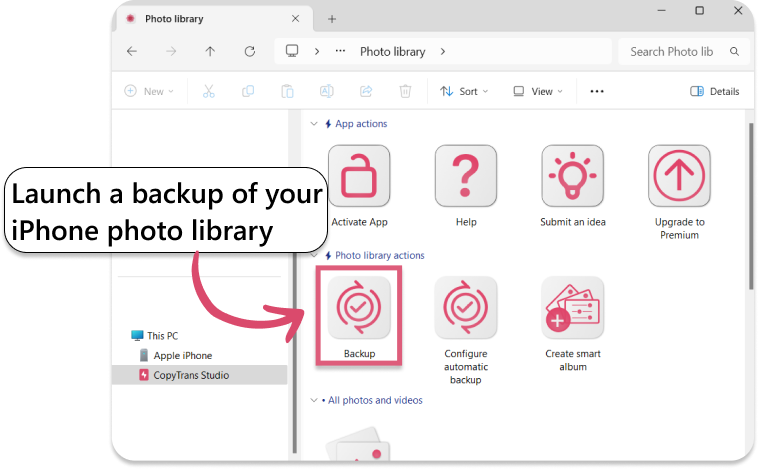
If your iPhone is working again after it stopped responding to commands, this is your chance to back up all your photos and videos. Even if everything seems fine now, problems such as update failures, software errors or data storage issues can occur again and next time you may not be so lucky. Follow these easy steps and back up your Photo Library with CopyTrans Studio.
- Download and install CopyTrans Studio. Download CopyTrans Studio
- Click on the CopyTrans Studio icon. Open the program.
- Here you see the icon of your iPhone. Choose it and then click on Photo Library.
- Choose the option “Back up” and all photos will be saved on you PC.


Detailed guide on how to transfer photos from iPhone to PC
Why is my iPhone not turning on
Final Thoughts
An iPhone that won’t turn on may seem like the worst-case scenario, but in reality, most of these situations can be fixed. A dead battery, a frozen system, or a failed update can make your phone appear “dead,” when in fact it is not.
The most important thing is how you proceed. Rushing to restart or restore without checking your data can turn a temporary problem into an irreversible loss. Often, a few careful steps are all it takes to turn the situation around.
If your iPhone starts responding again, don’t delay back up your photos and files immediately. This is the moment to make sure your data is safe and stored in a place you control. Using tools such as CopyTrans Studio helps take the stress out of future problems. When your data is already backed up and accessible, a system problem remains what it should be: an inconvenience, not a cause for panic.