 CopyTrans Studio

I can’t get enough of slow motion videos – it’s pure magic. Honestly, I’m just amazed at how slow motion instantly adds drama and beauty to any scene. You can just be fixing your hair or walking through the park, and boom!.. it looks like a scene from a high-budget movie. Add some music and you have a video that everyone will want to watch (and like and share).
I’ve posted a few of these videos myself, and they always get a lot more attention than regular clips. So if you’ve ever wondered how people get that fabulous, movie-like effect right from their phone, I have some good news for you. Your iPhone already has everything you need. It has a built-in slow motion mode that’s super easy to use if you know where to look for it.
Are you ready to turn your regular videos into stop-scrolling content? Let me show you how to do just that.
- How to record slow motion video on iPhone
- How to set the slow motion time
- Tips for shooting better Slow Motion Videos
- Save Slow Motion videos on PC
- Slow Motion video: FAQ
How to record slow motion video on iPhone
Ready to make your first slow motion video? Luckily, your iPhone already has a built-in Slo-Mo mode – no additional apps or complicated tools needed. Here’s how to use it:
Open the Camera app and swipe through the shooting modes at the bottom until you see “Slo-Mo”
Select your camera – front or back – and take a shot.
Press the red record button to start shooting and again to stop it. That’s it!
Now a little bit about frame rate. The iPhone lets you choose between 120 and 240 frames per second. The higher the number, the smoother and slower the video. You can check or change this by going to: Settings > Camera > Slo-mo recording.
How to set the slow motion time
Here’s the fun part: your iPhone doesn’t just record the entire clip in slow motion – it automatically applies the slow motion effect to a specific part of the video. But what if that part doesn’t match the action you wanted to emphasize? That’s easy to fix – you can edit it in seconds.
Here’s how to adjust the timing of the slow motion effect:
- Open the Photos app and find your slow-motion video.
- Tap “Edit” in the top right corner.
- You’ll see a timeline with white vertical bars. The area between the thicker bars is the part that is currently in slow motion.
- Drag these thicker bars to the left or right to move, narrow, or expand the slow motion section.
Preview before saving: press the playback button below to check the changes in real time. Don’t worry! Nothing stays the same until you press “Done”. This will allow you to control the story your video tells. Want the slow motion footage to start the moment the skateboard goes up in the air? Or interrupt it right before it lands? It’s all in your hands.
Next, we’ll look at how to add even more drama by pairing a slow motion video with the perfect soundtrack.
Tips for shooting better Slow Motion Videos
Slow motion loves movement — the more action, the better the story you tell. So before you hit record, keep these little secrets in mind to make your slow-mo clips truly shine:
Light it up: bright, natural light is your best friend. Slow motion captures every detail, and poor lighting can turn your masterpiece into a blurry mess. Shoot outside on a sunny day or near a window whenever you can.
Steady wins the race: shaky footage can kill the vibe. If you don’t have a tripod, brace your arms against something solid or get creative — lean on a wall or place your phone on a stable surface to keep things smooth.
Motion is magic: slow mo isn’t made for stillness. Find moments with plenty of movement — a splash, a jump, a twirl. The more dynamic, the more mesmerizing your video will be.
Give yourself options: record a bit longer than you think you need. That extra footage is like bonus footage for editing — it lets you choose the perfect slow-motion segment without missing a beat.
Save Slow Motion videos on PC
- If you haven’t done already, please download and install CopyTrans Studio. Download CopyTrans Studio
- Click on the CopyTrans Studio icon. Open the program.
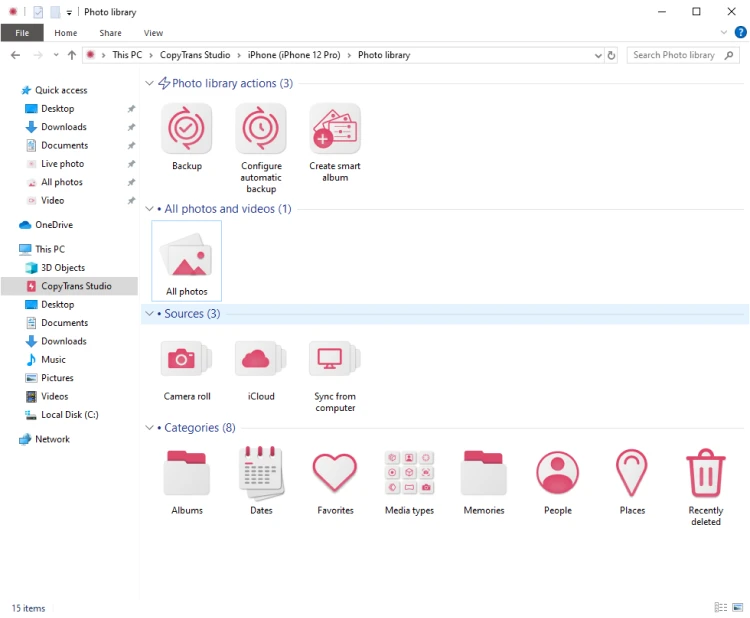
- Connect your device to your PC. Double click on to open it. Now, you see the main window and all the options it offers.
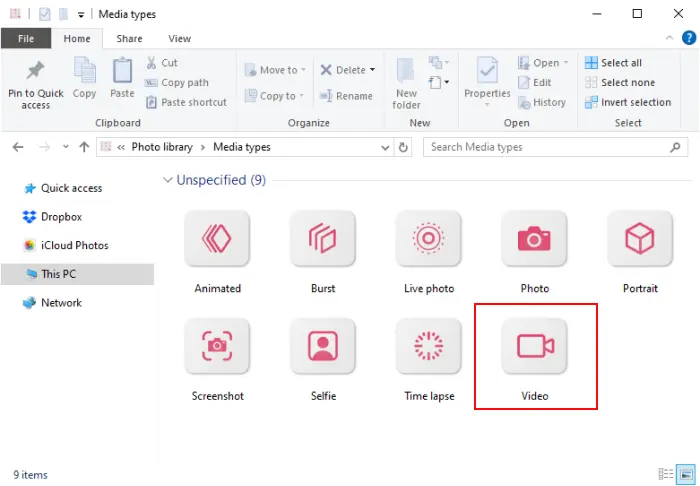
- Select the Media Types option and then choose the video folder.
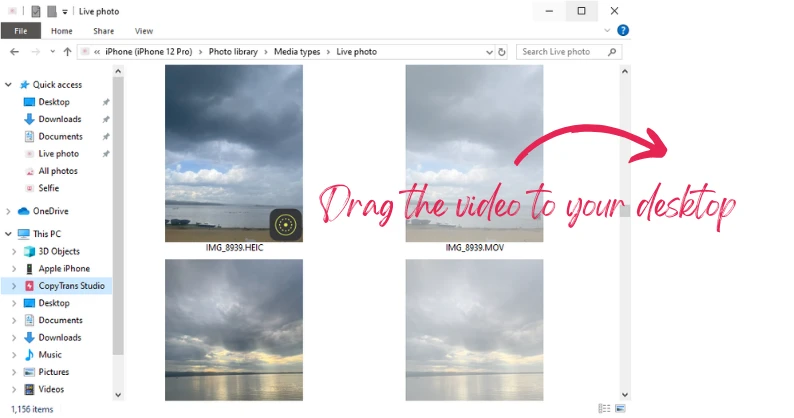
- In the folder, you can drag and drop the videos you need to your PC.
- That is how to send a video from your iPhone to the PC in a few clicks.

If you would like to do a full backup, find our detailed guide on how to back up your Photo Library.
You can also edit videos on your iPhone and then save them to your PC.
Slow Motion video
FAQ
1. Can I sprinkle the fairy dust of slow-mo on my existing videos?
That’s a great question! While the iPhone’s built-in tools don’t allow you to directly slow down a regular video, fear not. There’s a whole universe of apps like iMovie or CapCut ready to turn your ordinary clips into slow-mo gems – just like a mini-Hollywood studio in your pocket.
2. Why does my slow motion video sometimes look like a bouncing glitch?
If your smooth dream suddenly turns into a stuttering nightmare, it’s usually the lighting or frame rate. Shoot in bright light, keep your hands steady, and double check that you’re recording at 120 or 240 frames per second.
3. Why is my iPhone slow motion video not smooth?
If your slow mo video looks choppy or unnatural, it may be due to low lighting, camera movement, or a lower frame rate. Make sure you’re shooting in bright conditions and keeping the camera steady. Also, check that your iPhone is recording at 120 or 240 fps (frames per second) in Settings > Camera > Record Slo-mo.
4. How do you add a killer soundtrack to a slow motion movie?
Music makes slow motion unforgettable. If the Photos app is easy, apps like iMovie or InShot will turn your clip into a full-blown music video. Import your video, pick the perfect track, sync the mood, and boom – an instant masterpiece ready to wow your subscribers.
Final Thoughts
Now that you have the tools, it’s your turn to get creative. Whether it’s the steam rising from your morning coffee, a windy walk around town, or your friend’s epic jump in the pool, slow motion allows you to see the magic in moments that usually go by too quickly. It’s not about the pursuit of perfection or fancy staging. It’s about telling a story at a different pace, one frame at a time.
Don’t be afraid to experiment. Try different angles, lighting or movement. Add music that sets the tone. Revisit the movie and see how even the smallest movement can become powerful. You’ll start to notice the beauty in the everyday – and believe me, it’s addictive. Who knew there was a filmmaker hidden in your iPhone? Your next scroll-stopping masterpiece may be just a few taps away.