 CopyTrans Studio

Short answer: the easiest way is Quick Start when you set up the new iPhone: hold the two iPhones next to each other and everything, including your photos, moves across directly. If you use iCloud Photos, just sign in on the new iPhone and your photos download by themselves. Already set up your new iPhone, or don’t want to use iCloud? Then copy your photos from the old iPhone to your PC with CopyTrans Studio, and from the PC to the new iPhone’s Camera Roll. As a bonus, you keep a backup on your PC.
A new iPhone is exciting. Seeing an empty Photos app on it is not.
How we tested
We moved 5700 photos and videos from an iPhone X to an iPhone 17 Pro on iOS 27 with each method below, and checked that albums, Live Photos and dates arrived correctly.
- Which method should you use?
- Quick Start: during setup
- iCloud Photos: sign in and wait
- Via your PC: without iCloud, after setup
- AirDrop: for a handful of photos
- Photos missing on the new iPhone?
- Transfer photos to a new iPhone: FAQ
Which method should you use?
| Method | After setup? | Needs iCloud? | Backup on PC? | Good for |
|---|---|---|---|---|
| Quick Start | No, only during setup | No | No | Moving everything at once |
| iCloud Photos | Yes | Yes, with enough storage | No | People already using iCloud Photos |
| Via PC (CopyTrans Studio) | Yes | No | Yes | No iCloud, or choosing what to move |
| AirDrop | Yes | No | No | A few photos |
Whatever you choose: back up your old iPhone’s photos to your PC first. If something goes wrong during the transfer, you still have them. Here’s our checklist before a trade-in.
Quick Start: during setup
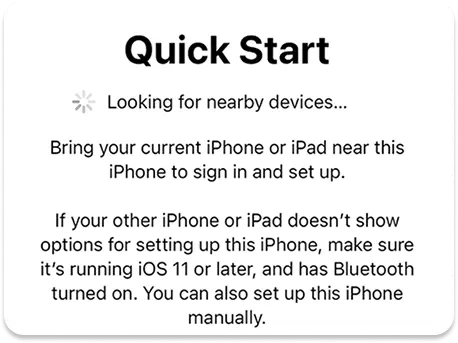
Turn on the new iPhone and place it next to the old one. Both need Bluetooth on, and the old one should be on iOS 12.4 or later.
On the old iPhone, tap Continue when the Quick Start screen appears, then hold it over the animation on the new iPhone.
Enter your old iPhone’s passcode on the new iPhone and follow the steps.
Choose Transfer from iPhone. Keep both iPhones close together and plugged in until it’s done.
With lots of photos, this can take an hour or more. Your photos, apps, messages and settings all come along. If you use iCloud Photos, your photos download from iCloud afterwards instead.
iCloud Photos: sign in and wait
On the old iPhone, make sure all photos are uploaded: at the bottom of Library in the Photos app, it should say your library is up to date, not “uploading” or “paused”.
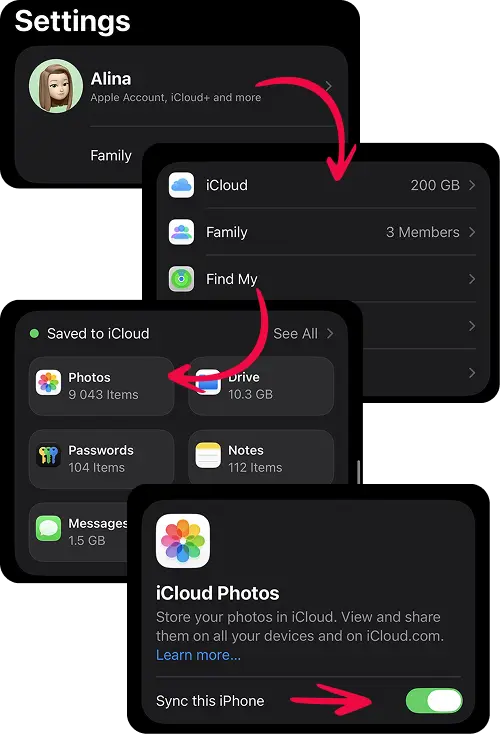
On the new iPhone, sign in with the same Apple Account and turn on Settings > *YOUR NAME* > iCloud > Photos > Sync this iPhone.
Leave the new iPhone on Wi-Fi and power. Your photos appear over the next hours.
Keep in mind: this only works if your whole library fits in your iCloud storage. If iCloud is full, the newest photos may never have been uploaded. Check it first.
Via your PC: without iCloud, after setup
This is the method for you if you’ve already set up your new iPhone, don’t use iCloud, or only want to move some photos. You end up with a backup on your PC too.
Part 1: Copy photos from the old iPhone to your PC
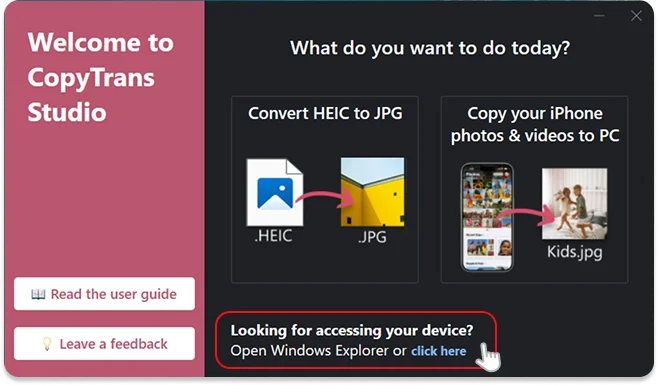
Download and install CopyTrans Studio. Connect the old iPhone, unlock it and tap Trust.
Download CopyTrans Studio
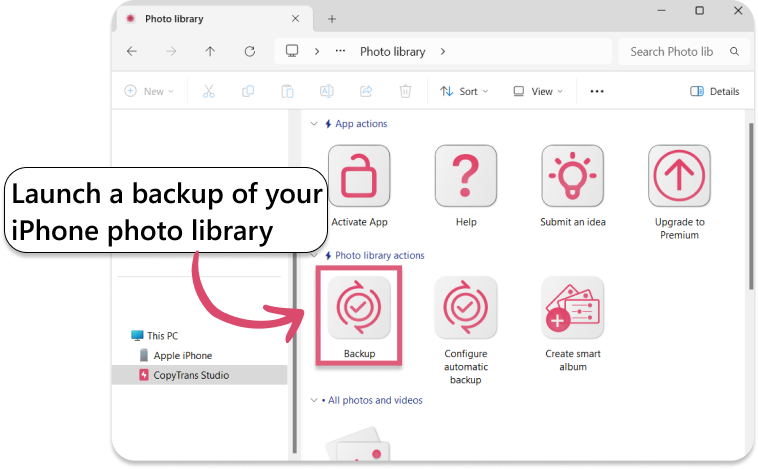
Click the CopyTrans Studio icon in the system tray and open the program.
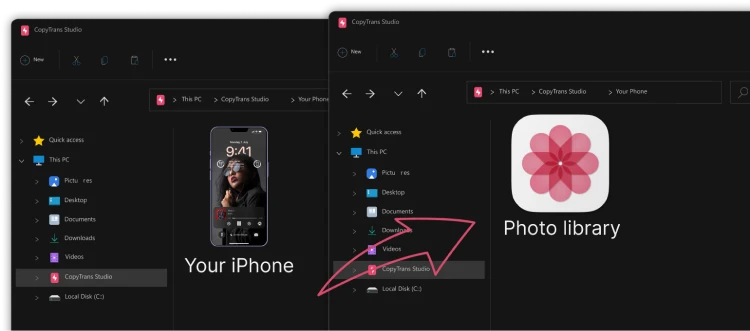
Choose the old iPhone and click Photo Library.
Click Back up to copy everything, or drag the albums you want to a folder on your PC.
Part 2: Copy the photos from your PC to the new iPhone
Disconnect the old iPhone and connect the new one. Unlock it and tap Trust.
Open your new iPhone in CopyTrans Studio.
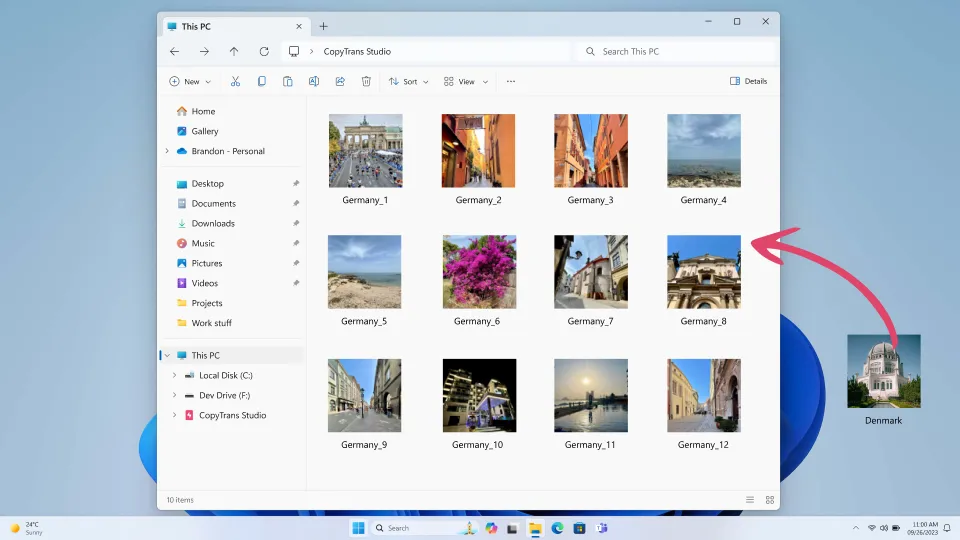
Drag the photos from your PC folder into the iPhone’s photo library. They’re added to the Camera Roll.
More details in how to add photos and videos from PC to iPhone.
Free or Premium? The free version copies 50 files a day to the iPhone and runs 3 backups a day. For a whole library, Premium removes the limits.
AirDrop: for a handful of photos
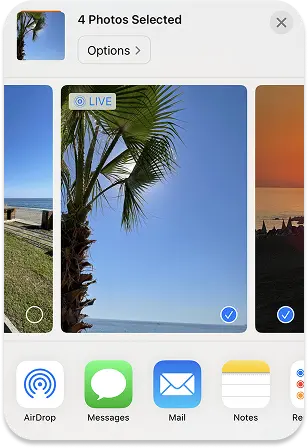
For a few photos you forgot, AirDrop works well. On the old iPhone, select the photos, tap Share > AirDrop and choose your new iPhone. Both need Wi-Fi and Bluetooth on. For hundreds of photos, use one of the methods above.
Photos missing on the new iPhone?
iCloud Photos is still downloading. Look at the bottom of the Library. Leave the iPhone on Wi-Fi and power.
Optimize iPhone Storage was on. The old iPhone may not have had all originals. They’re in iCloud, so they’ll download to the new one if iCloud Photos is on.
Hidden album. Hidden photos come along but stay hidden. Check Utilities > Hidden.
WhatsApp photos only come along with a WhatsApp chat backup, unless you saved them to Photos. See saving WhatsApp photos.
Quick Start stopped halfway. Copy the missing photos via your PC, with CopyTrans Studio.
Still missing? Our guide photos disappeared from iPhone has more ideas.
Transfer photos to a new iPhone
FAQ
Can I transfer photos to my new iPhone after setup?
Yes. Use iCloud Photos, AirDrop, or copy them via your PC with CopyTrans Studio. Quick Start only works during setup, unless you erase the new iPhone and start again.
How do I transfer photos without iCloud?
Use Quick Start during setup, or copy them through your PC: from the old iPhone to the PC, then from the PC to the new iPhone.
How long does it take?
Quick Start can take an hour or more for a big library. iCloud depends on your internet speed. Via the PC with a cable is usually the fastest for large libraries.
Can I choose which photos to transfer?
Not with Quick Start or iCloud: they move everything. Via your PC, you choose exactly which photos and albums go to the new iPhone.
Do I keep the photos on the old iPhone?
Yes, until you erase it. Erase it only after you’ve checked everything is on the new iPhone and on your PC.
Back up photos to new iPhonw
Moving photos to a new iPhone is easiest with Quick Start during setup, or with iCloud Photos if you already use it. If you’ve already set up the new iPhone or want to skip iCloud, go through your PC with CopyTrans Studio: back up the old iPhone, then copy the photos to the new one. You get your photos on the new iPhone and a safe copy on your PC.
Download CopyTrans Studio