 CopyTrans Studio

Short answer: WhatsApp photos aren’t in your iPhone’s photo library until you save them there. So first, save them to Photos: turn on Save to Photos in WhatsApp for new photos, and select older ones in a chat’s media list. They land in a WhatsApp album on your iPhone. From there, CopyTrans Studio copies the album to your Windows PC in a few clicks. If you only need photos from one or two chats, WhatsApp on Windows lets you download them directly.
Birthday photos from the family group, holiday pictures from friends, the one good photo of you that someone else took… WhatsApp is full of pictures you’d like to keep.
- Which way is best for you?
- A quick word about quality
- Method 1: Save WhatsApp photos to your iPhone, then copy them to your PC
- Method 2: Download photos with WhatsApp on Windows
- Method 3: Export a chat with its media
- What about WhatsApp’s iCloud backup?
- After the transfer: tidy up
- Save WhatsApp photos to PC: FAQ
Which way is best for you?
| Method | Best for | Bulk? | Keeps folder per chat? |
|---|---|---|---|
| Save to Photos + CopyTrans Studio | Lots of photos from many chats, regular backups | Yes | No, all in one WhatsApp album |
| WhatsApp on Windows | Photos from one or a few chats | Per chat | Yes, you choose the folder |
| Export chat with media | Saving one conversation including the text | Limited | Yes, one ZIP per chat |
A quick word about quality
WhatsApp compresses photos and videos when they’re sent, to save data. That means the copy you receive is usually smaller and less sharp than the original on the sender’s phone. Saving or transferring it can’t bring that quality back.
- Photos sent in HD keep more detail.
- Photos sent as a document arrive in full original quality.
- For important photos (a wedding, a newborn), ask the sender to send them as a document, or to share them another way.
WhatsApp also removes most hidden photo information, like the original date and location. More on what that means for your PC below.
Method 1: Save WhatsApp photos to your iPhone, then copy them to your PC
Step 1: Save new WhatsApp photos automatically
Open WhatsApp and tap Settings > Chats.
Turn on Save to Photos.
From now on, photos and videos you receive are saved to your iPhone automatically, in an album called WhatsApp.
Too much? Busy groups can fill your library with memes. You can choose per chat: open the chat, tap its name, then Save to Photos, and choose Always, Never or Default. A good setup is “Never” for big groups and “Always” for family.
Step 2: Save older photos from a chat
Save to Photos only works for new photos. For photos you’ve already received:
Open the chat and tap its name at the top.
Tap Media, Links and Docs.
Tap Select, then tap all the photos and videos you want.
Tap the share button and choose Save.
Tip: photos you’ve deleted from the chat, or that WhatsApp removed after disappearing messages, can’t be saved anymore. If your phone was cleaned up with Manage Storage, older media may be gone too.
Step 3: Copy the WhatsApp album to your PC
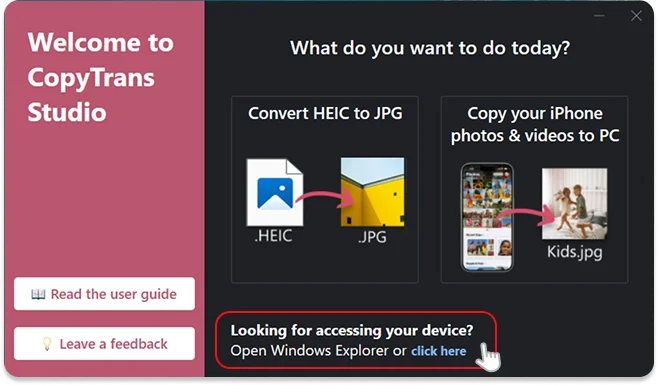
Install CopyTrans Studio and connect your iPhone with a cable (or over Wi-Fi).
Download CopyTrans Studio
Now click on the CopyTrans Studio icon. Open the program.
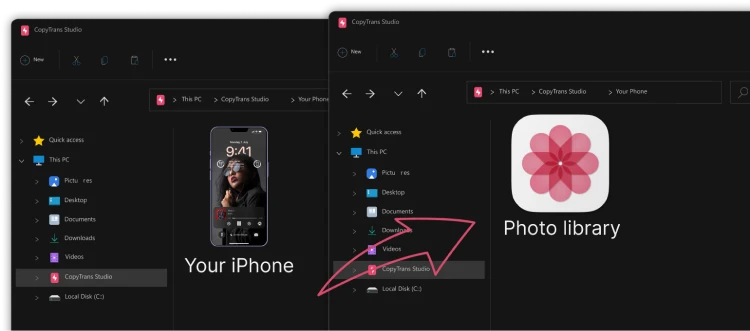
Here you see the icon of your iPhone. Choose it and then click on Photo Library.
Open the WhatsApp album and drag it to any folder on your PC.
Want this to happen by itself? Include albums in your automatic backup, and new WhatsApp photos are copied to your PC every time your iPhone connects. More on saving iPhone albums to PC.
The free version copies 50 files a day by drag and drop and runs 3 backups a day. Premium removes the limits, handy if you’re saving years of WhatsApp photos.
Method 2: Download photos with WhatsApp on Windows
If you only need the photos from one chat, you don’t need your iPhone’s photo library at all.
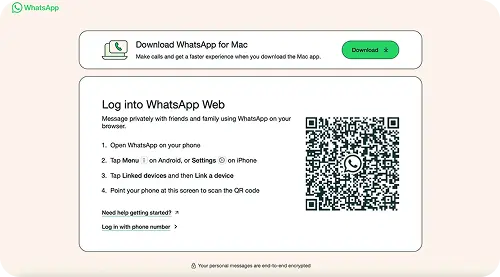
Install WhatsApp from the Microsoft Store on your PC (or open web version).
On your iPhone, open WhatsApp > Settings > Linked Devices > Link a Device and scan the QR code on your PC.
Open the chat on the PC, click the contact or group name, and go to Media.
Select the photos and videos and click Download.
Keep in mind: the PC app only shows media that’s still on your iPhone, and older chats may take a while to load.
Method 3: Export a chat with its media
Want the photos together with the conversation, for example to keep a memory of someone? Open the chat, tap its name, scroll down to Export Chat and choose Attach Media. You get a ZIP file with the text and the photos, which you can save to Files, email to yourself or send to your PC.
The export includes only a limited number of recent media files, so for big chats, Methods 1 and 2 work better.
What about WhatsApp’s iCloud backup?
WhatsApp can back up your chats to iCloud, but that backup is only for restoring WhatsApp on an iPhone. You can’t open it on a PC to browse photos. To get WhatsApp photos onto your computer, use one of the methods above.
After the transfer: tidy up
- Dates may look wrong. Because WhatsApp removes the original date, saved photos usually show the date you received or saved them, not when they were taken. That’s normal. If you sort your PC folders by date, keep WhatsApp photos in their own folder so they don’t get mixed into the wrong month.
- Free up space on your iPhone. Once the photos are safely on your PC, you can delete the WhatsApp album from Photos, and clear old media in WhatsApp > Settings > Storage and Data > Manage Storage. Our guide on iPhone photo storage has more tips.
- Remove duplicates. The same photo often arrives in several groups. The Photos app finds them under Utilities > Duplicates. See delete duplicate photos on iPhone.
- Keep your own photos apart. In iOS 27, the Captured by Me collection shows only photos you took yourself, without anything saved from WhatsApp. More on the iOS 27 Photos app.
Save WhatsApp photos to PC
FAQ
Where are WhatsApp photos stored on my iPhone?
Inside WhatsApp, until you save them. Once saved, they’re in the WhatsApp album in the Photos app.
How do I save all WhatsApp photos at once?
Turn on Save to Photos for new photos. For older ones, select them per chat in Media, Links and Docs. Then copy the whole WhatsApp album to your PC with CopyTrans Studio.
Why are my WhatsApp photos blurry on the PC?
WhatsApp compressed them when they were sent. Transferring them doesn’t change the quality. For sharp photos, ask the sender to use HD or send them as a document.
Can I save WhatsApp videos to my PC the same way?
Yes. Videos are saved to the same WhatsApp album and copied the same way. Long videos may be easier with a cable than over Wi-Fi.
Do WhatsApp photos keep their location?
No. WhatsApp removes location and most other photo information when sending.
Save WhatsApp Photos
The easiest way to get WhatsApp photos from your iPhone to your PC is in two steps. Save them to Photos (automatically for new ones, by selecting for older ones), then copy the WhatsApp album to your PC with CopyTrans Studio. For a single chat, WhatsApp on Windows works fine too. Either way, your favorite shared memories end up somewhere safer than a group chat.
Download CopyTrans Studio