 CopyTrans Studio

There’s something satisfying about keeping photo albums organized on your iPhone: birthdays, trips, random weekends that ended up becoming favorites. But when it comes time to transfer those memories to your computer, things become less intuitive. Apple offers us several options (iCloud, the Photos app, or manual transfer via USB) but none of them handle albums the way we expect. The result is scattered folders, messy photos, or partial copies.
In this guide, I’ll show you step by step how to save iPhone albums to your PC with CopyTrans Studio. This program is integrated to Windows Exlorer and helps you to manage your iPhone Photo Library.
It’s super reassuring to know that your photos are stored somewhere safe, not just on a device that could run out of space or get lost. Moving your albums to your computer isn’t just about storage, it’s about control. You decide how to organize, edit, and share your memories.
Here’s why you should do it:
To safely store your memories offline. Computers can serve as your personal archive — without the limitations of cloud storage and without the need for an internet connection.
To make it easier to organize and edit photos. Sorting, renaming, or editing large batches of photos is easier on a computer.
To free up space on your iPhone. Photos take up more space than we think; moving albums will help your phone “breathe” again.
To share photos or use them in projects. Whether it’s printing, creating a slideshow, or posting online, everything goes smoothly when everything is on your PC.
How to save albums on PC
with CopyTrans Studio
If you want your albums to remain intact, retain their names, and appear on your computer exactly as they do on your iPhone, you need a solution that understands how the iPhone photo library actually works. This is what CopyTrans Studio does.
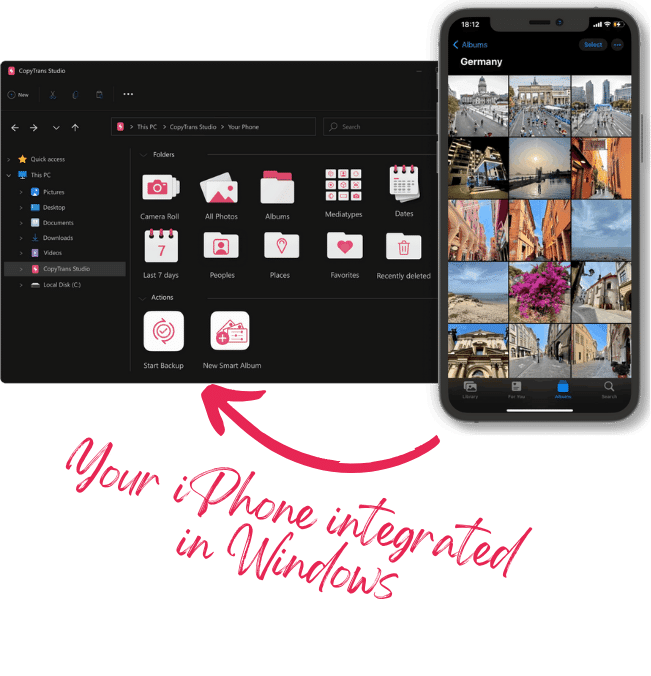
Why CopyTrans Studio?
- No iCloud required: no internet, no Apple ID hassle, no syncing
- Organize your photos with Smart Albums
- Say goodbye to HEIC photos and convert them to JPEG
- Connect iPhone to PC via Wi-Fi
This is a relief if you’ve ever faced iCloud limitations or transfer tools that turn your albums into a jumbled mess of unnamed folders. Best of all, after transferring your albums to your PC, they remain organised just as you arranged them on your iPhone. CopyTrans Studio makes the process simple and familiar:
- Download and install CopyTrans Studio. Download CopyTrans Studio
- Click on the CopyTrans Studio icon. Open the program.
- Choose your iPhone, then Photo Library
- You can just choose the album you need, and drag-and-drop it to your PC.


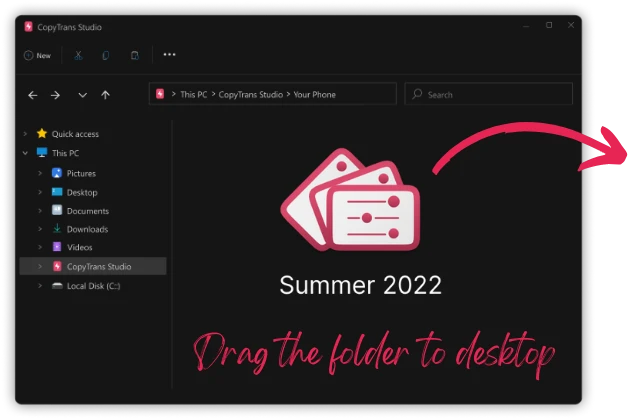
You can also make a full backup of your photo library in CopyTrans Studio.
Final Thoughts
Our iPhone Photo Albums are not just digital folders; they are parts of our lives that we have decided to preserve. And when you transfer them to your computer in a way that preserves their meaning and structure, it feels like you are giving these moments a more permanent place.
With CopyTrans Studio, transferring albums is no longer a puzzle. You see your iPhone library as it is, choose what you want, and transfer it to your computer without losing the story behind it.
If you’ve been looking for a reliable way to organise your memories and ensure access to them, this approach will make the whole process calm, predictable, and understandable for you.