 CopyTrans Studio

Short answer: put your iPhone and your PC on the same Wi-Fi network, then use an app that copies photos across that network. In CopyTrans Studio, you plug in the cable once, switch on Wi-Fi connection, and unplug. From then on, your iPhone photos show up in Windows Explorer and you can drag them anywhere at full quality. iCloud and OneDrive can do it without a cable too, but each comes with a catch. We compare them all below.
Let’s be honest, the Lightning or USB-C cable is never where you need it. So, once I learned how to transfer photos to my computer via Wi-Fi, I stopped using a cable altogether.
How we tested
We moved 10 000 photos and videos from an iPhone 17 Pro running iOS 27 to a Windows 10 PC via Wi-Fi. For every method, we timed the transfer and checked three things: did the photos keep full resolution, did the date and location survive, and did Live Photos still move?
- Which wireless method is right for you?
- Transfer iPhone photos to PC via Wi-Fi: via CopyTrans Studio
- iCloud Photos and iCloud for Windows
- OneDrive camera upload
- LocalSend for a handful of photos
- Fix Wireless transfer not working
- Transfer photos from iPhone to PC via Wi-Fi: FAQ
Which wireless method is right for you?
Here’s the quick overview. Details and steps for each method follow.
| Method | Internet needed? | Full quality? | Whole library at once? | Price | Good for |
|---|---|---|---|---|---|
| CopyTrans Studio (Wi-Fi) | No, it stays on your home network | Yes, originals or JPG | Yes, with 1-click backup | Free: 50 files a day Premium: unlimited |
Regular transfers and backups to a PC |
| iCloud Photos + iCloud for Windows | Yes, photos go to Apple first | Yes, if originals are downloaded | Possible, but slow | 5 GB free, then paid | People who already pay for iCloud+ |
| OneDrive camera upload | Yes, photos go to Microsoft first | Yes | Yes, slow the first time | 5 GB free, then paid | Microsoft 365 users |
| LocalSend | No | Yes | Only by hand, in batches | Free | A few photos now and then |
| Email or messaging apps | Yes | No, photos get compressed | No | Free | One photo, in a hurry |
Transfer iPhone photos to PC via Wi-Fi
CopyTrans Studio
This is the method we use ourselves, and the only one here that skips the cloud entirely while still letting you browse your whole photo library in Windows Explorer. Your photos go straight from the iPhone to your PC over your home Wi-Fi. They never pass through our servers or anyone else’s.
You’ll need:
- A Windows 10 or 11 PC (64-bit)
- An iPhone or iPad with iOS 10 or later
- Both devices on the same Wi-Fi network
- A USB cable, but only for the very first connection
Download and install CopyTrans Studio. Connect your iPhone with the cable, unlock it, and tap Trust when your iPhone asks about the computer. If nothing happens on the PC side, our guide PC not recognizing iPhone walks you through the usual fixes.
Download CopyTrans Studio
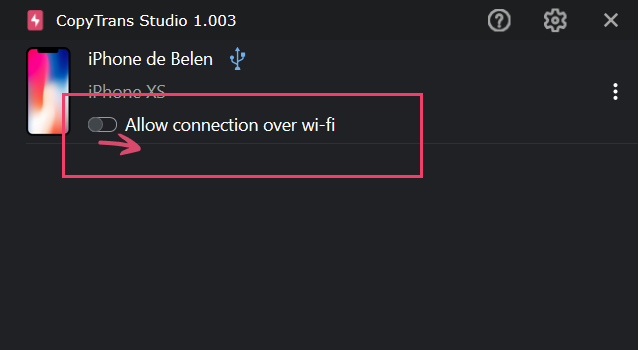
Switch on Wi-Fi connection. Find the CopyTrans Studio icon in the system tray, at the bottom right of your screen next to the clock. Click it, and you’ll see your iPhone in the window. Now switch on Wi-Fi connection.
Unplug the cable. After a few seconds, a small Wi-Fi icon appears next to your device. That’s it, you’re connected without a cable.
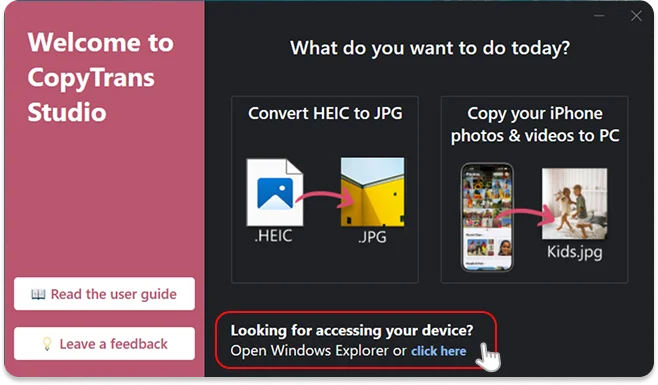
Now click on the CopyTrans Studio icon. Open the program.
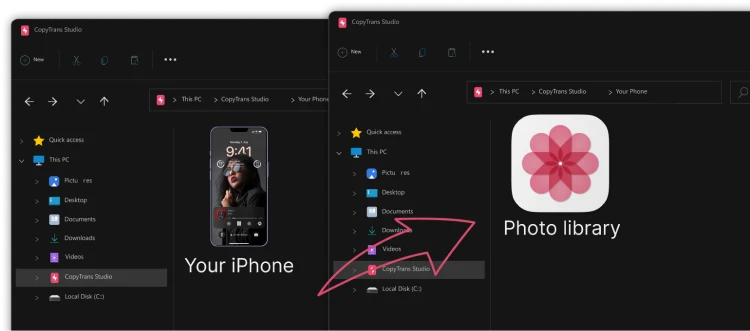
Here you see the icon of your iPhone. Choose it and then click on Photo Library.
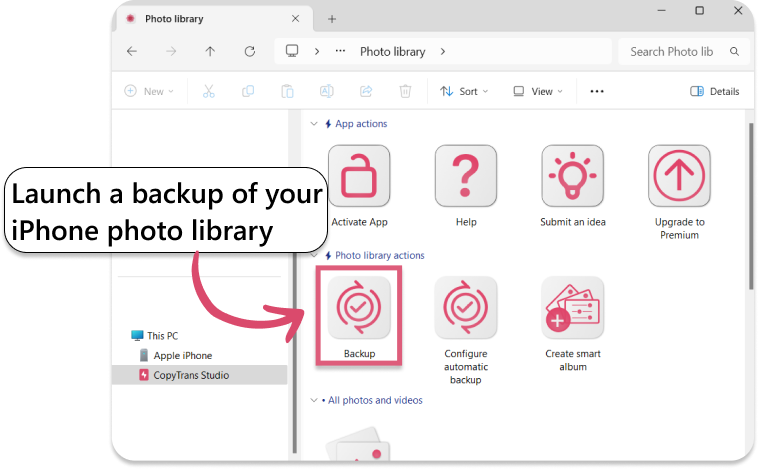
Open choose the option “Back up” and all photos will be saved on you PC.
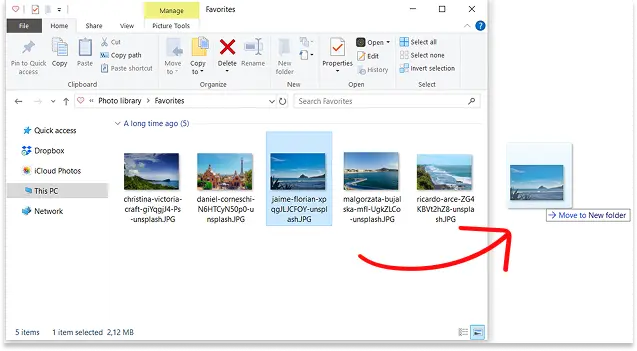
Or you can drag-and-drop any of your albums to PC
Why the cable? This first connection pairs your iPhone with your PC securely. You only do it once. After that, the cable can go back in the drawer.
Free or Premium? The free version lets you drag and drop 50 files a day and run 3 backups a day. Premium removes the limits. You’ll find the full list on the features page.
iCloud Photos and iCloud for Windows
If iCloud Photos is already on, your photos are uploaded to Apple’s servers anyway. The free iCloud for Windows app can download them to your PC.
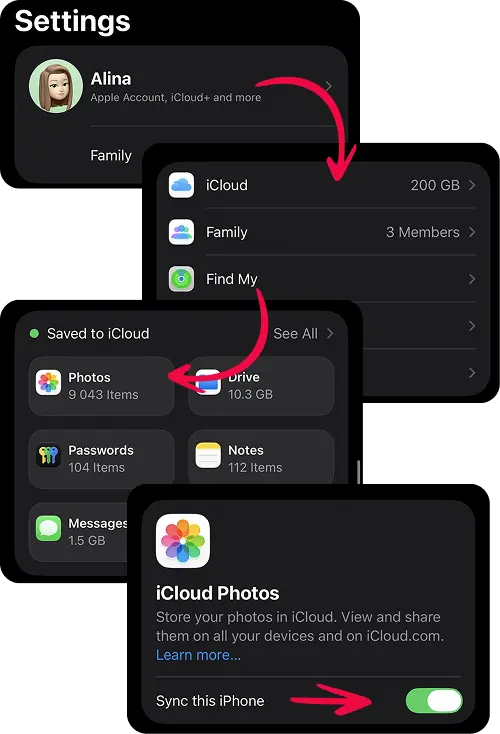
On your iPhone, go to Settings > *YOUR NAME* > iCloud > Photos and turn on Sync this iPhone.
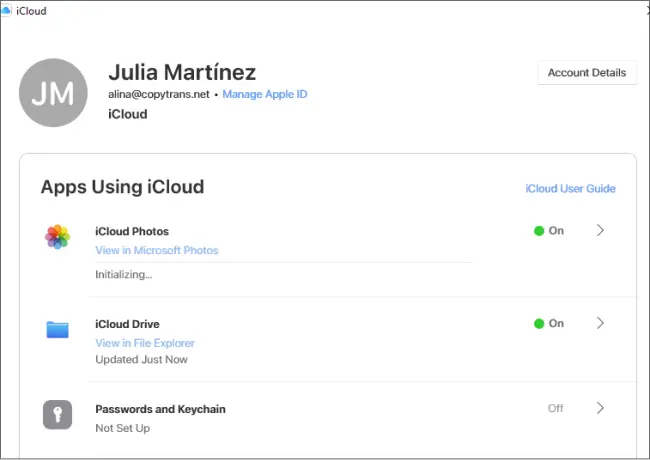
On your PC, install iCloud for Windows from the Microsoft Store, sign in, and tick Photos.
Your photos appear in the iCloud Photos folder in Windows Explorer and in the Windows Photos app. And then you can move them to another folder.
Keep in mind:
- It’s not a direct transfer. Every photo goes up to the internet and then comes back down, which takes a while for big libraries.
- The free plan stops at 5 GB. Most photo libraries need a paid iCloud+ plan.
- iCloud syncs, it doesn’t back up. Delete a photo on your iPhone, and it’s gone from iCloud too.
- With Optimize iPhone Storage turned on, the full-size originals may only exist in iCloud, not on your iPhone.
OneDrive camera upload
If you already use a Microsoft account, OneDrive can send every new photo to your PC in the background.
Install OneDrive on your iPhone and sign in with your Microsoft account.
Turn on Camera Upload in the app settings.
Your photos sync to Pictures > Camera Roll in the OneDrive folder on your PC.
Keep in mind: this also sends everything over the internet first. You get 5 GB for free, and uploads are most reliable while the app stays open.
LocalSend for a handful of photos
LocalSend is a free, open-source app for iPhone and Windows. Think of it as a do-it-yourself AirDrop for your home network.
Install LocalSend on your iPhone (App Store) and on your PC.
Open it on both devices. They need to be on the same Wi-Fi.
On the iPhone, tap Send, choose your photos, and select your PC.
Keep in mind: you pick the photos by hand every time. There’s no Windows Explorer view, no albums, no HEIC to JPG and no automatic backup. Great for ten photos, not so great for ten thousand.
Fix Wireless transfer not working
- iPhone doesn’t show up over Wi-Fi. Make sure both devices are on the same network. A guest network, or separate names for 5 GHz and 2.4 GHz, can stop them from seeing each other.
- The connection keeps dropping. Keep your iPhone unlocked and close to the router during big transfers
- Hotel or office Wi-Fi. Public networks often block devices from talking to each other. Use the cable there.
- Still stuck? Restart both devices, connect once with the cable, and switch Wi-Fi back on. More tips are in CopyTrans Studio troubleshooting.
Transfer photos from iPhone to PC via Wi-Fi
FAQ
Can I transfer photos from iPhone to PC wirelessly for free?
Yes. The free version of CopyTrans Studio moves up to 50 files a day over Wi-Fi, and LocalSend is free for manual transfers. iCloud and OneDrive are free only up to 5 GB.
Can I do it without iCloud?
Yes. CopyTrans Studio and LocalSend both work over your own Wi-Fi, no cloud account needed.
Do photos lose quality over Wi-Fi?
Not with CopyTrans Studio, iCloud (with originals), OneDrive or LocalSend. Email and messaging apps do compress photos, so skip them for anything you want to keep.
Do I need an internet connection?
Not for CopyTrans Studio or LocalSend. They only use your local network, so they work even when the internet is down, as long as both devices are on the same Wi-Fi.
Are my photos uploaded anywhere?
With CopyTrans Studio, no. Photos go straight from your iPhone to your PC and never touch our servers. iCloud and OneDrive keep your photos on Apple’s or Microsoft’s servers.
Does this work with an iPad?
Yes. CopyTrans Studio works with iPhone, iPad and iPod touch on iOS 10 or later.
To sum up
If you want your iPhone photos on your PC without a cable and without the cloud, a direct Wi-Fi connection is the easiest way. Plug in once, switch on Wi-Fi connection in CopyTrans Studio, and your photos are right there in Windows Explorer, ready to drag and drop at full quality. Already paying for iCloud or OneDrive? Those work too. And for the odd handful of photos, LocalSend does the job.
Download CopyTrans Studio