 CopyTrans Studio

Short answer: the iPhone 18 Pro and Pro Max shoot with three 48 MP cameras and a main camera with variable aperture. That means stunning photos, and very big files. For everyday shooting, keep High Efficiency (HEIC) on and use the default resolution. Turn on 48 MP, ProRAW or ProRes only when you need them. To get your photos onto a Windows PC, connect with CopyTrans Studio once by cable, and from then on you can drag photos to Windows Explorer or back up the whole library in one click, by cable or over Wi-Fi.
Congratulations on the new phone!
- What’s new in the iPhone 18 Pro camera
- Why your new iPhone fills up faster
- The camera settings to change
- How to get your iPhone 18 photos onto your PC
- Make backups automatic
- iPhone 18 Pro camera and photos: FAQ
What’s new in the iPhone 18 Pro camera
The short version:
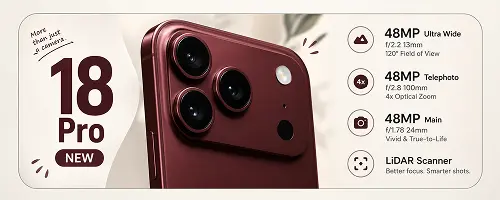
- Main camera: 48 MP with a variable aperture that can switch between f/1.48 and f/4. Wide open lets in more light at night. Closed down gives you more of the scene in focus, for example in group photos.
- Ultra Wide: 48 MP, f/2.2.
- Telephoto: 48 MP, 4x optical zoom, up to 40x digital zoom.
- Front camera: 18 MP with Center Stage.
- Video: 4K up to 120 fps, Dolby Vision HDR, ProRes, ProRes RAW and Apple Log 2.
- Pro controls: aperture, shutter speed, white balance and a live histogram right in the Camera app.
Why your new iPhone fills up faster
Better cameras mean bigger files. Here’s roughly what to expect:
| What you shoot | Approx. size |
|---|---|
| Photo, default resolution, HEIC | ~2–4 MB |
| Photo, 48 MP, HEIC | Several MB; varies by image |
| Photo, 48 MP ProRAW | ~75 MB |
| 1 minute of 4K 30 fps video, HEVC | ~175+ MB |
| 1 minute of 4K 120 fps video | ~1+ GB |
| 1 minute of 4K ProRes | ~6 GB |
A weekend of ProRAW photos and ProRes clips can easily eat 100 GB. So it pays to choose your settings on purpose.
The camera settings to change
All of these are in Settings > Camera.
1. Formats:
keep High Efficiency
Under Formats, choose High Efficiency. Photos are saved as HEIC and videos as HEVC, which take about half the space of JPG and H.264 at the same quality.
Worried your PC can’t open HEIC? No problem. CopyTrans Studio can convert HEIC to JPG while copying to your PC, so you get small files on the iPhone and JPGs on Windows.
2. Photo resolution:
24 MP for everyday, 48 MP when it matters
The default is a good balance of detail and size. Switch to 48 MP for landscapes, architecture or anything you might print big or crop later.
3. ProRAW:
only for photos you’ll edit
ProRAW keeps the most information for editing in Lightroom or similar apps. But each photo is many times bigger than a HEIC. Turn it on under Formats > Photo Mode or ProRAW & Resolution Control, then switch it on in the Camera app only for the shots that need it.
4. Video:
4K at 30 fps for everyday clips
Under Record Video, 4K at 30 fps looks great and keeps files reasonable. Use 60 or 120 fps for sports and slow-motion, and ProRes or ProRes RAW only for serious video projects, ideally recording straight to an external drive over USB-C.
5. Preserve Settings
Under Preserve Settings, turn on the options for the controls you use, like Photographic Style or exposure. Otherwise the camera resets them every time you open it.
6. Grid and level
Turn on Grid and Level for straighter horizons and better-balanced photos. Small thing, big difference.
Want to get more out of the camera? Our iPhone camera guide and tips for professional-looking photos work great with the new iPhone.
Moved from an older iPhone?
Check your photos came along
If you set up your iPhone 18 Pro from an iCloud backup or with Quick Start, your photos should be there. Still, take a quick look:
- Compare the number of photos and videos at the bottom of the Library on both phones.
- If you use iCloud Photos, older photos may still be downloading. Give it time on Wi-Fi and power.
- Keep your old iPhone until you’re sure everything is there. Better yet, back up its photos to your PC before you trade it in.
How to get your iPhone 18 photos onto your PC
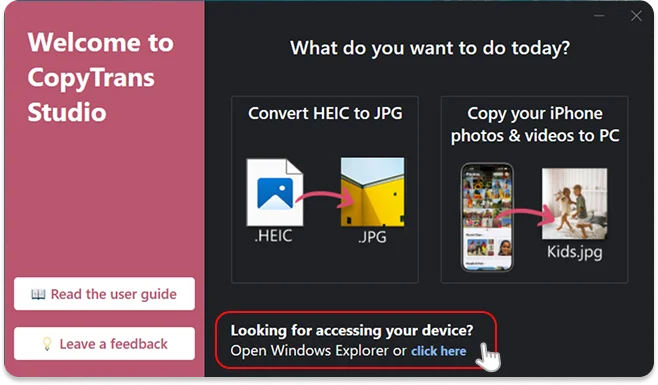
CopyTrans Studio works with the iPhone 18, iPhone 18 Pro and Pro Max on Windows 10 and 11.
- Download and install CopyTrans Studio. Download CopyTrans Studio
- Click on the CopyTrans Studio icon. Open the program.
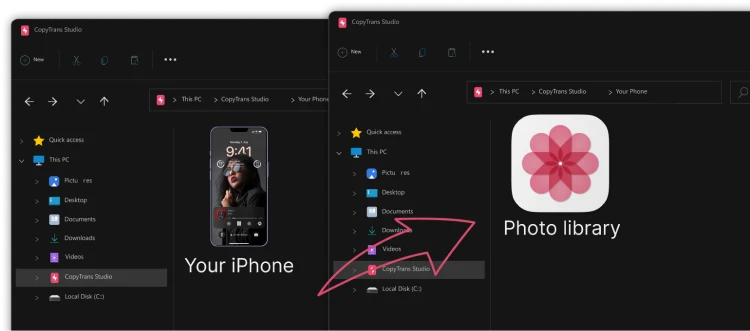
- Here you see the icon of your iPhone. Choose it and then click on Photo Library.
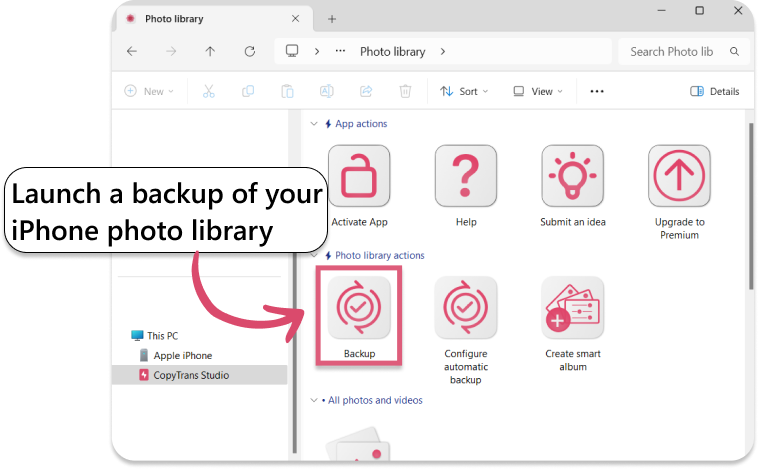
- Open choose the option “Back up” and all photos will be saved on you PC. Or just find the photo you need and drag-and-drop it.
Make backups automatic
With a camera this good, you’ll take more photos than ever. Set up automatic photo backup in CopyTrans Studio, and new photos are copied to your PC without you having to think about it. Later backups only add what’s new.
The free version runs 3 backups and copies 50 files by drag and drop per day. Premium removes the limits, which is handy if you shoot a lot of 48 MP photos and video.
iPhone 18 Pro camera and photos
FAQ
What are the best photo settings for the iPhone 18 Pro?
For everyday use: High Efficiency format, the default resolution, 4K at 30 fps video, and Grid turned on. Switch to 48 MP or ProRAW for shots you’ll edit or print big.
Should I shoot in 48 MP all the time?
You can, but your storage will fill up much faster. Most people get the best balance by using the default resolution and switching to 48 MP for specific shots.
Does the iPhone 18 Pro shoot in HEIC?
Yes, with High Efficiency on. You can switch to Most Compatible for JPG, but the files are bigger. Converting to JPG on your PC gives you the best of both.
Can I transfer iPhone 18 photos to a PC without iTunes?
Yes. CopyTrans Studio copies your photos straight to Windows Explorer, by cable or over Wi-Fi, without iTunes.
To sum up
The iPhone 18 Pro takes amazing photos, and big files to match. Keep High Efficiency on, save 48 MP and ProRAW for the shots that deserve them, and back up regularly to your PC. Connect once with CopyTrans Studio, and your photos are in Windows Explorer whenever you need them.
Download CopyTrans Studio