 CopyTrans Studio

Short answer: first check whether your photos are already safe in iCloud, Google Photos or a computer backup. Often they are. If not, the iPhone has to be switched on and you have to be able to unlock it. With a cracked but working screen, connect it to your PC and copy everything in one go. With a black screen, you can often still unlock it with Face ID, by voice, or by connecting it to a TV or monitor, and then copy your photos. If the iPhone won’t turn on at all, a repair is the only way, and a screen or battery repair usually keeps your photos.
A dropped phone is stressful enough. Losing years of photos on top of that feels much worse. Take a breath: in many cases, your photos can still be saved.
Be honest with yourself about one thing: no app or service can pull photos from an iPhone that won’t turn on, or that you can’t unlock, unless the photos are already backed up somewhere. iPhones are encrypted. Tools that promise otherwise usually just restore from an existing backup. Knowing this saves you money and time.
- Which situation are you in?
- Check if your photos are already backed up
- Case 1: Cracked screen, but it still works
- Case 2: Black screen or touch not working, but the iPhone is on
- Case 3: The iPhone won’t turn on
- What about “iPhone data recovery” software?
- Next time: make sure a broken iPhone can’t cost you photos
- Get photos off a broken iPhone: FAQ
Which situation are you in?
| Your iPhone | Can you get your photos? | Go to |
|---|---|---|
| Screen cracked, but you can see and tap it | Yes, easily | Case 1 |
| Screen cracked, touch doesn’t work (or only partly) | Usually yes | Case 2 |
| Black screen, but the iPhone is on (it vibrates, rings or makes sounds) | Often yes | Case 2 |
| Won’t turn on at all | Only via an existing backup or a repair | Case 3 |
| Water damage | Possibly, after drying and repair | Case 3 |
Check if your photos are already backed up
Before you do anything with the broken iPhone, spend two minutes checking these. If one of them has your photos, you’re done.
iCloud Photos. On a computer, go to icloud.com/photos and sign in with your Apple Account. If your photos are there, select and download them. On Windows, you can also install iCloud for Windows.
iCloud Backup. Even without iCloud Photos, your photos may be inside an iCloud backup of the iPhone. You can’t browse it on the web, but you can restore it to a new or repaired iPhone. Check under Settings > your name > iCloud > iCloud Backup on another Apple device.
Google Photos, OneDrive, Dropbox or Amazon Photos. If you ever turned on camera upload in one of these apps, sign in on your computer.
Your PC. Look for an old backup folder from CopyTrans Studio, an iTunes or Apple Devices backup, or photos you once imported. Our article does an iPhone backup include photos? explains what’s inside.
Nothing there, or only older photos? Read on.
Case 1: Cracked screen, but it still works
This is the good case, but don’t wait. Cracked screens tend to get worse, and the touch can fail any day. Get your photos off now.
Install CopyTrans Studio on your Windows PC.
Download CopyTrans Studio
Connect your iPhone with a cable. Unlock it and tap Trust.
Click the CopyTrans Studio icon in the system tray, next to the clock, and open the program.
Choose the icon of your iPhone, then click Photo Library.
Click Back up and choose a folder on your PC or an external drive. All your photos and videos are copied there.
Wait for it to finish, then check the folder.

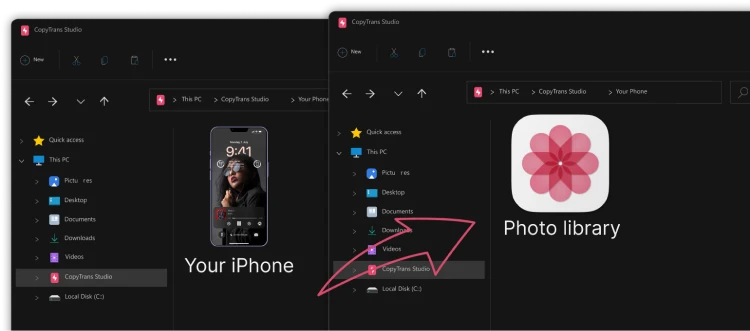
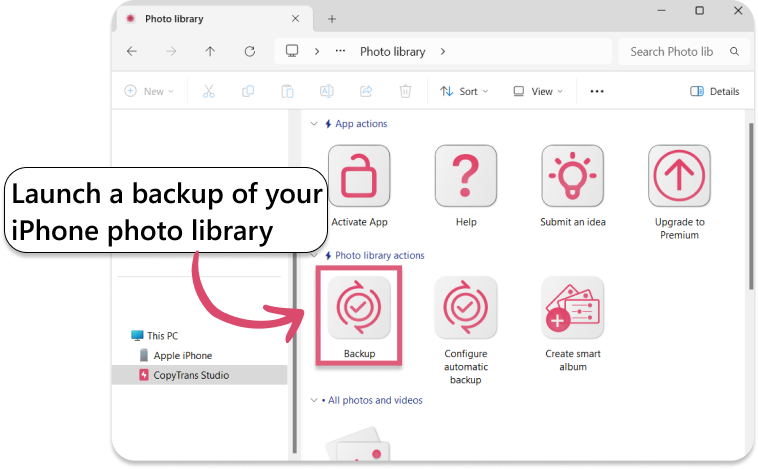
The nice thing about one-click backup is that you only need to touch the broken screen twice: once to unlock, once to tap Trust. Everything else happens on the PC.
Tip: while the screen still works, switch on Wi-Fi connection in CopyTrans Studio. If the screen gets worse later, you may still be able to connect without a cable. See wireless transfer.
Case 2: Black screen or touch not working, but the iPhone is on
Your iPhone is running, you just can’t see or use the screen. The challenge is unlocking it and tapping Trust. Here are the ways people get around that, from easiest to most involved.
Option A: Unlock with Face ID
If the front camera area isn’t damaged, Face ID may still work even with a black screen. Hold the iPhone in front of your face as usual, then swipe up from the bottom. If it unlocks, connect it to a PC you’ve used before.
Option B: Use a PC you’ve trusted before
If you’ve connected this iPhone to your PC before and tapped Trust, you won’t see the Trust prompt again on that PC. You still need to unlock the iPhone, but that’s one step less.
Option C: Connect to a TV or monitor
If only the display is broken, you can show the screen on a TV or monitor with an adapter:
- iPhone with USB-C (iPhone 15 and later): a USB-C to HDMI adapter or a USB-C monitor.
- iPhone with Lightning: Apple’s Lightning Digital AV Adapter.
You’ll see your iPhone’s screen on the TV. If the touch still works, you can unlock and tap Trust while watching the TV. Then disconnect and connect to your PC.
Option D: Use Siri and VoiceOver
VoiceOver reads the screen out loud, so you can unlock “blind”.
Hold the side button (or say “Hey Siri”) and say “Turn on VoiceOver.”
Swipe up from the bottom to get to the passcode screen.
Swipe left or right to move between the number keys. VoiceOver says each number. Double-tap to enter it.
Once unlocked, connect to your PC and use VoiceOver to find and double-tap Trust.
This only works if at least part of the touchscreen responds and Siri works on the Lock Screen.
Option E: Use a keyboard or mouse
Some people unlock with a USB or Bluetooth keyboard to type the passcode. This only works if the accessory can connect while the iPhone is locked, and iOS limits that for security.
Once the iPhone is unlocked and trusted, do the same as in Case 1: open Photo Library in CopyTrans Studio and click Back up, so you don’t have to do anything else on the phone.
Case 3: The iPhone won’t turn on
First make sure it’s really dead and not just stuck:
- Charge it for at least 30 minutes with a cable and charger you know work.
- Try a force restart. On iPhone 8 and later: press and release volume up, press and release volume down, then hold the side button until the Apple logo appears.
More steps are in iPhone not turning on: how to fix it.
Water damage? Don’t charge the iPhone while it’s wet. Let it dry, and don’t use rice: Apple advises against it.
If it still won’t start, the only way to your photos is a repair:
- Screen or battery repair at Apple or an authorized repair shop usually keeps your data. Ask before they start, and tell them you need your photos.
- Bigger damage (logic board, severe water damage): a specialized data recovery lab may be able to help, but it’s expensive and not guaranteed.
- Replacing the iPhone doesn’t bring photos back, unless you restore an iCloud or computer backup onto the new one.
After the repair, back up your photos right away before anything else.
What about “iPhone data recovery” software?
You’ll see ads for tools that promise to recover photos from any broken iPhone. Here’s what they can and can’t do:
- They can extract photos from an existing iTunes, Apple Devices or iCloud backup, which you could also do by restoring that backup.
- They can copy photos from an iPhone that works and is unlocked, which you can do for free.
- They can’t read photos from an iPhone that’s switched off, completely dead, or locked without the passcode.
So check the free options above first, and be careful with anything that asks you to pay before showing you what it found.
Next time: make sure a broken iPhone can’t cost you photos
A cracked screen should only cost you a repair, not your memories. Two simple habits:
- Back up regularly to your PC. Automatic backup in CopyTrans Studio copies new photos whenever your iPhone is connected.
- Keep a second copy in the cloud or on an external drive. Our overview of 9 ways to back up iPhone photos helps you choose.
Get photos off a broken iPhone
FAQ
Can I get photos off my iPhone if the screen is black?
Often, yes, if the iPhone is still on. You need to unlock it, for example with Face ID, VoiceOver or by connecting it to a TV. Then you can copy your photos to a PC.
Can I get photos off an iPhone without unlocking it?
No. iPhones are encrypted, and photos can only be copied after the iPhone has been unlocked with its passcode. The only exception is photos already in iCloud or another backup.
Will Apple delete my photos when repairing the screen?
A screen or battery repair usually doesn’t erase your data. Some repairs need the iPhone to be reset or replaced, though, so ask first and back up if you possibly can.
Can I get photos off an iPhone that won’t turn on?
Only from an existing backup (iCloud, iCloud Photos, a computer backup or another photo app), or after it’s been repaired enough to turn on.
My iPhone is disabled after too many wrong passcodes. Can I still get my photos?
Unfortunately, only from an existing backup. Unlocking a disabled iPhone requires erasing it.
Get photos off broken iPhone
Start by checking iCloud and your other backups, because your photos may already be safe. If not, a cracked or black screen is usually not the end: as long as the iPhone is on and you can unlock it, you can copy everything to your PC in one go with CopyTrans Studio. If it won’t turn on, a repair is your best chance. And once you’ve got your photos back, set up regular backups so you never have to go through this again.
Download CopyTrans Studio