 CopyTrans Studio

You open the Photos app and see images that you don’t remember taking. They’re not saved in a shared album, they’re not clearly labelled, they’re just mixed in with your photos in your Camera Roll. For many iPhone users, this is their first encounter with the iCloud Shared Photo Library.
Apple developed this feature to make sharing photos as convenient as possible. But when Shared Photos appear alongside your personal ones, it can be confusing: who added them? Are they taking up space in your iCloud storage? And can you delete them without losing your own photos?
Before changing your settings, it’s helpful to understand what’s actually happening in the background.
- What is iCloud Shared Photo Library?
- iCloud Shared Photo Library vs Shared Album
- Why Shared Photos appear in your Camera Roll?
- How to turn on and off iCloud Shared Photo Library
- Save iPhone photos on PC
What is iCloud Shared Photo Library?
Shared Photo Library in the cloud is an iCloud feature that allows multiple people to use a single shared photo library instead of manually sharing images. All members of the shared library see the same photos and videos, synchronised between their devices via iCloud.
What Apple means by “Shared Library”?
When Apple says “Shared Library,” it doesn’t mean a folder or album. It means a single collection of photos stored in iCloud. Photos moved to the shared library become part of this shared space. They are no longer considered separate copies, they belong to the library itself. New photos can be added manually or automatically, depending on your settings.
Who can view, add, and delete photos?
All members of the Shared Photo Library have equal access. This means that any invited user can:
- View all shared photos and videos
- Add new content to the library
- Delete photos, even if they didn’t take them
There are no permission levels or view-only roles. Once someone joins, their actions affect the entire shared library.
Why shared photos appear in your camera roll?
Photos from the Shared Library appear directly in your Camera Roll (in the “Recent” section) by default. Apple combines shared and personal photos to make the library look cohesive rather than divided into sections.
If you don’t apply filters in the Photos app, shared photos look almost identical to personal ones. That’s why many users only realise they are using the iCloud Shared Photo Library after they notice unfamiliar images in their camera roll.
iCloud Shared Photo Library vs Shared Album
What’s the Difference?
At first glance, iCloud Shared Photo Library and Shared Albums seem similar. Both features allow you to share photos with others, both are located in iCloud, and both sync across devices. But they work differently, and that difference matters when it comes to control and visibility.
| Feature | iCloud Shared Photo Library | Shared Album |
|---|---|---|
| Where photos are stored | In one common iCloud photo library shared by all participants | In a separate shared album |
| Appear in Camera Roll | Yes, mixed with personal photos | No, shown only inside the shared album |
| Who can delete photos | Any participant can delete shared photos | Usually the album owner controls deletion |
| Storage impact | Uses the organizer’s iCloud storage | Shared albums don’t count against iCloud storage |
When it makes sense to use a Shared iCloud Photo Library? This option is best suited in the following cases:
- You want to have one shared photo library
- Everyone should have equal access
- Photos should automatically appear in the camera roll
- It is often used by families or couples who do not want to manage separate collections
When it is better to choose a Shared Album? Shared albums are better suited in the following cases:
- You want photos to be stored separately from the camera roll
- You need clear ownership and control
- You want to share photos without affecting your iCloud storage
- For many users, shared albums seem simpler and more predictable, especially if there is no need for full library sharing
Why Shared Photos appear in your Camera Roll?
One of the most confusing features of the iCloud Shared Photo Library is that shared photos don’t look “shared.” They just appear in your Camera Roll alongside your personal images.
Explanation of default settings
By default, iOS is set to display both personal and shared photos from your library. Apple’s goal is to make the photo library more convenient so that you don’t have to switch between sections every time you open the Photos app. Unless you change this setting, shared photos will appear in the Recent section, even if they were added by someone else.
A common misunderstanding after updating iOS
Many users notice Shared Photos for the first time after updating iOS. This usually happens for the following reasons:
During setup, you were prompted to use the iCloud Shared Photo Library
Existing photos were automatically moved or merged
Display settings were reset to show both libraries together
The photos were already shared, they just became more visible after the update
When photos are merged and when they are separated?
Photos are merged visually, not technically. Your iPhone shows personal and shared photos together in the Camera Roll, but in the background, they still belong to different libraries.
How to turn on and off iCloud Shared Photo Library
If shared photos in your camera roll are distracting or seem unnecessary, you can disable iCloud Shared Photo Library at any time:
Open Settings on your iPhone and tap Photos
Select Shared Library and toggle it to turn it on or off
Before turning off the feature, you will be asked to choose what to do with your shared photos
What happens to photos after disabling the feature? When you disable iCloud Photo Library, iOS asks you to choose:
keep all shared photos in your personal library, or
keep only the photos you originally added
No photos are automatically deleted without confirmation, so you can control what stays on your device.
Save photos on PC
Before changing the settings of the Shared Library or deleting photos from your iPhone, it is recommended that you save a local copy of the photos on your computer. This will protect you in case something is accidentally deleted from the shared library. Tools such as CopyTrans Studio allow you to transfer photos from your iPhone directly to your PC and store them locally without relying on iCloud and waiting for synchronisation to complete.
- Download and install CopyTrans Studio. Download CopyTrans Studio
- Click on the CopyTrans Studio icon. Open the program.
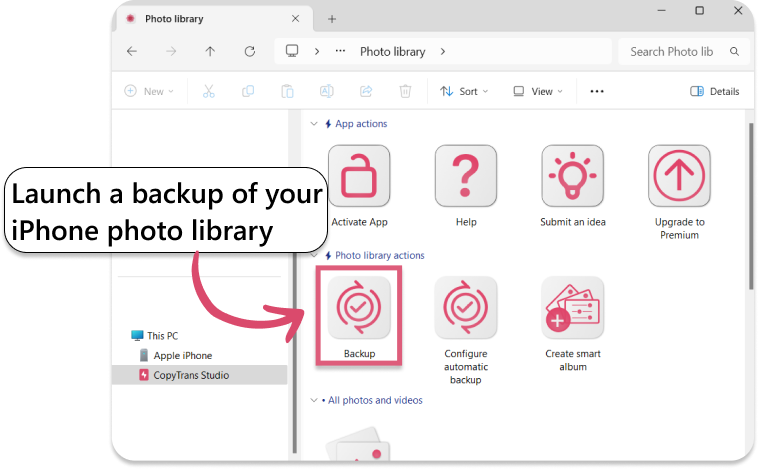
- Here you see the icon of your iPhone. Choose it and then click on Photo Library.
- Open choose the option “Back up” and all photos will be saved on you PC.


iCloud Shared Photo Library
Final Thoughts
iCloud Shared Photo Library can be useful if everyone understands how it works. But when photos start appearing in your camera roll without context, it quickly feels like you’ve lost control of your own library.
And nothing happens “by accident.” Shared photos appear because of specific settings, and you can always change how this feature behaves — or turn it off completely — without deleting your personal photos. Once you understand the difference between shared libraries, shared albums, and your personal library, managing your photos becomes much more predictable.
Often, a few small adjustments are all it takes to make your photo roll yours again.