 CopyTrans Studio

You press “Send,” your photo appears in the chat and nothing else. It just hangs there, stuck on “Sending.” Meanwhile, your text messages go through without a hitch. No error messages, no warnings, just a frozen image that refuses to budge.
When your iPhone suddenly stops sending photos, it’s usually not a coincidence. Something has changed in the background, perhaps a network glitch, a misconfiguration, or even a problem with your carrier, and it’s blocking your images from sending.
In this article, we’ll cover common reasons why your iPhone isn’t sending photos, from simple Wi-Fi or cellular issues to more obscure iMessage settings. We’ll walk you through effective troubleshooting steps so you can get back to sending your photos quickly and smoothly.
Why your iPhone isn’t sending photos?
If your photos aren’t sending but text messages are working fine, the reason is usually pretty obvious. A single setting, connection issue, or temporary system glitch is often enough to stop images from going through. Here are the most common reasons to check first:
Unstable or no internet connection: sending photos relies on data, so even brief interruptions in Wi-Fi or cellular service can interrupt the sending process.
iMessage is not active: when iMessage is disabled or unresponsive, photos sent through it will not be delivered.
MMS is disabled in settings: without MMS enabled, your iPhone cannot send images via standard text messages.
Carrier restrictions: message size limits, account restrictions, or temporary carrier issues can block image sending.
Temporary iOS issue: background glitches or outdated software may interfere with sending photos.
Next, we’ll look at each reason and explain what you need to check so you can send your photos again.
Photos not showing in iMessage
If your iPhone won’t send pictures via iMessage, it’s usually not a problem with the Photos app, but with iMessage itself. Often, text messages will send fine, but images will get stuck in a ‘Sending’ state or not appear at all.
Quickly check the status of iMessage. Go to Settings → Messages and make sure iMessage is turned on. Even if it is already turned on, turning it off and on again may help reset the connection.
Check your Apple ID login. In Settings → Messages → Send and Receive, make sure your phone number and Apple ID are selected. If your Apple ID is not connected properly, iMessage may be unstable. this is one of the most common reasons why iMessage does not send photos or photos do not appear in iMessage, even if everything looks normal at first glance.
Pay attention to what is happening in the chat. If the photo never gets past the “Sending” stage, iMessage is probably not connected. If “Delivered” is displayed but the recipient still cannot see the image, the problem may be on their end or related to how the message was sent.
Quick fixes that often help
Before resorting to more complex solutions, try the following steps in order. Each one resets a different part of your iPhone’s connection and often immediately fixes problems with sending photos.
Restart your iPhone
This will refresh system processes and network connections that may be frozen in the background. It’s simple, but it often helps resolve issues with photos that are stuck in the “Sending” stage.Turn Airplane Mode on and off
Turn Airplane Mode on for about 10 seconds, then turn it off. This will force your iPhone to reconnect to Wi-Fi and cellular networks, which helps if your phone is having trouble switching between networks.Reset your network settings
Go to Settings → General → Transfer or Reset iPhone → Reset → Network Settings. This will clear your saved Wi-Fi, cellular, and VPN settings without deleting your personal data. This is especially useful when sending images fails despite a strong signal.Update iOS
Check Settings → General → Software Update and install any available updates. Messaging issues are sometimes caused by minor iOS bugs, and updates often include fixes for iMessage and MMS issues.
Following these steps in order will give your iPhone’s connection a clean restart and, in many cases, will be enough to get your photos sending again.
Keep your iPhone photos safe on your PC
If your iPhone sometimes has trouble sending photos, that’s a good reason to back up your photos regularly. Saving them on your computer not only protects your memories, but also makes it easier to find another way to share pictures when you have problems with messaging. The easiest way to do this? CopyTrans Studio. It lets you quickly transfer photos from your iPhone to your PC so you always have a safe copy on hand.
- Download and install CopyTrans Studio. Download CopyTrans Studio
- Click on the CopyTrans Studio icon. Open the program.
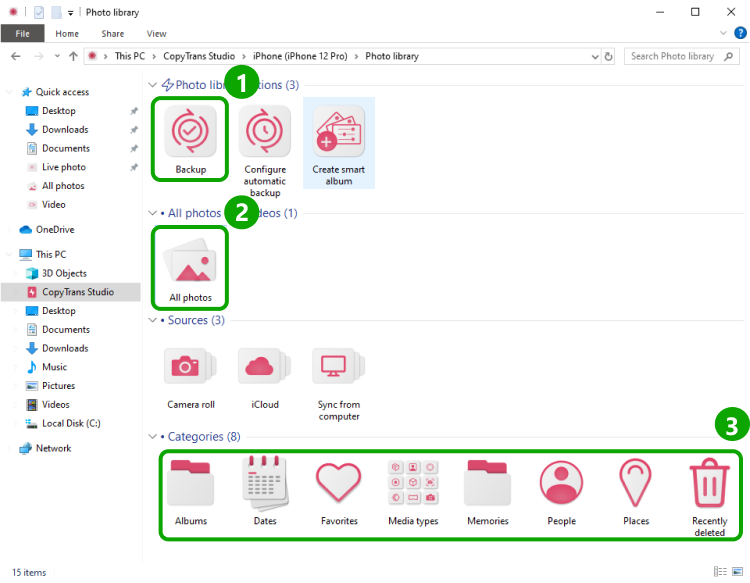
- Here you see the icon of your iPhone. Choose it and then click on Photo Library.
- Open the All Photos folder (option 2 in the screenshot) and choose the photos you would like to save and just drag and drop them…
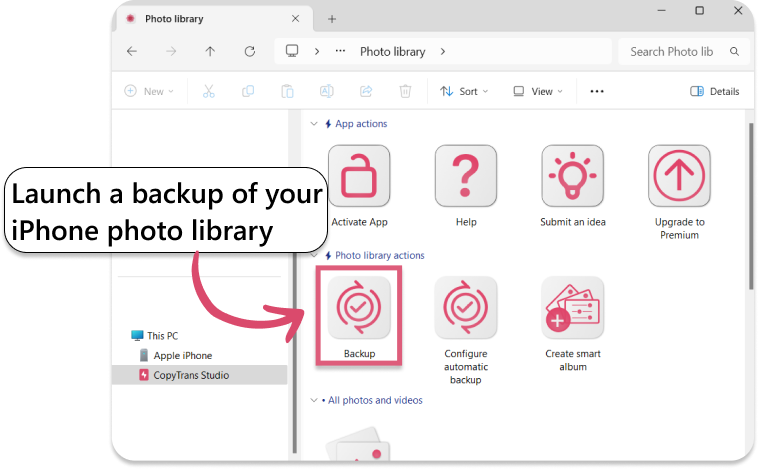
- …or just back up all photos.


Why won’t my iPhone send pictures
Final Thought
When your iPhone isn’t sending pictures, the problem is rarely random; it usually has a clear cause. Common causes include weak or unstable Wi-Fi or cellular connectivity, disabled iMessage or MMS settings, or temporary software glitches.
To resolve the issue, first check your internet connection and switch between Wi-Fi and cellular data. Ensure that iMessage and MMS are enabled, and verify that the recipient’s contact information is correct. Restarting your iPhone often resolves minor glitches, and if the issue persists, resetting your network settings or updating iOS may help.
By following these steps, you’ll ensure reliable photo delivery, restore full messaging functionality, and prevent future glitches. With these solutions, your iPhone should be able to handle both text and images without any problems, ensuring that your conversations are complete and uninterrupted.