 CopyTrans Studio

You switch to a new iPhone, and you can’t find your photos there. All your photos are still in Google Photos. You can see them in the app. But they’re not actually on your device. They’re not in your iPhone’s gallery. Then you may have some questions:
- Can you save photos from Google Photos directly to your iPhone?
- Do you have to download them one by one?
- Will the quality be compromised?
- What happens if you stop using Google Photos?
Many people encounter this problem after switching from Android to iPhone. Others notice it when they try to free up space in Google storage or when they decide they want everything to be in the Apple ecosystem. The photos are accessible, but not fully transferred.
Whether you want to download Google Photos to iPhone one image at a time or transfer your entire library, there’s a safe way to do it. In this guide, I’ll show you exactly how to save Google Photos to iPhone.
- How to download photos from Google Photos
- Save photos with CopyTrans Studio
- Can’t downlod Google Photos: how to fix
How to download photos from Google Photos
If you already have the Google Photos app installed on your iPhone, this is usually the easiest and most straightforward way to save photos from Google Photos to your iPhone. You won’t need a computer, additional software, or complicated export settings.
For most users, this is the first method to try and it is best for you if:
- Only need a few photos
- Want to download your most recent images
- Prefer to do everything directly on your phone
It’s also the safest option if you’re afraid of making a mistake. You can clearly see each photo before downloading it. However, this approach is manual. If you plan to transfer hundreds or thousands of images, it may seem tedious.
For now, let’s take a look at how to upload Google Photos to your iPhone using the app.
Save multiple photos at once
If you want to save more than one or two photos, you don’t need to upload them individually. The Google Photos app lets you select multiple images and save them all at once. Here’s how to do it:
Open the Google Photos app on your iPhone. Tap and hold one photo until a check mark appears.
Tap the other photos you want to download and then tap the Share icon.
Select Save to Device. The selected photos will be downloaded and appear in the Apple Photos app on your iPhone under Recent.
A few quick tips:
- If you’re selecting a lot of images, use Wi-Fi to avoid interruptions
- If “Save to Device” is not displayed, these photos are probably already stored locally
- If the app is running slowly, try downloading photos in small batches
This method is best when you want to move photos from Google Photos to your iPhone in organised groups, such as by weekend trip or specific event.
Saving an entire album
If your photos are already sorted into albums, this may be even faster.
Open Google Photos. Go to “Library” and open the album you want.
Tap the three dots in the top right corner. Select “Download All”.
The album will be downloaded directly to your iPhone. Once downloaded, all images will appear in the Photos app as regular photos. Keep in mind that they will be grouped by download date, not album name.
If the app doesn’t have a “Download All” option, you may need to use a browser.
Download Google Photos using Safari
Sometimes the app does not display the download option, freezes, or simply does not work as expected. In this case, using a browser may help. This method is useful if:
- Downloading Google Photos does not work on your iPhone
- You want to download an album in ZIP format
- You prefer desktop style downloading
Here is how to download photos from Google via Safari
Open Safari on your iPhone. Go to photos.google.com and log in.
Select the photos. Tap the three dots → Download.
The file will not be sent directly to the Photos app. Instead, it will be downloaded to the Files app.
How to save from Files to Photos
- Open the Files app. Go to Downloads.
- Tap on the image. Tap Share → Save Image.
- It will now appear in the Apple Photos app on your iPhone.
Transfer iPhone photos to PC
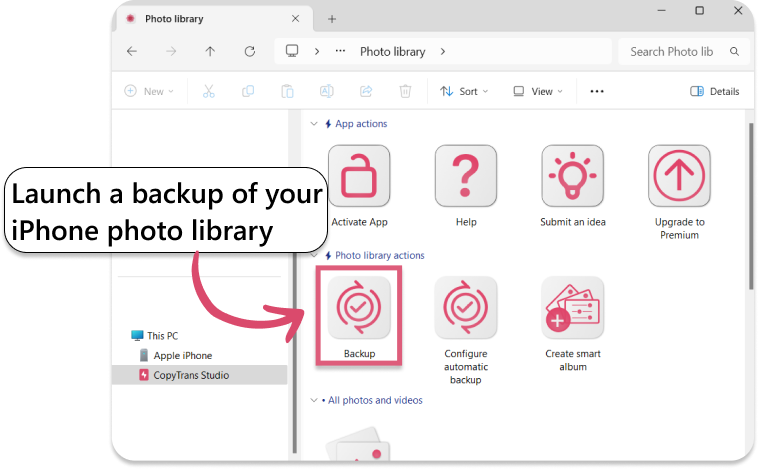
Before making any big changes to your photo libraries, it’s always a good idea to have a reliable backup. I recommend CopyTrans Studio. This powerful tool lets you transfer and back up your iPhone photos to your computer quickly and securely, no cloud required.
- Download and install CopyTrans Studio. Download CopyTrans Studio
- Click on the CopyTrans Studio icon. Open the program.
- Here you see the icon of your iPhone. Choose it and then click on Photo Library.
- Open choose the option “Back up” and all photos will be saved on you PC.


Can’t downlod Google Photos
How to fix
1. Why can’t I save Google Photos to my iPhone?
This can happen for several reasons:
Not enough space: make sure your iPhone has enough free space to store photos.
App permissions disabled: make sure Google Photos has permission to access your iPhone’s Photos app. Go to Settings → Google Photos → Photos and allow access.
Already saved locally: if the photo is already saved on your iPhone, the upload option may not appear.
2. Why do Google Photos become blurry after saving?
Blurry photos usually mean that you have uploaded a lower quality version:
Saved preview instead of original: Google Photos sometimes uses “optimized” images by default for faster uploading.
Storage Saver mode quality: if your photos were uploaded in Storage Saver mode, the uploaded version may not be full resolution.
3. How can I save photos from Google Photos to my iPhone without losing quality?
To keep your photos clear and original:
Download the original version directly from the Google Photos app or browser.
Use Google Takeout to export your entire library in its original quality, then transfer it to your iPhone.
4. Does Google Photos automatically sync with iPhone?
No, Google Photos and iPhone Photos are separate systems. Photos are not automatically saved to your iPhone; you need to manually download or transfer them.
Download Photos from Google Photos
Final Thoughts
Using Google Photos doesn’t lock you into one ecosystem forever. You can download a single image, an album, or your entire library whenever you decide it’s time to move on. And once they’re saved to your iPhone, they live safely inside the Apple Photos app just like any other picture you’ve taken.
You’re not risking your memories. You’re not trapped in one cloud. And you’re not losing quality if you download them the right way.
Whether you just need a few photos back on your device or you’re planning a full backup, everything is easy with step by step guide. Choose the method that matches your situation and keep your memories exactly where you want them.