 CopyTrans Studio

Short answer: yes, you can back up every iPhone in the family to one Windows PC. With CopyTrans Studio, each iPhone connects once by cable and gets its own backup folder, like Photos\Anna and Photos\Tom. Turn on Wi-Fi connection and automatic backup, and new photos are copied whenever someone’s iPhone is home on the same Wi-Fi. The free version handles up to 5 devices, Premium up to 10. Keep a second copy on an external drive or NAS, and the whole family’s photos are safe in one place.
- Before you start: plan your folders and space
- Set up each iPhone
- Kids’ iPhones and older relatives
- Back up family iPhones to one PC: FAQ
Before you start: plan your folders and space
Folders. Give each person their own folder. It keeps things clear and avoids mixing up photos with the same file names:
- D:\Family Photos\Anna
- D:\Family Photos\Tom
- D:\Family Photos\Kids
Space. Add up the photo library size of every iPhone (Settings > General > iPhone Storage > Photos) and leave room to grow. Family libraries get big fast. An external drive or a NAS is often a better home than the PC’s C: drive. See move photos to an external drive or back up iPhone photos to a NAS.
| Plan | Devices | Backups | Good for |
|---|---|---|---|
| Free | Up to 5 | 3 a day | Trying it out, small families |
| Premium | Up to 10 | Unlimited | Families with several iPhones and iPads |
Details in how many devices can I use with CopyTrans Studio?
Set up each iPhone
Do this once for every iPhone in the family.
Download and install CopyTrans Studio on the family PC. You only install it once.
Download CopyTrans Studio
Connect the first iPhone with a cable. Its owner unlocks it and taps Trust.
Click the CopyTrans Studio icon in the system tray and open the program.
Choose this iPhone and set its backup folder to the person’s folder, e.g. D:\Family Photos\Anna.
Click Photo Library and then Back up for the first full backup.
Switch on Wi-Fi connection for this iPhone, so next time no cable is needed.
Unplug, and repeat with the next iPhone.
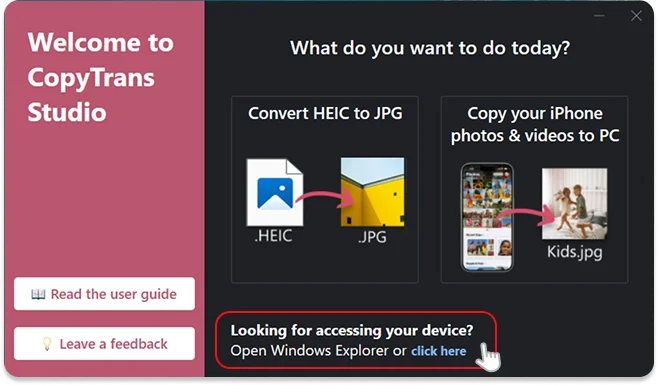
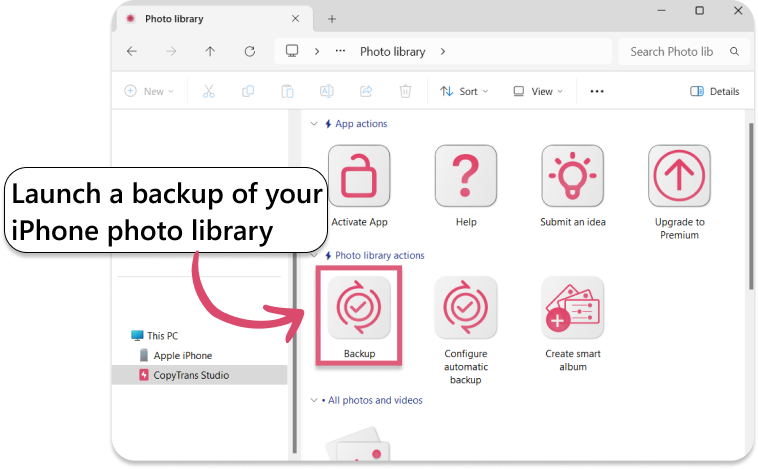
Give each iPhone a clear name in Settings > General > About > Name, like “Anna’s iPhone”. Then you’ll always know which device is which in CopyTrans Studio.
Kids’ iPhones and older relatives
- Kids with Screen Time: backups work the same way. The iPhone just needs to be unlocked for the first connection and the Trust prompt.
- Grandparents visiting: connect their iPhone once with a cable, back up to their own folder, and you’ve got their photos safe too. You can even copy photos from your PC to their iPhone, like the latest pictures of the grandkids.
- Shared photos: if your family uses the iCloud Shared Photo Library, the same photos may appear on several iPhones. They’ll be backed up into each person’s folder. That’s fine for safety, and you can remove duplicates later.
Back up family iPhones to one PC
FAQ
Can I back up multiple iPhones to one computer?
Yes. CopyTrans Studio handles up to 5 iPhones on the free plan and 10 with Premium, each with its own backup folder.
Do the iPhones need the same Apple Account?
No. Each iPhone can use its own Apple Account. They only need to trust the PC once.
Will photos from different iPhones get mixed up?
Not if each iPhone has its own folder. You can also rename photos by date during backup, so names never clash. See batch rename iPhone photos.
Can I back up iPads too?
Yes. iPads work the same way and count as devices.
Is this better than a family iCloud plan?
They do different things. iCloud syncs photos across devices and costs a monthly fee. A PC backup is a one-time setup that gives you an independent copy. Many families use both.
Backup multiple iPhone phoptos on one PC
Backing up the whole family’s iPhones to one PC is easy once it’s set up. Install CopyTrans Studio, give each person their own folder, connect each iPhone once, and turn on Wi-Fi connection and automatic backup. From then on, everyone’s photos land on the PC by themselves. Add a second copy on an external drive or NAS, and your family’s memories are safe.
Download CopyTrans Studio