 CopyTrans Studio

Short answer: Windows shows “Error 0x80070141: The device is unreachable” when your iPhone can’t send photos to the PC fast enough. Usually that’s because the iPhone is converting HEIC photos to JPG while you copy. The quickest fix: on your iPhone, go to Settings > Apps > Photos, scroll to the bottom and choose Keep Originals. Then copy smaller batches and keep the iPhone unlocked. If it still fails, the seven other fixes below cover the remaining causes.
You plug in your iPhone, open the DCIM folder, select a few hundred holiday photos, hit copy… and halfway through Windows gives up. Sound familiar?
How we tested
We reproduced the error by copying 3000 photos and videos from an iPhone 17 Pro on iOS 27 to a Windows 11 PC through File Explorer. We then tried each fix one at a time and noted which ones made the error go away.
- Why does Windows say the device is unreachable?
- Fix 1: Set “Transfer to Mac or PC” to Keep Originals
- Fix 2: Copy smaller batches
- Fix 3: Keep your iPhone unlocked during the transfer
- Fix 4: Make sure the original photos are on your iPhone
- Fix 5: Use a different cable and USB port
- Fix 6: Update the Apple driver on your PC
- Fix 7: Reset the trust between your iPhone and PC
- Fix 8: Skip File Explorer copying with CopyTrans Studio
- The device is unreachable: FAQ
Why does Windows say the device is unreachable?
When you open your iPhone in File Explorer, Windows doesn’t see a normal drive. It asks the iPhone for one file at a time, and the iPhone has to hand each one over quickly. If the iPhone takes too long to answer, Windows assumes the connection is gone and stops the copy with error 0x80070141.
For photos, these are the usual reasons the iPhone is too slow:
- HEIC to JPG conversion on the fly. With the default Automatic setting, your iPhone converts every HEIC photo and HEVC video into a more compatible format while it’s being copied. That’s a lot of work, especially for Live Photos, 48 MP shots and 4K videos.
- Too many files at once. Copying thousands of photos in one go gives the conversion more chances to fall behind.
- The iPhone locks. When the screen locks mid-transfer, the iPhone stops sharing photos with the PC.
- Photos that aren’t really on the iPhone. With Optimize iPhone Storage on, many originals are stored in iCloud. Your iPhone would need to download them first, and Windows doesn’t wait.
- Cable, port or driver problems. A worn cable, a USB hub or an outdated Apple driver can interrupt the connection.
Curious how the iPhone’s photo folders work? Our DCIM folder guide explains what you’re looking at when you open your iPhone in Windows.
Fix 1: Set “Transfer to Mac or PC” to Keep Originals
This one fixes the error for most people, so start here.
On your iPhone, open Settings > Apps > Photos.
Ceoll down to Transfer to Mac or PC. Choose Keep Originals.
Now copy your photos again.
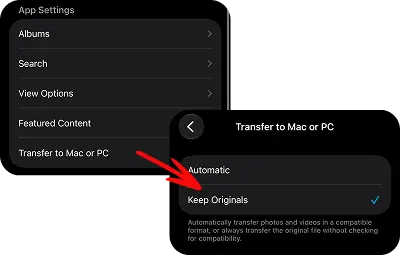
Now the iPhone sends your photos exactly as they are, with no conversion, so the copy runs much faster.
The catch: your photos arrive as HEIC files and your videos as HEVC, which Windows can’t always open. You have two easy ways around that:
- Convert them on the PC afterwards. Our guide on converting HEIC to JPG shows how, including a right-click option in Windows Explorer.
- Or let CopyTrans Studio convert HEIC to JPG on the PC while it copies (see Fix 8).
Fix 2: Copy smaller batches
Instead of selecting everything in DCIM, copy one folder at a time (for example 202610__), or a few hundred photos per batch. It’s a bit more clicking, but each batch has a much better chance of finishing.
Large videos are the most likely to fail. If you have a lot of them, copy the videos separately from the photos. Our guide on transferring videos from iPhone to PC has more tips.
Fix 3: Keep your iPhone unlocked during the transfer
When the iPhone locks, it stops sharing photos with the PC, and Windows reports it as unreachable. To stop that from happening:
Go to Settings > Display & Brightness > Auto-Lock.
Choose Never while you copy.
Set it back to your usual time when you’re done, so your battery doesn’t suffer.
Fix 4: Make sure the original photos are on your iPhone
If you use iCloud Photos with Optimize iPhone Storage, many of your full-size photos live only in iCloud. Your iPhone keeps a small preview, and Windows can’t wait while it downloads the original.
Check in Settings > [your name] > iCloud > Photos. If you have enough free space, switch to Download and Keep Originals and give your iPhone time (on Wi-Fi and charging) to download everything before you copy. Not enough space? Copy in smaller batches, or read why iPhone photos go missing on the PC.
Fix 5: Use a different cable and USB port
- Use an original Apple cable or an MFi-certified one. Many cheap cables charge fine but drop data.
- Plug straight into the PC. Skip USB hubs, docking stations and front-panel ports.
- Try a different port. Some users have better luck with a USB 2.0 port than USB 3.0.
Fix 6: Update the Apple driver on your PC
An outdated or broken Apple Mobile Device driver can make the connection unstable.
Right-click the Start button and open Device Manager.
Expand Portable Devices, right-click Apple iPhone, and choose Update driver > Search automatically for drivers.
Restart the PC and try again.
If the driver is missing or won’t update, follow our guide to installing missing iPhone drivers. You don’t need iTunes for it.

Fix 7: Reset the trust between your iPhone and PC
Sometimes the pairing itself is the problem. Resetting it makes your iPhone ask “Trust This Computer?” again.
On your iPhone, go to Settings > General > Transfer or Reset iPhone > Reset.
Tap Reset Location & Privacy. This doesn’t delete any photos.
Plug the iPhone back in, unlock it, and tap Trust.
Need more help with the trust prompt? See how to unlock your iPhone and trust your computer.
Fix 8: Skip File Explorer copying with CopyTrans Studio
If you copy photos often, you probably don’t want to remember settings, batch sizes and Auto-Lock every time.So, use CopyTrans Studio and forget about any problems with iPhone photos.
- Your iPhone shows up in Windows Explorer with your photos sorted into folders, so you still drag and drop the way you’re used to.
- HEIC to JPG on transfer gives you JPG files without asking the iPhone to convert anything.
- Back up in Photo Library copies the whole library, and later backups only add new photos.
- No cable at hand? It also works over Wi-Fi.
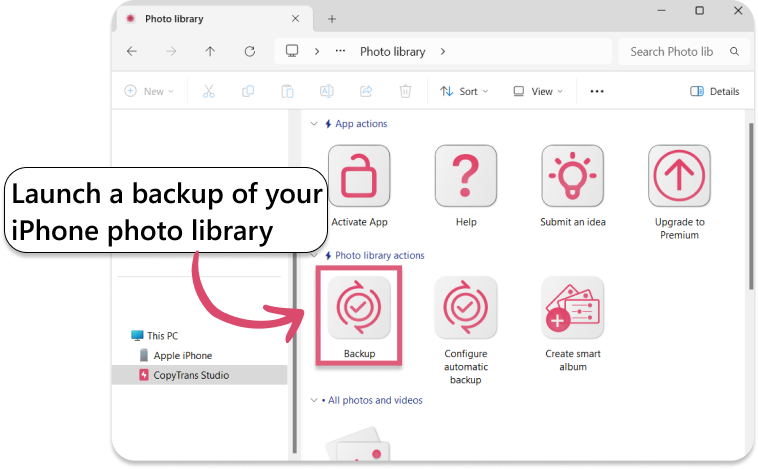
The free version copies 50 files a day and runs 3 backups a day. Premium removes the limits.
Download CopyTrans StudioThe device is unreachable
FAQ
What does error 0x80070141 mean?
It’s Windows’ code for “the device is unreachable”. Windows asked the iPhone for a file and didn’t get an answer in time, so it stopped the copy. It doesn’t mean your photos or your iPhone are damaged.
Will I lose photos if the copy stops halfway?
No. Your photos stay on the iPhone. You might end up with some photos on the PC and some missing, so check the folder and copy the rest again. If you get a “file already exists” message, choose to skip those files.
Why does it only happen with some photos?
Files that take longest to convert are the most likely to fail: Live Photos, large 48 MP images, long 4K videos, and photos whose originals are still in iCloud.
Is it safe to switch to Keep Originals?
Yes. It only changes the format your photos have when they’re copied to a computer. Nothing on your iPhone changes. You’ll just need a way to open HEIC files on Windows, or convert them to JPG.
Does the Windows Photos app avoid this error?
Not always. The Photos app’s import uses the same connection, so it can fail with similar errors or stop with “Something went wrong”.
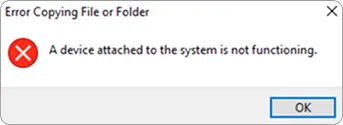
I’m getting “A device attached to the system is not functioning” instead. Is that the same thing?
It’s a close cousin with the same causes, and the same fixes usually work.
To sum up
“The device is unreachable” almost always means your iPhone couldn’t keep up while sending photos to Windows. Switch Transfer to Mac or PC to Keep Originals, copy in smaller batches and keep the iPhone unlocked, and the error usually disappears. If you’d rather not deal with it again, CopyTrans Studio copies your photos to Windows Explorer and converts HEIC to JPG for you.
Download CopyTrans Studio