 CopyTrans Studio

Slowing down a video on an iPhone takes about two minutes, and in most cases, you don’t need to download anything to do it.
Most people think that slow motion playback needs to be planned in advance. Either you shoot in Slo-Mo mode, or you miss the moment you want. That’s not entirely true. The Photos app has a built-in speed editor that works with any video already in your camera roll: regular videos, screen recordings, clips saved from other apps, everything.
In most cases, the built-in tool is enough to get the desired result without using third-party apps. However, the Photos app has its limitations. If you want to slow down one specific part of a clip while keeping the rest at normal speed, you’ll need a little more control than it offers.
This guide walks you through both approaches step by step. By the end, you’ll know exactly how to slow down a video on your iPhone.
- How to slow down a video?
- Slow down video with iMovie
- Tips for improving the quality of slow-motion videos on iPhones
- Save edited videos on PC with CopyTrans Studio
- How to slow down video on iPhone: FAQ
How to slow down a video
You don’t need to install a third-party app to do this. The Photos app has a built-in speed slider that works with any video in your camera roll, including regular videos shot at normal speed. Most iPhone users never find it because it’s not immediately obvious in the editor, but once you know where it is, it only takes about a minute to use.
Open the Photos app on your iPhone. Find and select the video you want to edit.
Tap Edit and then in the top right corner, click on the speedometer icon.
You will have the opportunity to select the part of the video that you want to slow down.
Preview the result and tap Done to save your changes.
Slow down video
With iMovie
To slow down a video on your iPhone, you can use iMovie, it is the easiest option. It’s free, made by Apple, and already available in the App Store if you don’t have it on your iPhone.
Open iMovie and tap “Create Project”. Select “Movie”.
Tap the video you want to slow down, then tap “Create Movie” at the bottom.
On the timeline at the bottom of the screen, tap the video clip to select it.
Tap the “Speed” icon — it looks like a speedometer — in the toolbar below the timeline.
Drag the speed slider to the left to slow down the speed. Tap “Done,” then tap the “Share” icon to export and save the video to your Camera Roll.
Tips for improving the quality of slow-motion videos on iPhone
Slow-motion playback reveals details that are not visible at normal speed, but it also highlights problems. Shaky footage, poor lighting, and low frame rates become more noticeable when you slow down a video. A few adjustments before you start recording will save you from having to fix the video in an editor.
Record at a higher frame rate: video at 60 frames per second provides noticeably smoother slow motion playback than standard 30 frames per second video because it has more frames. Change the settings in Settings → Camera → Video Recording. If you’re using slow-motion mode, your iPhone can shoot at up to 240 frames per second, the higher the frame rate, the smoother the result.
Shoot in good lighting: slow motion stretches out any available light. When slowed down, dim footage becomes even darker and grainier. Natural daylight or a well-lit room is more important than many people realise.
Hold the camera steady: small vibrations that look normal at normal speed become noticeable in slow motion. Hold your iPhone with both hands or use a small tripod for anything that needs to look neat.
Don’t slow down standard videos too much: normal clips at 30 frames per second start to look choppy at speeds below 0.5× — there aren’t enough frames for smooth playback. If you know you’ll need extreme slow motion, shoot in Slo-Mo mode from the start.
Lock your focus: tap your subject on screen before recording to lock focus. Any mid-clip focus shift becomes more noticeable in slow motion, so it’s worth taking two seconds to set it before you start.
Pick the right moments: slow motion works best on action: a jump, a splash, a fast movement. If there’s nothing dynamic happening in the clip, slowing it down rarely improves it.
Save edited videos on PC
With CopyTrans Stuio
- If you haven’t done already, please download and install CopyTrans Studio. Download CopyTrans Studio
- Click on the CopyTrans Studio icon. Open the program.
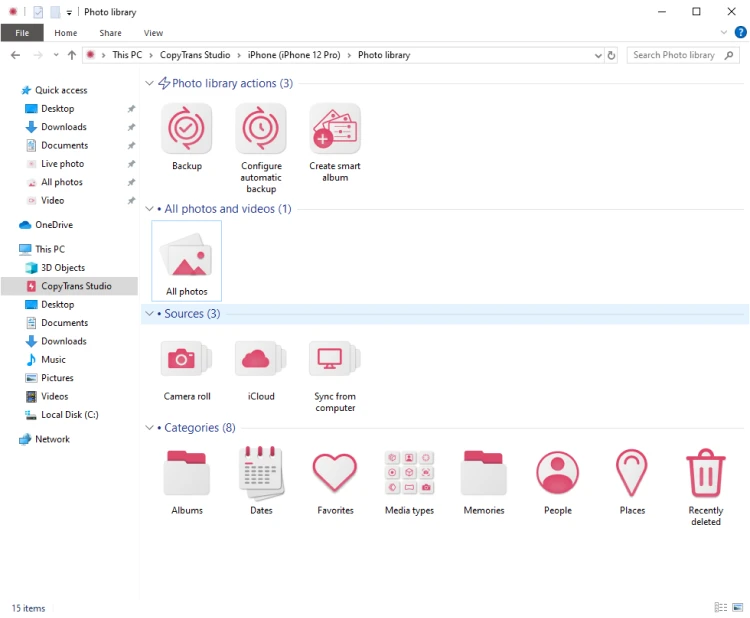
- Connect your device to your PC. Double click on to open it. Now, you see the main window and all the options it offers.
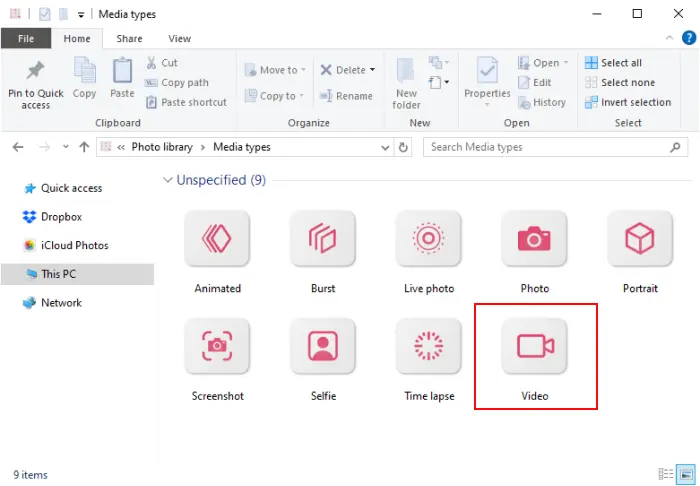
- Select the Media Types option and then choose the video folder.
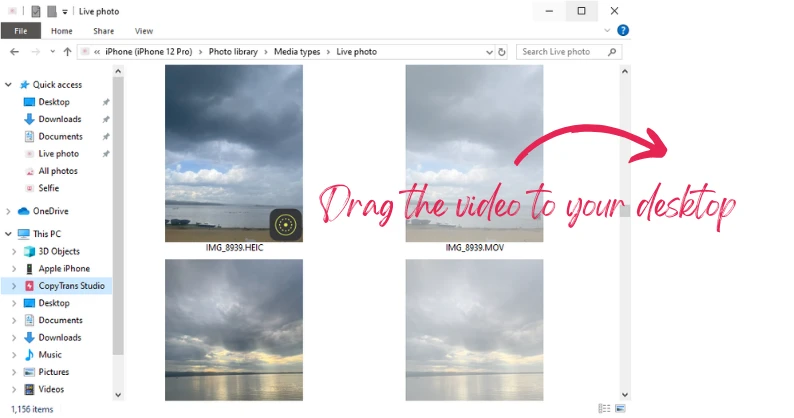
- In the folder, you can drag and drop the videos you need to your PC.

If you would like to do a full backup, find our detailed guide on how to back up your Photo Library.
You can also edit videos on your iPhone and then save them to your PC.
How to slow down video on iPhone
FAQ
1. Is it possible to slow down only part of a video, rather than the entire clip?
Yes. Some editing tools allow you to apply slow motion to only a specific section of a video. In the Photos app, this works automatically with videos in slow motion mode, where you can adjust the slow motion area using the timeline strips. In video editing apps, you can manually select which part of the clip should be played back more slowly.
2. Will the video length increase when slowed down?
Yes. When you reduce the playback speed, the video becomes longer because each frame stays on the screen longer. For example, slowing down a 10-second clip to 0.5× speed will result in a final video length of about 20 seconds.
3. Why does my video look choppy after slowing it down?
This usually happens when the original video was recorded at a low frame rate, such as 24 or 30 FPS. When slowed down too much, there aren’t enough frames to keep the motion smooth.
4. Can I slow down a video that someone sent me?
Yes. First, save the video to your Photos library, then open it in the Photos app or a video editor and adjust the speed the same way you would for your own recordings.
5. Does slowing down a video reduce its quality?
Not directly. However, slowing down a video shot at a low frame rate can make the motion less smooth. Videos shot at 60 frames per second or higher usually retain better visual quality when slowed down.
6. Is slow motion the same as slowing down a video?
Not exactly. Slow motion (Slo-Mo) is a recording mode in which the camera captures additional frames to create very smooth slow motion playback. Slowing down regular video simply reduces the playback speed of existing frames, which may not look as smooth.
How to slow a video down on iPhone
Final Thoughts
Slowing down a video on your iPhone is very easy if you know which tool is right for your situation. For most changes, all you need is the Photos app. It’s already installed on your iPhone, works with any video in your camera roll, and in less than two minutes, you’ll have a result worth sharing. If you’re working with a single clip and just want to slow it down, start here.
If you need more precise control, such as slowing down one specific section while keeping the rest of the video at normal speed, a third-party app will give you the precision that the built-in editor lacks. The extra steps are minimal, and the difference in the result is noticeable.
In any case, you don’t need to shoot in slow motion to get clean slow-motion footage. The tools are already available, you just need to know where to find them. Open Photos, select a clip, and give it a try.