 CopyTrans Studio

Short answer: the Windows Photos app usually fails to import from an iPhone for one of three reasons. The iPhone isn’t unlocked and trusted, it’s busy converting HEIC photos while sending them, or the photos aren’t actually stored on the iPhone because they’re in iCloud. Unlock your iPhone and tap Trust, set Settings > Apps > Photos > Transfer to Mac or PC to Keep Originals, and try again. If the import still stops, fixes for the app itself, the driver and the remaining causes are below.
The Photos app should make this easy: plug in, click Import, done. In practice, it often sits on “Preparing…”, finds no photos at all, or stops with “Something went wrong.”
- Which problem do you have?
- Fix 1: Unlock your iPhone and tap Trust
- Fix 2: Set “Transfer to Mac or PC” to Keep Originals
- Fix 3: Make sure your photos are actually on the iPhone
- Fix 4: Import fewer photos at a time
- Fix 5: Repair or reset the Photos app
- Fix 6: Check the Apple driver
- Fix 7: Try another cable and USB port
- Fix 8: Photos imported, but they won’t open
- Fix 9: Import with CopyTrans Studio instead
- Windows Photos app not importing from iPhone: FAQ
Which problem do you have?
Find what you’re seeing, then jump to the fix that matches.
| What you see | Most likely cause | Start with |
|---|---|---|
| iPhone doesn’t appear under Import | iPhone locked, not trusted, or driver problem | Fix 1, then Fix 6 |
| “No photos found” or only a few photos show up | Photos are in iCloud, or the iPhone is still indexing | Fix 3 |
| Stuck on “Preparing” or “Looking for items” | Large library, iPhone locked during the scan | Fix 1, then Fix 4 |
| “Something went wrong. Your files might not be saved.” | HEIC conversion too slow, or too many files at once | Fix 2, then Fix 4 |
| Import stops halfway | Same as above, or the cable | Fix 2, then Fix 7 |
| Photos imported but won’t open | HEIC files without the right extension | Fix 8 |
| Photos app says there’s nothing new to import | It remembers earlier imports | Fix 5 |
Fix 1: Unlock your iPhone and tap Trust
The Photos app can only see your photos while the iPhone is unlocked and trusts the computer.
Plug in your iPhone and unlock it with your passcode or Face ID.
If your iPhone asks “Trust This Computer?”, tap Trust and enter your passcode.
Keep the screen on until the import has finished. To be safe, set Settings > Display & Brightness > Auto-Lock to Never for now.
In the Photos app, click Import and choose your iPhone.

No “Trust” prompt? Or you tapped “Don’t Trust” by accident? Our guide on trusting your computer shows how to get the prompt back.
Fix 2: Set “Transfer to Mac or PC” to Keep Originals
By default, your iPhone converts HEIC photos and HEVC videos to JPG and H.264 while the Photos app imports them. With a big library, that conversion can’t keep up, and the import fails with “Something went wrong.”
Open Settings > Apps > Photos on your iPhone.
Scroll down to Transfer to Mac or PC and choose Keep Originals.
Unplug, plug back in, and start the import again.
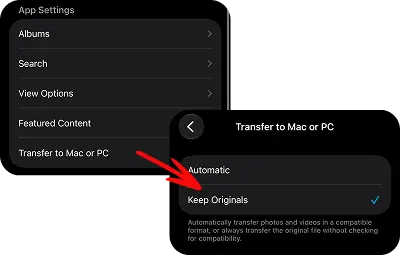
Your photos now arrive as HEIC files. If they don’t open on your PC, see Fix 8. This is the same setting that fixes “The device is unreachable” when copying in File Explorer.
Fix 3: Make sure your photos are actually on the iPhone
The Photos app can only import what’s stored on the iPhone itself. Two things can hide photos from it:
- iCloud Photos with Optimize iPhone Storage. Your iPhone keeps small previews and leaves the full-size originals in iCloud. The Photos app on Windows either skips those photos or fails on them. Go to Settings > [your name] > iCloud > Photos and, if you have enough space, choose Download and Keep Originals. Leave your iPhone on Wi-Fi and charging until the download finishes. More on this in iPhone photos missing on PC.
- Indexing after an update or restore. Right after an iOS update or a restore, your iPhone may still be sorting its photo library, and it shows fewer photos to the PC until it’s done. Leave it plugged in and unlocked for a while. Our article on iPhone indexing its photo library explains more.
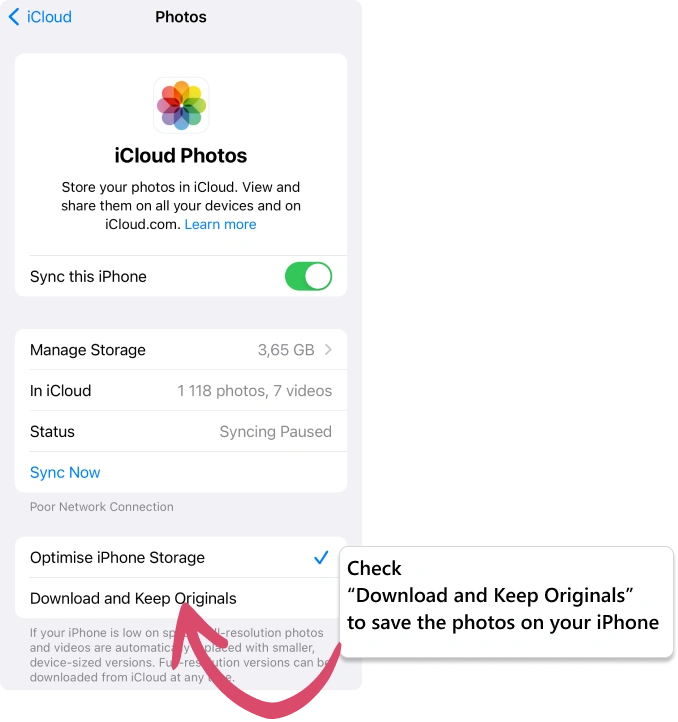
Photos from Shared Albums aren’t part of your camera roll either, so the Photos app won’t import them.
Fix 4: Import fewer photos at a time
When you click Import, the Photos app first scans every photo and video on the iPhone. With 20,000 photos, that scan alone can take ages, and it’s where many imports get stuck.
- Use the date filters or Select since last import to pick a smaller set.
- Import photos and long videos separately. Videos are the most likely to fail.
- If the scan never finishes, close the Photos app, unplug, reconnect and try again with a smaller selection.
Fix 5: Repair or reset the Photos app
If the app itself is acting up, Windows can repair it.
Open Settings > Apps > Installed apps.
Find Microsoft Photos, click the three dots, and choose Advanced options.
Click Repair first. If that doesn’t help, click Reset.
Good to know: Reset clears the app’s settings and its memory of what you’ve imported before. Your photos on the PC stay where they are. A reset also helps when the app claims there’s nothing new to import even though there is.
Also check the Microsoft Store > Library for a Photos app update.
Fix 6: Check the Apple driver
If your iPhone doesn’t show up in the Photos app, and also isn’t listed under This PC in File Explorer, Windows probably can’t talk to it.
Right-click Start and open Device Manager.
Look under Portable Devices for Apple iPhone. A yellow warning sign means the driver has a problem.
Right-click it and choose Update driver > Search automatically for drivers, then restart the PC.
Still nothing? Install the drivers without iTunes using our guide on missing iPhone drivers, or go through PC not recognizing iPhone step by step.
Fix 7: Try another cable and USB port
- Use an original or MFi-certified cable. Many cheap cables only charge.
- Plug directly into the PC, not into a hub, dock or keyboard.
- Try a different port, ideally one on the back of a desktop PC.
Fix 8: Photos imported, but they won’t open
If the import worked but your photos show a blank thumbnail or an error, they’re probably HEIC files. Windows needs the HEIF Image Extensions to open them, and the HEVC Video Extensions for iPhone videos. Our guide on HEIF image extensions explains what to install. You can also convert HEIC to JPG so your photos open everywhere.
Fix 9: Import with CopyTrans Studio instead
If the Photos app keeps letting you down, CopyTrans Studio is a different way to get your photos onto the PC.
- Your iPhone appears in Windows Explorer with your photos in folders, so there’s no long scan before you can start.
- Drag and drop just the photos you want, or click Back up in Photo Library for everything. Later backups only add new photos.
- HEIC to JPG on transfer means your photos open anywhere, with no extensions to install.
- It works with a cable or over Wi-Fi.
The free version copies 50 files and runs 3 backups a day. Premium removes the limits.
Download CopyTrans StudioWindows Photos app not importing from iPhone
FAQ
Why does the Photos app say “Something went wrong” when importing from my iPhone?
Usually because the iPhone couldn’t send the photos fast enough, often while converting HEIC to JPG. Set Transfer to Mac or PC to Keep Originals and import fewer photos at a time.
Why does the Photos app only find some of my iPhone photos?
The missing photos are most likely stored only in iCloud (Optimize iPhone Storage is on), or your iPhone is still indexing its library after an update.
Does the Photos app delete photos from my iPhone?
Only if you tick the option to delete items after import. Leave it off until you’ve checked that everything arrived on the PC.
Can I import iPhone photos without the Photos app?
Yes. You can copy them from the DCIM folder in File Explorer, use CopyTrans Studio, or transfer them over Wi-Fi. See our wireless transfer guide.
Does this work the same on Windows 10?
Mostly, yes. The Windows 10 Photos app looks a little different, but the causes and fixes are the same.
To sum up
When the Windows Photos app won’t import from your iPhone, the fix is usually on the iPhone. Keep it unlocked and trusted, switch to Keep Originals, and make sure the original photos are stored on it rather than in iCloud. Importing in smaller batches and repairing the Photos app solve most of what’s left. And if you’d rather skip the Photos app altogether, CopyTrans Studio puts your iPhone photos straight into Windows Explorer.
Download CopyTrans Studio