 CopyTrans Studio

Short answer: the iOS 27 update needs about 20 GB of free space on your iPhone. If you don’t have it, photos and videos are usually the biggest thing you can move. Copy them to your Windows PC first, check they’ve arrived, then remove them from the iPhone and empty Recently Deleted. You keep every photo and get gigabytes back in minutes. There are a few more quick wins below, plus a way to update with less free space by using your computer.
You tap Update Now, and your iPhone tells you there isn’t enough storage. Annoying, but very common, especially on 64 and 128 GB iPhones full of photos.
- How much space does iOS 27 need?
- Before you start: one important warning about iCloud
- Step 1: Copy your photos and videos to your PC
- Step 2: Check that everything arrived
- Step 3: Remove the photos from your iPhone
- Step 4: Empty Recently Deleted
- More quick ways to free up space
- After the update: keep space free
- Free up iPhone storage for iOS 27: FAQ
How much space does iOS 27 need?
The download itself is about 5-7 GB, but your iPhone needs extra room to unpack and install it. Plan for roughly 20 GB of free space in total.
To see how much space you have:
Open Settings > General > iPhone Storage.
Wait a moment for the bar at the top to load. It shows what’s using your space.
On most iPhones, Photos is the biggest or second-biggest block. That’s good news, because photos are easy to move without losing them.
Before you start: one important warning about iCloud
If iCloud Photos is turned on, deleting a photo on your iPhone also deletes it from iCloud and from all your other devices. That’s why the order matters: copy first, check, then delete. If you want to remove photos from the iPhone but keep them in iCloud, read how to delete photos from iPhone but not iCloud first.
Not sure if iCloud Photos is on? Check Settings > [your name] > iCloud > Photos.
Step 1: Copy your photos and videos to your PC
This is the step that frees the most space. You can do it with CopyTrans Studio in a few minutes.
Install CopyTrans Studio and connect your iPhone with a cable (or over Wi-Fi once it’s set up).
Download CopyTrans Studio
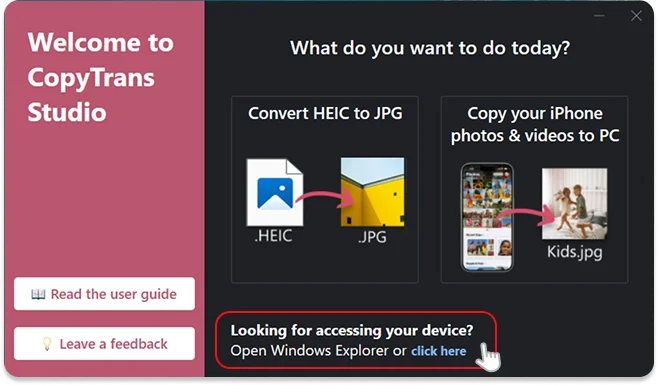
Now click on the CopyTrans Studio icon. Open the program.
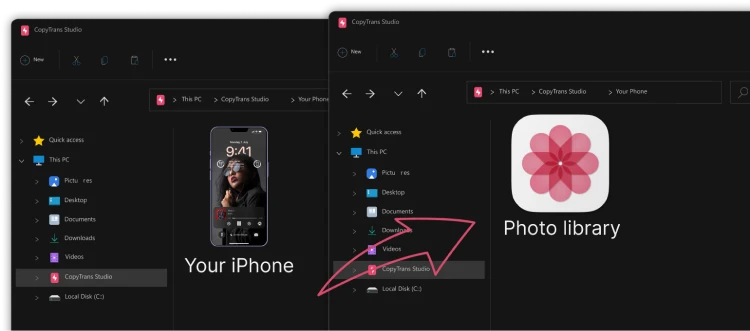
Here you see the icon of your iPhone. Choose it and then click on Photo Library.
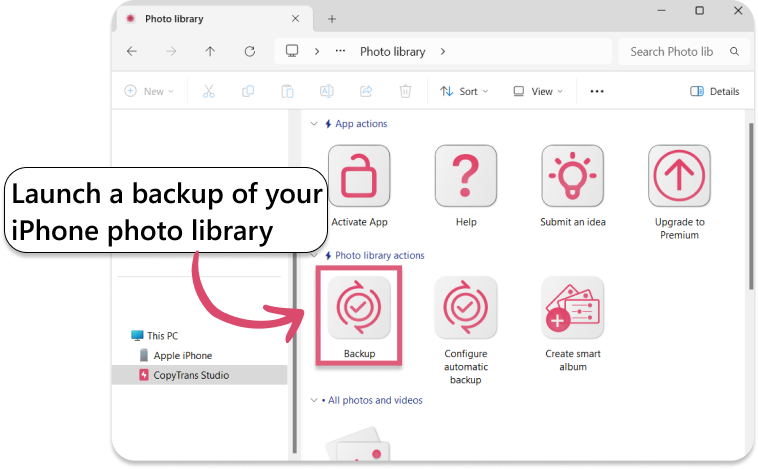
Open choose the option “Back up” and all photos will be saved on you PC.
Or you can drag-and-drop any of your albums to PC
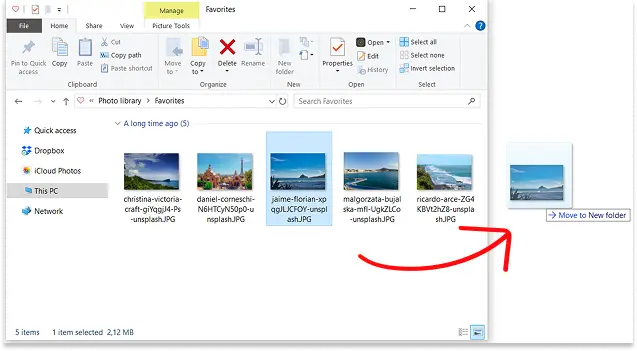
Only want to move the biggest files? Open your iPhone in Windows Explorer and drag over just the videos or older months. Videos take up the most space
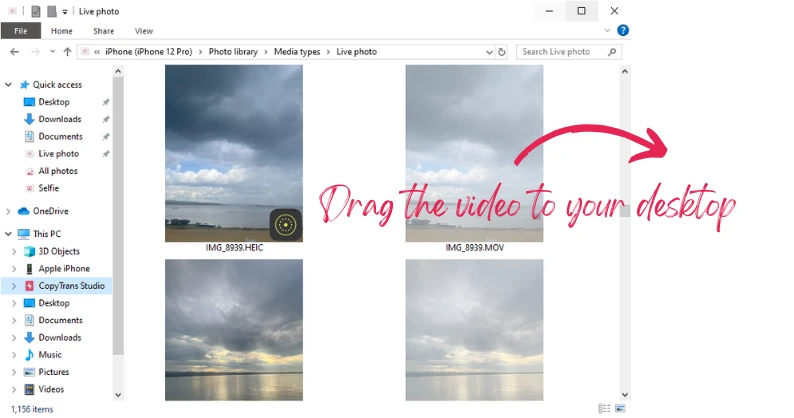
Low on space on your PC? Back up straight to an external drive. Here’s how to move photos to an external drive.
Free or Premium? The free version runs 3 backups a day and copies 50 files a day by drag and drop. For a large library, Premium removes the limits.
Step 2: Check that everything arrived
Don’t skip this one. Before you delete anything:
- Open the backup folder and compare the number of photos and videos with what your iPhone shows at the bottom of Library in the Photos app.
- Open a few photos and play a few videos, including older ones.
- Ideally, keep a second copy, for example on an external drive. One copy is not a backup.
Step 3: Remove the photos from your iPhone
Now you can safely delete what you’ve backed up. In the Photos app, you can select photos by swiping across them, or delete whole months at once. Our guide on deleting all photos from iPhone shows the quickest ways.
Want to keep recent photos on your phone? Delete everything older than, say, a year. You’ll still have your recent memories with you, and the rest is safe on your PC.
Step 4: Empty Recently Deleted
Deleted photos aren’t really gone yet. They stay in Recently Deleted for 30 days and still take up space.
In the Photos app, scroll down to Utilities > Recently Deleted and unlock it with Face ID or your passcode.
Tap Select > Delete All.
Only do this once you’ve checked your backup in Step 2. More on this in where deleted photos go on iPhone.
More quick ways to free up space
Still a bit short? These take only a few minutes and don’t touch your photos.
Merge duplicate photos
The Photos app finds duplicates for you under Utilities > Duplicates. Merging keeps the best version. See delete duplicate photos on iPhone.

Clean up bursts and screenshots
Burst mode can save dozens of nearly identical shots. Keep the best one and delete the rest (here’s how). Old screenshots have their own album under Media Types and are usually safe to clear.
Offload apps you don’t use
In Settings > General > iPhone Storage, tap an app you rarely use and choose Offload App. The app is removed, but your data stays, and you can reinstall it anytime.
Delete big message attachments
In iPhone Storage > Messages, open Review Large Attachments and remove old videos and photos people sent you. Save the ones you want to keep to your Photos first.
Remove downloaded music, films and podcasts
Downloads from Music, TV, Netflix or Spotify can take several gigabytes. You can download them again later.
Delete an old update file
If an earlier iOS update is still sitting in iPhone Storage, tap it and choose Delete Update.
After the update: keep space free
- Back up regularly so your iPhone never fills up again. Automatic backup in CopyTrans Studio copies new photos to your PC without you having to think about it.
- Keep High Efficiency on under Settings > Camera > Formats. HEIC photos and HEVC videos take about half the space of JPG and H.264. If you need JPG on your PC, CopyTrans Studio can convert HEIC to JPG while copying.
- Check your video settings. 4K at 60 fps looks great but fills up storage fast. For everyday clips, 1080p or 4K at 30 fps is plenty.
Curious what’s new in the Photos app after the update? Find all the info about iOS 27 Photos App.
Free up iPhone storage for iOS 27
FAQ
How much free space do I need for iOS 27?
About 20 GB in total, a bit more than the download itself because the iPhone needs room to install. Updating from a computer needs less.
Will updating to iOS 27 delete my photos?
No, a normal update keeps your photos, apps and settings. Still, back up your photos before any update, just in case something goes wrong.
Can I free up space without deleting any photos?
You can’t keep photos on the iPhone and get their space back at the same time. But you can move them to your PC so they’re not lost, or use iCloud with Optimize iPhone Storage if you pay for enough iCloud space. Either way, every photo stays safe.
Does Optimize iPhone Storage help?
Yes, if you use iCloud Photos and have enough iCloud space. Your iPhone keeps smaller versions and stores the originals in iCloud. It frees space gradually, though, not instantly, so it may not help right before an update.
Why is “System Data” so big?
System Data includes caches, logs and temporary files. It often shrinks by itself after a restart or after the update is installed. There’s no safe way to clear it by hand.
Free up space on iPhone
Conclusion
When your iPhone is too full for iOS 27, start with your photos and videos. Copy them to your PC, check the backup, delete them from the iPhone and empty Recently Deleted. That usually frees more than enough space. If you’re still short, offload apps, clear message attachments, or update from your computer instead. And set up regular backups so the next update isn’t a struggle.
Download CopyTrans Studio